UNC Coding and Relation to FA Reporting
This document is to provide the current Feeding America Coding Standards for all UNC tables (as well as links between FBC and UNC tables) and to describe how the information entered on certain documents affects Feeding America data requests in Ceres 5.
Ceres Object release 5.00.00 is required for the functionality described in this document.
Overview
This document provides the current Feeding America Coding Standards for all UNC tables (as well as links between FBC and UNC tables) and describes how the information entered on certain documents affects the following Feeding America data requests:
-
Receipts and Distribution report (QPR)
-
Distributed Pounds by County report (also part of the QPR)
-
Blue Receipt Export Report
Uniform Number Codes (UNC)
Uniform Number Codes play an important role in determining where received and distributed product displays on your Quarterly Receipts & Distribution Report (R&D), the Distributed Pounds by County report as well as other reports that may be filtered by UNC Codes. These data categorization codes are standardized across the entire food bank network, so that Feeding America can accurately report on network-wide activity.
Ceres provides the ability for Food Banks to customize these categorizations for internal food bank use by using Food Bank Codes (FBC). When using custom FBC Codes, they should be mapped to the appropriate UNC code. In the example below, there are multiple FBC Product Sources connected to the UNC Product Source Code “A2H NATL”

To maintain standardization across the network, UNC Codes should only be specified by Feeding America. The food bank should not change these codes unless Feeding America instructs them to. A message warning the user of that restriction should appear when the user tries to change the records.

If you have been authorized by Feeding America or your Ceres Provider to add, change or delete a value in an UNC table, then you may click Yes to the above message.
UNC Tables
The UNC Tables are located in different departments depending on the role they play.
The UNC tables associated with Donors are located in Departments ▸ Donation ▸ Administration
-
Donor IDs
-
Donor Class of Trades
-
UNC Donor ID
This is an import function to update the Donor IDs table

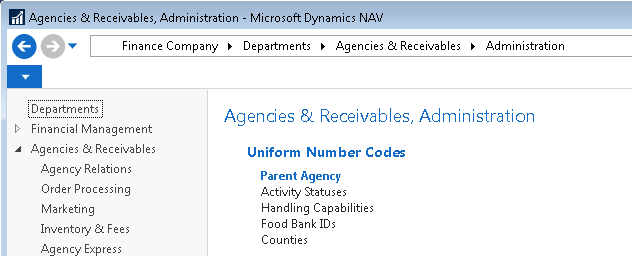
The UNC tables associated with Agencies & Receivables are located in Departments ▸ Agencies & Receivables ▸ Administration:
-
Activity Statuses
-
Handling Capabilities
-
Food Bank IDs
-
Counties
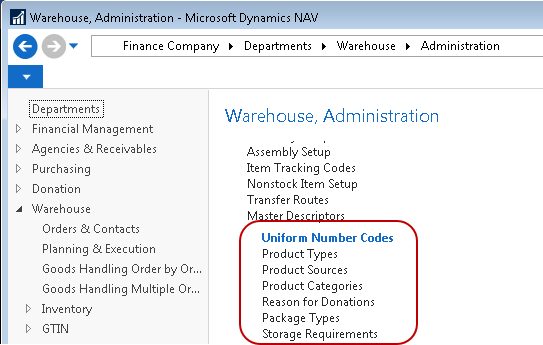
The UNC tables associated with Inventory are located in Departments ▸ Warehouse ▸ Administration:
-
Product Types
-
Product Sources
-
Product Categories
-
Reason for Donations
-
Package Types
-
Storage Requirements
Product Donations
UNC Donor IDs are provided by Feeding America and should be assigned to Donors.
-
If a UNC Donor ID is marked as “Blue Receipt” in the UNC Donor ID table, then when that Donor ID is selected in the UNC Donor ID No. field on the Donor Card, the “Blue Receipt” box will automatically be checked for that Donor.


-
If a Donor is marked as a “Blue Receipt” donor, that flag will be defaulted to any Donation Orders that are created for that Donor. If the Donation in progress is not a “Blue Receipt” donation, uncheck that flag on the Donation Order. Generally, donations from Feeding America managed donors are blue receipt donations, and the box should remain checked.
-
If a Donation is marked as “Blue Receipt” and the user selects “FBC Product Source” of A2H Local, then the UNC Notice No. field will automatically fill in with the Donation Order Number for reporting purposes. This information is used to determine whether a receipt is included when running the Blue Receipt Activity Report (and export). This will be discussed further in the Reports section of the document.
-
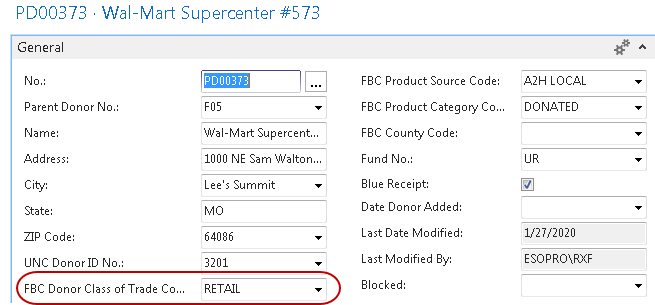
UNC Donor Class of Trades – Authorized Donor Class of Trades are as follows. A Food Bank may create as many FBC Donor Class of Trades as they would like, but they should always be linked to the authorized Feeding America codes:

-
FBC Donor Class of Trade Codes are assigned to the Donor Card and must be linked to the appropriate UNC Donor Class of Trades.
-
UNC Donor Class of Trade Codes are not used for QPR or Lbs. Distributed by County reporting, but may be important or required filtering for other reports.
-
There are additional UNC Codes that are important for Product Donations (as well as purchases) that are described in the Warehouse/Inventory section of this document.
Agencies & Receivables
-
UNC Activity Status Table – Authorized statuses are as follows:

-
ACTIVE
-
INACTIVEAG
-
INACTIVEFB
-
SUSPENDED
-
-
UNC Activity Statuses are assigned on the AGENCY Card ▸ General Tab.
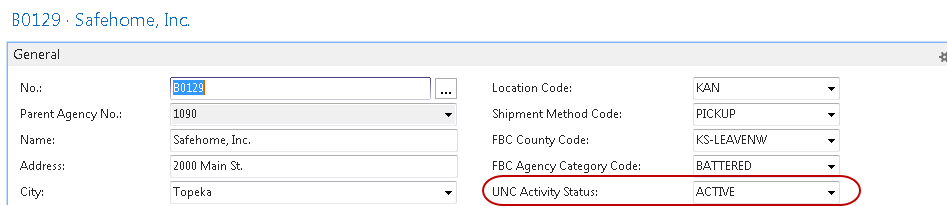
-
The UNC Activity Status is what determines whether you can create/post an agency order for the Agency to which it is assigned. If the Activity Status does not allow posting, the user will receive a message warning them of this when they try to post an order.
 note
noteThe user will not get a warning when creating the order.
-
Activity Status also affects Web Ordering. It is important that the Agency Activity Status not be changed to one that does not allow posting if the Agency has web orders in progress. If changing the Activity Status to one that does not allow posting for an Agency that shops online, be sure to change the Permit Web Orders status to No (uncheck the box) on the agency.
-
UNC Handling Capability Codes – Feeding America has authorized the following UNC Handling Capability Codes:

-
UNC Handling Capabilities are assigned to an Agency by selecting Handling Capabilities on the Navigate ribbon of any Agency Card and selecting the codes that apply to the particular Agency:

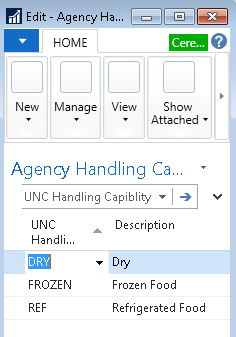
-
These codes are not required but may be used for information purposes.
-
UNC Agency Category Codes – Feeding America has authorized the following UNC Agency Category Codes. A Food Bank may create as many FBC Agency Category Codes as they would like, but they should always be linked to the authorized Feeding America codes:
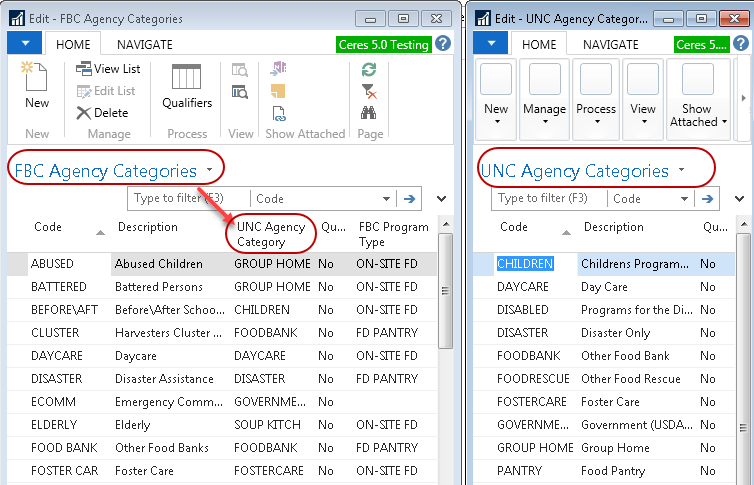
-
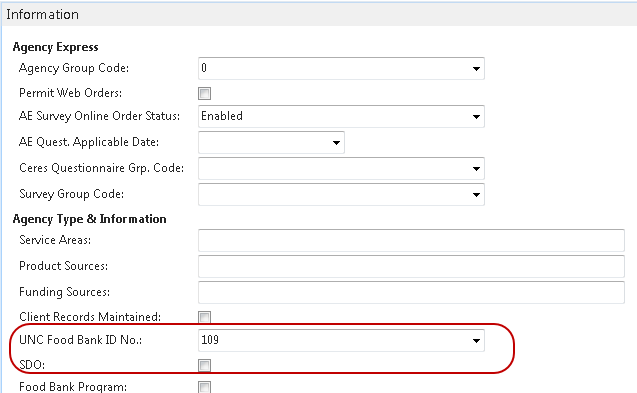
UNC Food Bank IDs – UNC Food Bank IDs are provided by Feeding America and should be assigned to the Agency Card if the Agency is part of the Food Bank Member Network. An updated list of UNC Food Bank IDs can be found in the “All Food Banks EPG” Excel worksheet on the Environmental Peer Groups page on Hungernet. This value is assigned on the Information FastTab of the Agency Card.
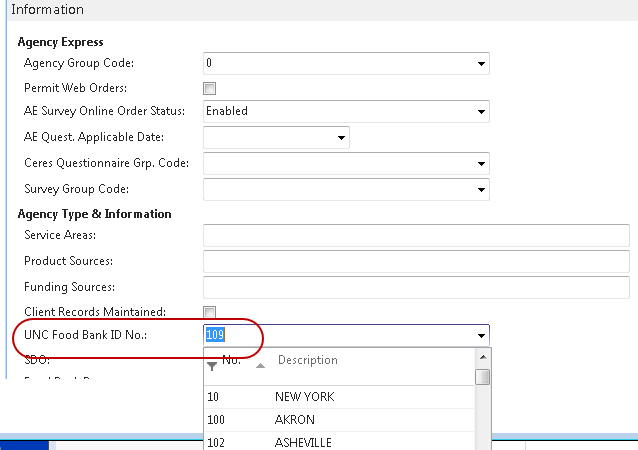
If a UNC Food Bank ID is assigned to the Agency, then the product distributed to this Agency (while that UNC Food Bank ID Code is assigned) will help determine whether the product will be included in Section 1d, 2d & 3d (Distributed to YOUR Cluster Members) or 1e, 2e & 3e (Distributed to other members) on Page 2 (Distributions) on the QPR. If product was distributed to an Agency that was incorrectly coded with (or without) a UNC Food Bank ID, then it may fall in the wrong rows on the QPR. Product distributed to agencies marked with a UNC Food Bank ID will NOT be included on the Distribution Pounds by County Report.
-
There are additional UNC Codes that are important for Agency Distributions that are described in the Warehouse/Inventory section of this document.
Warehouse/Inventory
All UNC Codes related to Warehouse/Inventory have a corresponding FBC Code. The Food Bank may have as many FBC Codes as they would like, but they must always be linked to Feeding America authorized UNC Codes:
-
UNC Product Types
-
UNC Product Sources
-
UNC Product Categories
-
UNC Reason for Donations
-
UNC Package Types
-
UNC Storage Requirements
-
UNC Product Types – UNC Product Type Codes are provided by Feeding America and should be linked to FBC Product Types and assigned to Item Cards. There are 31 authorized UNC Product Types. It is recommended to only create 31 corresponding FBC Product Types; however, you may add more FBC Product Types (if needed), as long as they are only linked to the 31 authorized UNC Product Types.
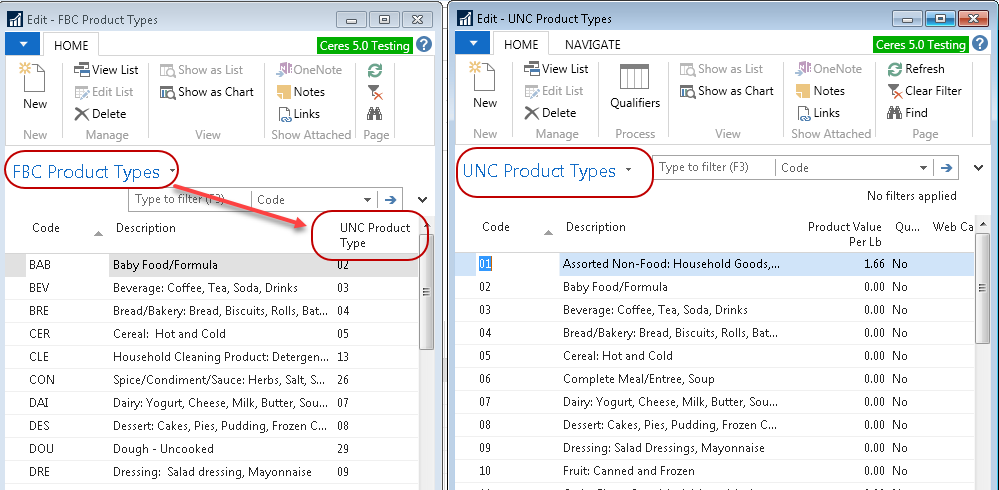
-
UNC Product Types are stored on the Item Card and are required BEFORE receiving product into inventory. They are tied to the FBC Product Type Code due to the linkage in the FBC Product Type table.
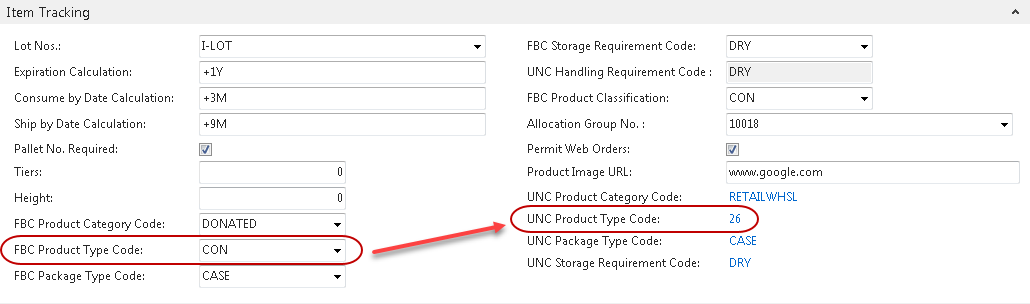
-
UNC Product Types determine what row the pounds received during the specified time frame on Page 3 of the QPR will be displayed. If an invalid UNC Product Type is used, then the product will NOT be included on Page 3. If the wrong UNC Product Type is used, the product will be sorted in the wrong place on Page 3.
-
UNC Product Sources – UNC Product Sources are provided by Feeding America and should be linked to FBC Product Sources and assigned to Donation and Purchase Orders. There are 12 authorized UNC Product Sources. It is recommended to create only 12 corresponding FBC Product Sources; however, you may add more FBC Product Sources (if needed), as long as they are only linked to the 12 authorized UNC Product Types:
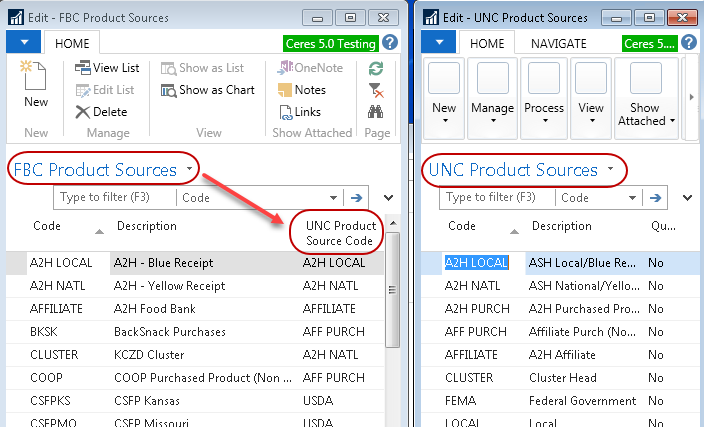
-
FBC Product Sources are selected during Donation and Purchase Order Entry (and the associated UNC Product Source is visible on the Order Header).
-
UNC Product Sources determine what column the pounds received during the specified time frame will be displayed on Page 1 (Receipts) and Page 2 (Distributions) of the QPR. If invalid UNC Product Sources are used on a receipt and subsequent distribution, the pounds will not be included on the report; or if an incorrect UNC Product Source is used, the pounds may display in the wrong column.
-
UNC Product Sources help determine what column (Donated or Purchased) pounds distributed during the specified time will be displayed on the Distribution Pounds by County report (aka Pounds Distributed by County). If invalid UNC Product Sources are used on a distribution, the pounds will not be included in the report. If an incorrect UNC Product Source is used, the pounds may display in the wrong column.
-
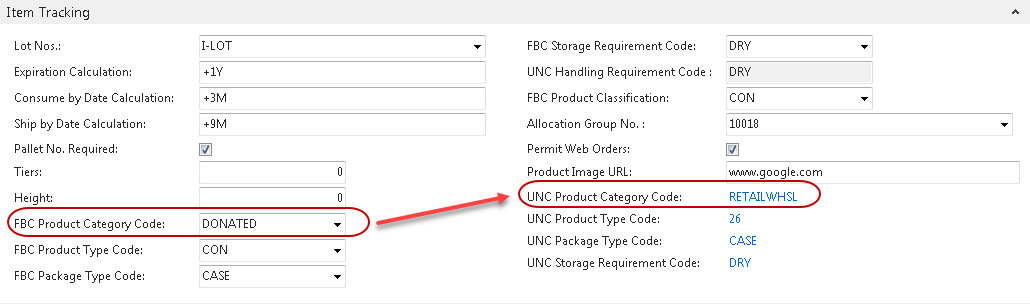
UNC Product Categories – UNC Product Category Codes are provided by Feeding America and should be linked to FBC Product Categories and assigned to Item Cards. There are 12 authorized UNC Product Categories. It is recommended to create only 12 corresponding FBC Product Categories; however, you may add more FBC Product Categories (if needed), as long as they are only linked to the 12 authorized UNC Product Categories:
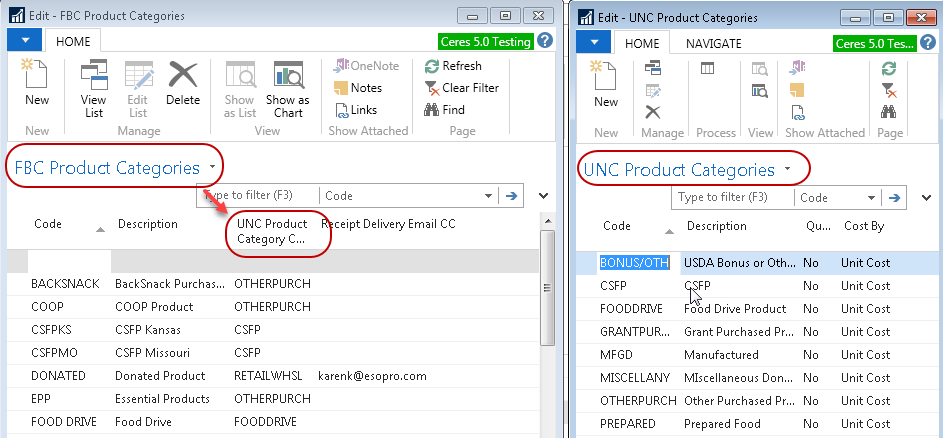
-
FBC Product Categories are stored on the Item Card and are required BEFORE receiving product into inventory. They are tied to the FBC Product Category Code due to the linkage in the FBC Product Category table.
-
UNC Product Categories determine what row pounds received and pounds distributed will be displayed on Page 1 & 2 respectively of the QPR. If invalid UNC Product Categories are used on a receipt and subsequent distribution, the pounds will not be included in the report. If an incorrect UNC Product Category is used, the pounds may display in the wrong row.
-
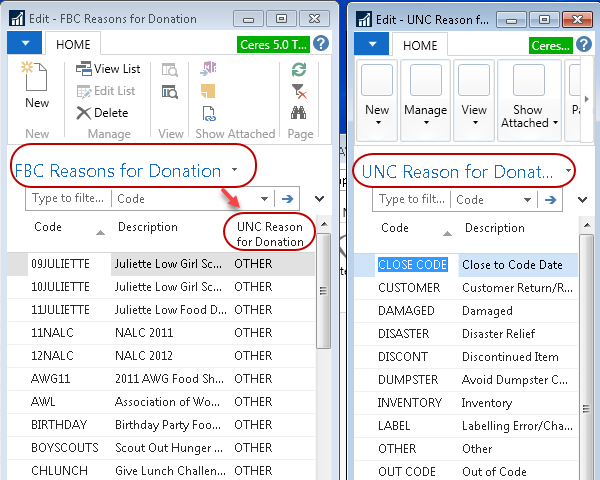
UNC Reasons for Donations – UNC Reason for Donations Codes are provided by Feeding America and should be linked to the corresponding FBC Reason for Donations. There are 19 authorized UNC Reason for Donations Codes. It is recommended to create only 19 corresponding FBC Reason for Donations; however, you may add more FBC Reason for Donations (if needed), as long as they are only linked to the 19 authorized UNC Reason for Donations.
-
FBC Reasons for Donations are assigned on the Donation Order header and are linked to UNC Reason for Donations via the FBC Reason for Donations table.

-
UNC Reason for Donations Codes are not used in filtering for either the QPR or the Distribution Pounds by County report but may be required or helpful for other reports.
-
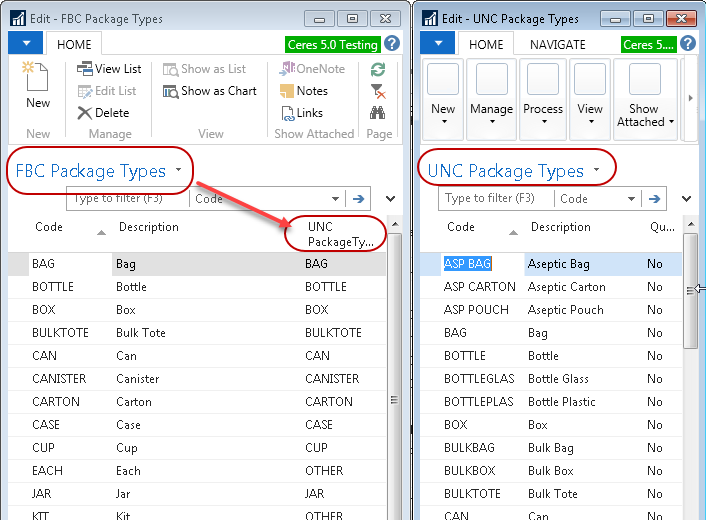
UNC Package Types – UNC Package Type Codes are provided by Feeding America and should be linked to corresponding FBC Package Type Codes. There are 40 authorized UNC Package Types. It is recommended to create only 40 corresponding FBC Package Types; however, you may add more FBC Package Types (if needed), as long as they are only linked to the 40 authorized UNC Package Types.
-
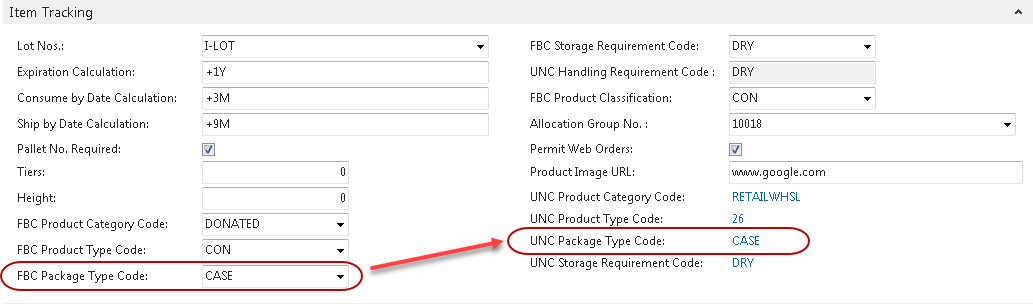
FBC Package Types are stored on the Item Card and are required before receiving product into inventory. They are tied to the UNC Package Type Code due to the linkage in the FBC Package Type table.
-
UNC Package Type Codes are not used in filtering for either the QPR or Distribution Pounds by County report but may be required or helpful for other reports.
-
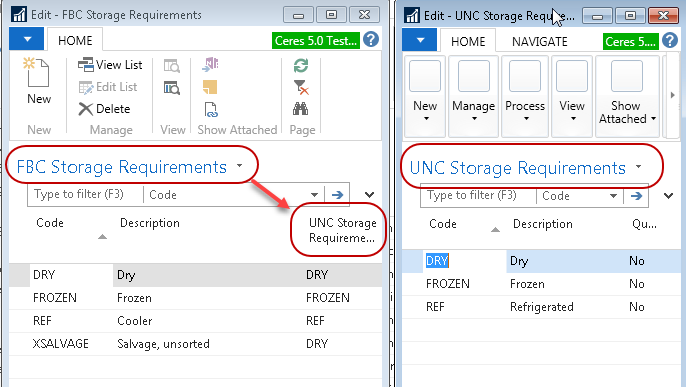
UNC Storage Requirements – UNC Storage Requirement Codes are provided by Feeding America and should be linked to the corresponding FBC Storage Requirement Codes. There are 3 authorized UNC Storage Requirement Codes. It is recommended to create only 3 corresponding FBC Storage Requirement Codes; however, you may add more FBC Storage Requirements (if needed) as long as they are only linked to the 3 authorized UNC Storage Requirement Codes.
-
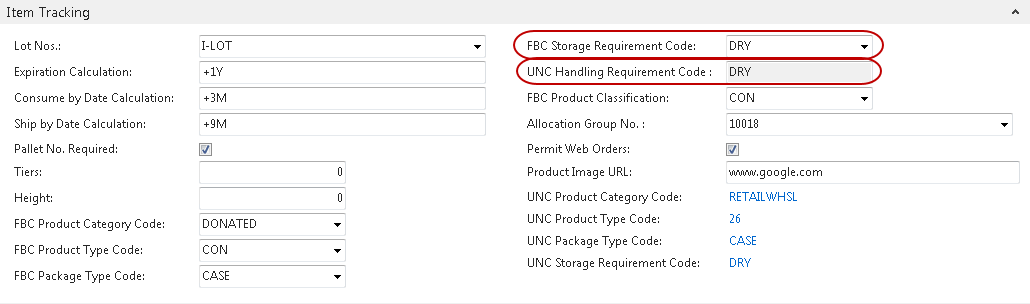
FBC Storage Requirements are stored on the Item Card and are required before receiving product into inventory. They are tied to the UNC Storage Requirement Code due to the linkage in the FBC Storage Requirement table.
-
UNC Storage Requirements determine what column the pounds received during the specified time frame on Page 3 of the R&D report will be displayed. If an invalid UNC Storage Requirement is used, then the product will NOT be included on Page 3. If the wrong UNC Storage Requirement is used, the product will be sorted in the wrong place on Page 3.
-
UNC Storage Requirements can also play a part in the sorting of the Wave Pick Report.
Reports
Blue Receipt Activity Report
-
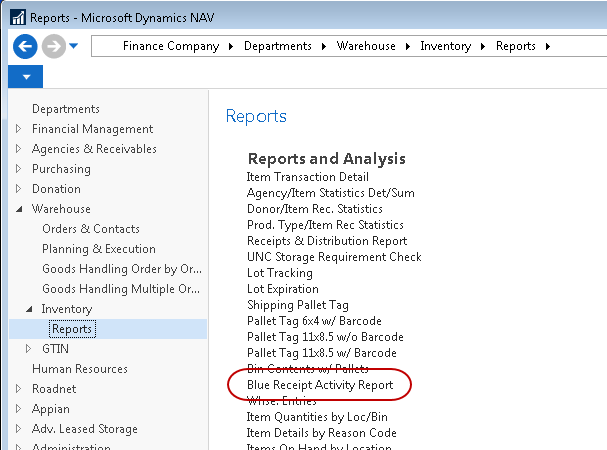
Blue Receipt Activity Report (and export) – This report was created to gather information regarding donations from “Blue Receipt” donors (A2H Local), such as grocery stores. Food banks have the option of creating an export file to send to Feeding America. It is found by going to Departments ▸ Warehouse ▸ Inventory ▸ Reports: Blue Receipt Activity Report.
 note
notePrior to running the export the first time, the Temp Path field for the user running the export must be established. This can be changed in the User Setup page and needs to be set to an approved directory on the users’ workstation where they can access the file to send to Feeding America. If you are using Remote Desktop to the Feeding America hosted site (rd.feedingamerica.org), you will need to export the file to C:\Navtemp\.
-
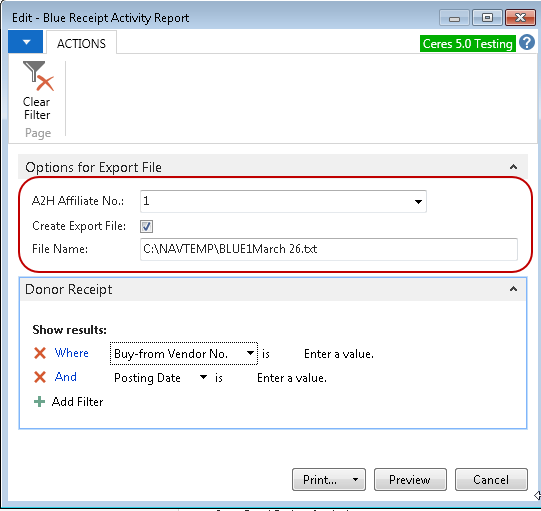
Preview the data and generate the export file. To run the report and export, enter your “A2H Affiliate No.” in the ‘Options for Export File’ section.
noteIf you want to preview the report before creating an export file, make sure that the “Create Export File” flag is NOT checked. It is a good idea to preview first so you can make any changes BEFORE creating the export file. Once an export file has been created, it cannot be recreated without assistance from Feeding America or your Ceres Service Provider.
-
Check the box for “Create Export File” if you wish to create a text file for submission to Feeding America.
-
If a File Name already exists, update it so that it corresponds with the current time frame for which you are running the report.
-
To restrict the entries that are included in the report, enter a Posting Date range in the ‘Donor Receipt’ section and click Print.

-
The report will print (or preview if selected) and the number of pages you get will be in relation to the number of Blue Receipts during that time frame. If it appears that there is incorrect information in the report, you can make adjustments and run it again before you create the submission file.
-
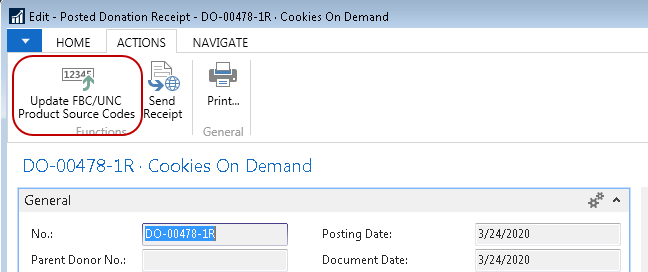
To correct Posted Donation Orders where the FBC/UNC Product Source code was incorrect (to either add it to or remove it from the Blue Receipt Activity report), go to Departments ▸ Donation ▸ Archive ▸ Posted Donation Receipts. Find the Donation Receipt that you need to update and edit it. Go to Actions ▸ Functions ▸ Update FBC/UNC Product Source Codes.
-
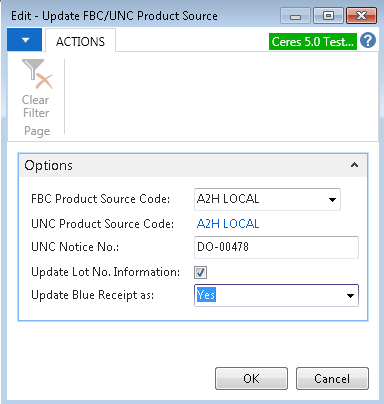
Enter the FBC Product Source Code that SHOULD be on the receipt.
-
The UNC Product Source Code that corresponds will display below.
-
The UNC Notice No. will be created from the Donation Receipt No. (if the new UNC Product Source Code is A2H Local or A2H NATL).
-
To Update the associated Lot information with the correct Product Source (which will help with your QPR reporting), check the box “Update Lot No. Information” and click OK.
-
The user will receive a notice that the update has completed and the fields on the Donation Receipt will be updated accordingly.


-
This change will mark the Donation Receipt as a Blue Receipt (or unmark it if applicable).
-
When the Blue Receipt Activity Report is run again, the receipt will be included (or not) depending on how it was updated. Only receipts that are marked with a Blue Receipt flag and are not marked as “Blue Receipt Exported” in the Purch. Rcpt. Header table will be included in the report/export.
Receipts & Distribution Report
The Receipts and Distribution Report was designed specifically for Feeding America's QPR reporting. It contains many complicated filters that make it unsuitable for use as a source of inventory or inventory valuation information. A QPR Data Information Excel file is available that details exactly how the report is filtering data from Ceres.
-
Receipts & Distribution Report (aka R&D or Quarterly Poundage Report) – This report displays pounds received, pounds distributed and total pounds in inventory, as well as pounds received by Category and Storage Requirement and is required by Feeding America to be submitted at least each quarter. It is found by going to Departments ▸ Warehouse ▸ Inventory ▸ Reports ▸ Receipts & Distributions Report.

-
To run the report, enter your Trash Reason Code Filter or if you use multiple Trash Reason Codes, click on the Down Arrow and select whether you wish to use a range of codes, etc. If you use just one Trash filter, fill in just that code.

-
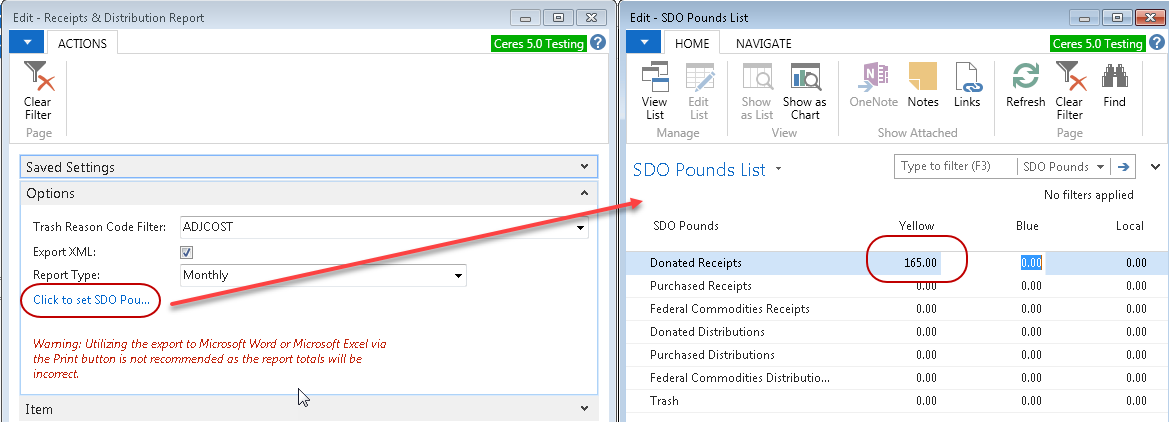
If you wish to have the report include SDO Pounds, click on the ‘Click to set SDO Pounds’ link, which opens the Edit – SDO Pounds List window. Here you can enter pounds for Yellow, Blue and/or Local for each of the following types:
-
In the Item window, enter the Date Filter for the time frame you wish to get results and click Print or Preview.
noteClicking Preview will not show you the report in the 3 page format. If you wish to view on screen, you may select Print ▸ Send to OneNote (if you have that option,) or print to a PDF.

-
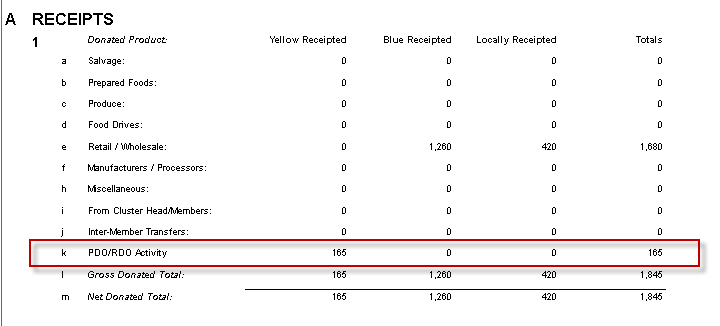
If you have added SDO pounds, it will show in the associated SDO/PDO/RDO Activity Line on the report:
-
The Receipts and Distribution Report relies on the UNC Product Source, UNC Product Category, UNC Product Type and UNC Storage Requirement to determine where to display inventory pounds on the report. If the UNC coding on a receipt or distribution is not an authorized Feeding America code, then the pounds will NOT be included on this report. If the UNC coding on a receipt or distribution is incorrect, the pounds will be included in the wrong place on the report. Please review the QPR Data Information Workbook (for Ceres Users) for more information about determining problems with your Receipts & Distribution (QPR) report. Please contact your Ceres Service Provider if you are unable to determine why problems exist or how to correct them.
Distribution Pounds by County Report
-
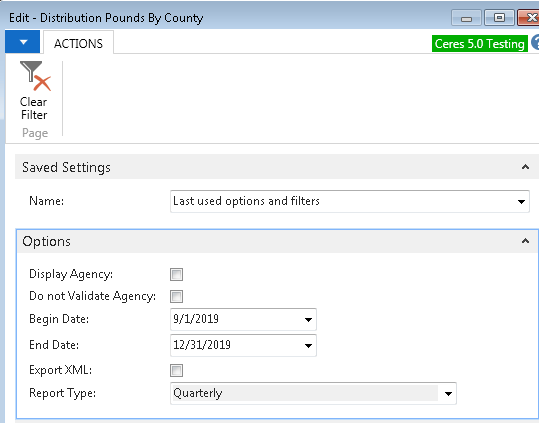
Distribution Pounds by County Report – This report displays pounds distributed to your agencies, but does not include distributions to PDOs/RDOs (those agencies with a checkmark in the SDO field) or other Food Banks (those with a UNC Food Bank ID assigned). It is found by going to Departments ▸ Financial Management ▸ Receivables ▸ Reports ▸ Distribution Pounds by County.


-
If you wish to show the Agencies individually on the report, click “Display Agency.”

-
If you want to validate that the ledger entries associated with the date range entered have an FBC County Code on them, leave “Do Not Validate Agency” unchecked. If there are any item ledger entries for distributions in that time frame where the FBC County Code is missing, the Agency will appear on the report. If you check the box “Do not Validate Agency”, distributions missing the FBC County Code on the Item Ledger Entries will be included in the report, but without an FBC County Code displayed. Click on Preview to see the results of your report (if you wish to view before printing) or Click Print to get a paper copy.
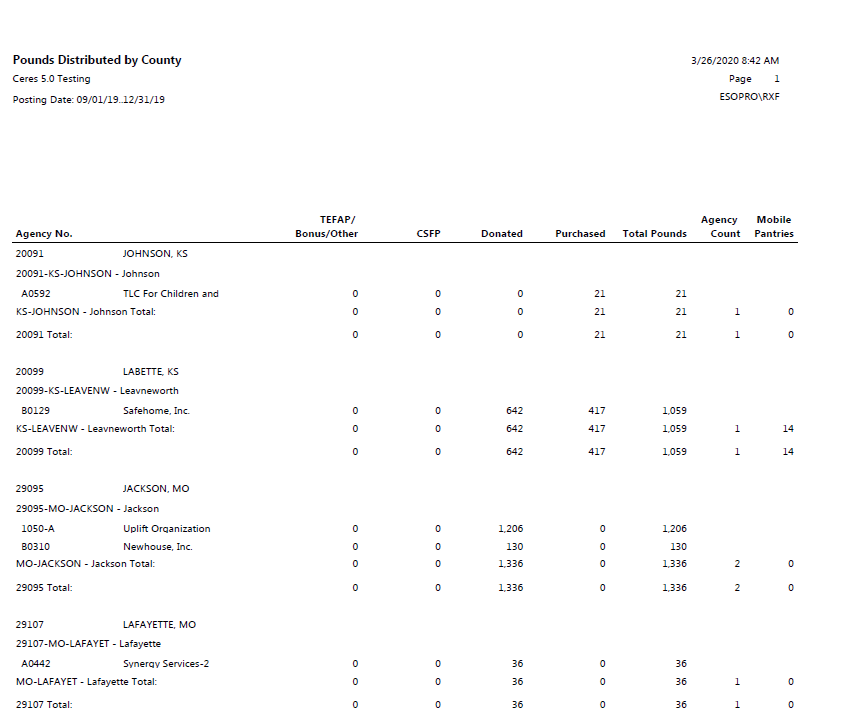
Example of report where “Display Agency” and “Do not Validate Agency” were both checked (the first Agency listed is missing the FBC County Code on the item ledger entries for that time frame):
Example of the report where “Display Agency” was NOT checked, but “Do not Validate Agency” was checked:
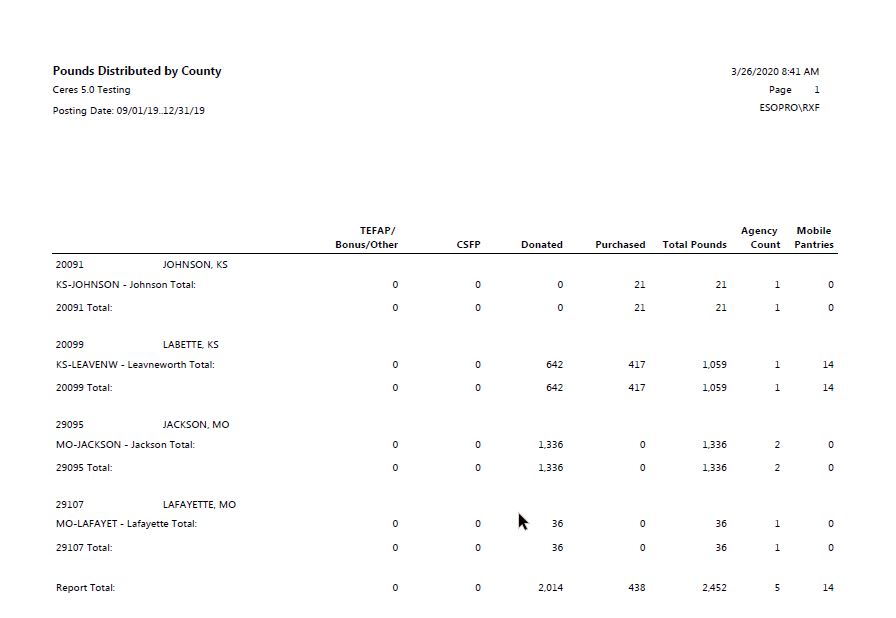
In both of these cases, the first section includes all pounds distributed (within the report filter criteria) that did not have an FBC County Code assigned, so the County Code is blank.
Report Reconciliation
The QPR County Reconciliation report and Item Ledger Report View list can assist in finding variances between the Receipts & Distribution Report and the Distribution Pounds by County report.
-
QPR County Reconciliation Report – This report was created to find and display variances between the Receipts & Distribution Report and the Distribution Pounds by County Report. It is found by going to Departments ▸ Financial Management ▸ Receivables ▸ Reports & Analysis ▸ Reports ▸ QPR County Reconciliation.
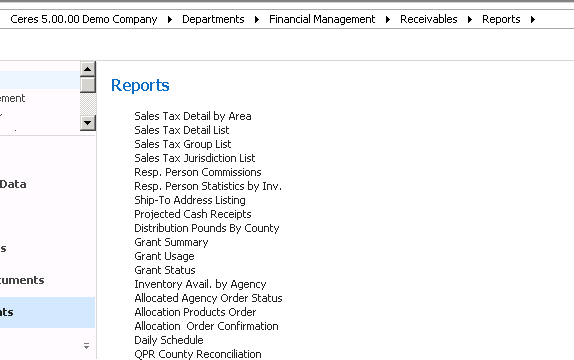
-
In the request window, enter the beginning and ending dates to match your Receipts & Distributions report.

An example of the report displays below:
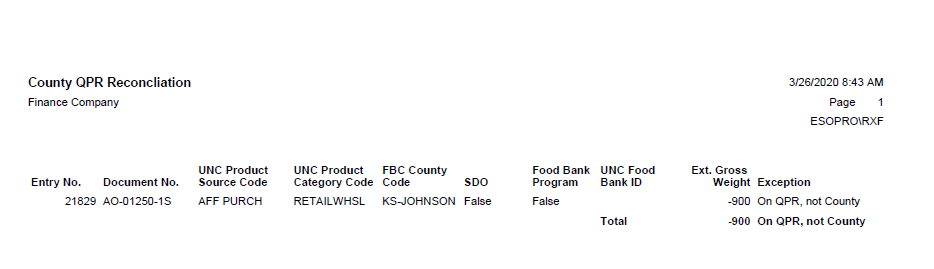
The report identifies discrepancies but will not indicate which is correct. Please review the QPR Data Information Workbook or contact your Ceres Service Provider for help making any adjusting entries.
-
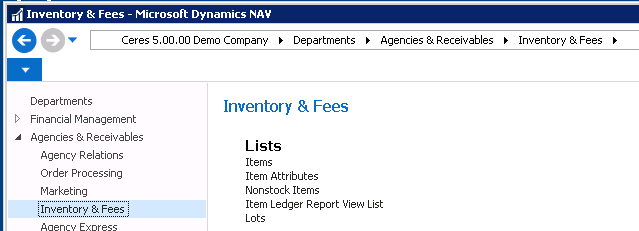
Item Ledger Report View List – This page displays all Item Ledger Entries in the system, as well as many fields in lists that are connected to item ledger lines to make filtering easier. It can be found by navigating to Departments ▸ Agencies & Receivables ▸ Inventory & Fees ▸ Lists ▸ Item Ledger Report View List.