Item Category and Product Group Codes
Item Category Codes provide default setup information for an item, such as Posting Groups, Costing Method, Handling Fees, etc. Having well defined Codes streamlines the setup of Items. Product Group Codes are tied to an Item Category Code. They provide additional categorization of an item, and the ability to default storage requirements.
This document illustrates how to use Item Category and Product Group Codes on Item Cards in Ceres.
Ceres Object release 5.00.00 is required for the functionality described in this document.
Creating Item Category Codes
-
Item Category Codes can be accessed from Departments Financial Management Inventory Administration Setup Item Categories.
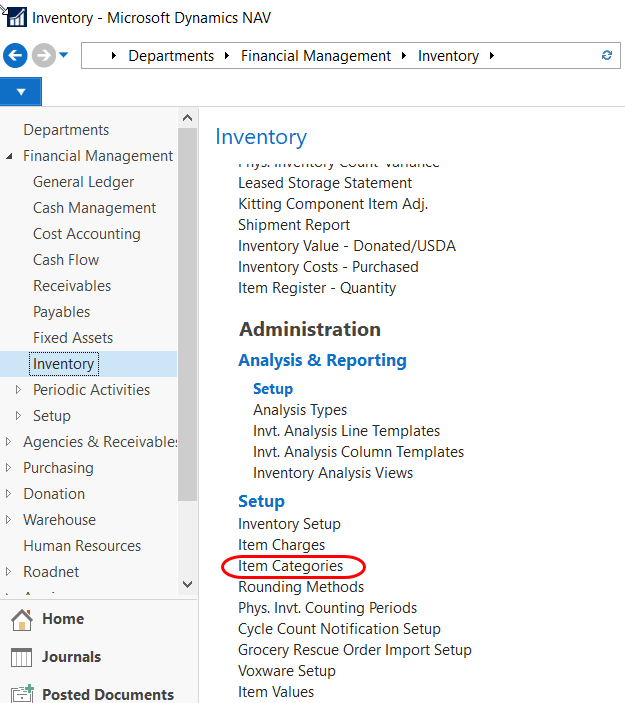
-
Click New on the Home Tab of the Ribbon to create a new Item Category Code.
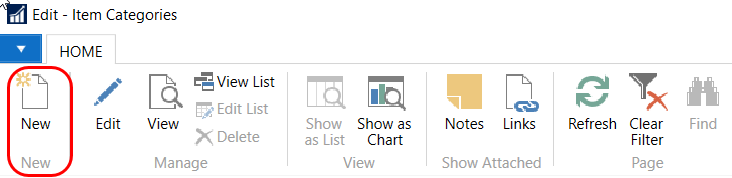
-
From the Item Category Card Page, enter values in the Code and Description fields and then click OK.
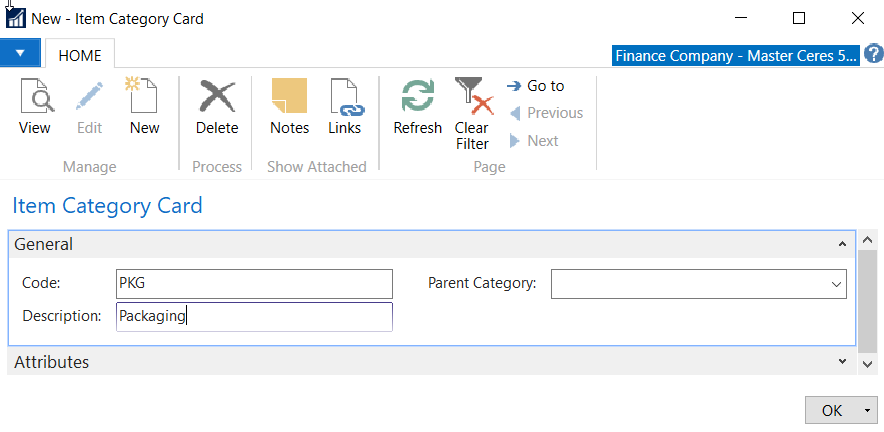
-
From the Item Categories List, locate the new Code you created and update the fields as necessary.
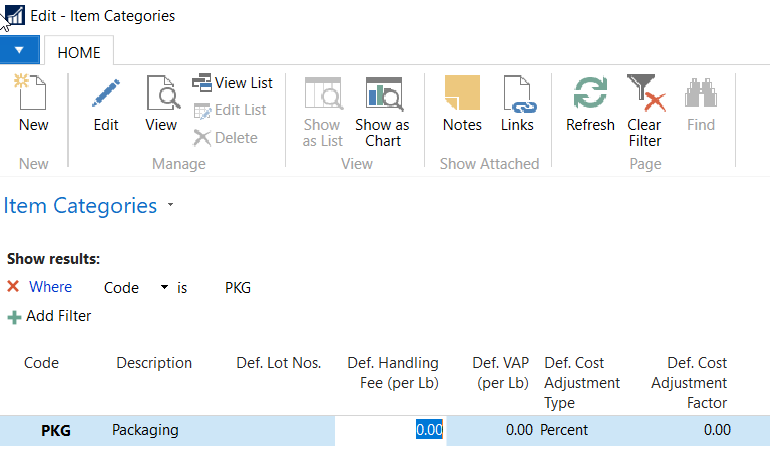
Code: Enter a unique Code to identify the Item Category.
Description: Enter text to describe the Item Category Code.
Def. Lot Nos: Select a default Lot No Series. When the Item Category Code is assigned to an Item, this field will flow to the Lot Nos. field on the Item Card.
Def. Handling Fee (per Lb): Input a default handling fee per pound. When the Item Category Code is assigned to an Item, this field will flow to the Handling Fee (per Lb) field on the Item Card. The Handling Fee (per Lb) field is used in the calculation of the Unit Fee.
Def. VAP Fee (per Lb): Input a default VAP fee per pound. When the Item Category Code is assigned to an Item, this field will flow to the VAP Fee (per Lb) field on the Item Card. The VAP Fee (per Lb) field is used in the calculation of the Unit Fee.
Def. Cost Adjustment Type: Select a default Cost Adjust Type. The options are Amount or Percent. When the Item Category Code is assigned to an Item, this field will flow to the Cost Adjustment Type field on the Item Card. The Cost Adjustment Type field is used in the calculation of the Unit Fee.
Def. Cost Adjustment Factor: Input a cost adjustment factor. When the Item Category Code is assigned to an Item, this field will flow to the Cost Adjustment Factor field on the Item Card. The Cost Adjustment Factor field is used in the calculation of the Unit Fee.
Creating Product Group Codes
-
Product Group Codes can be accessed from the Item Card or Departments Warehouse Planning & Execution Lists Items.
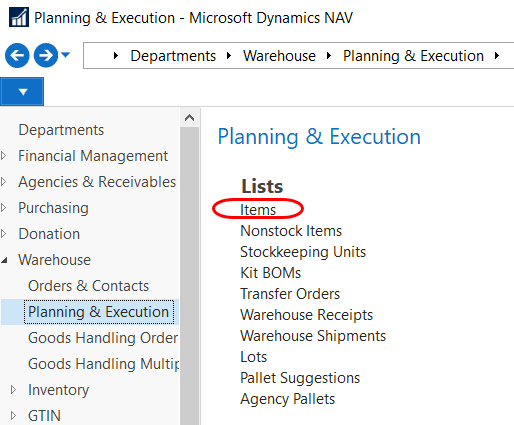
-
From the Item Card, locate the Product Group Code field on the Item FastTab.
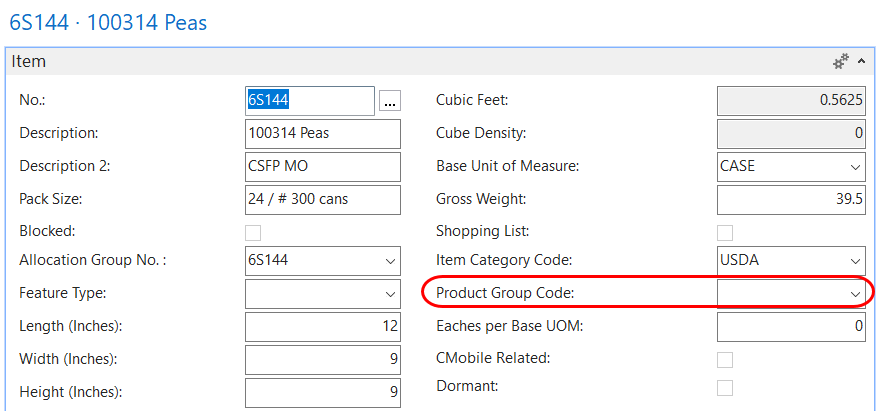
-
From the Product Groups Page, select New from the Home Tab of the Ribbon to create a new Product Group Code.
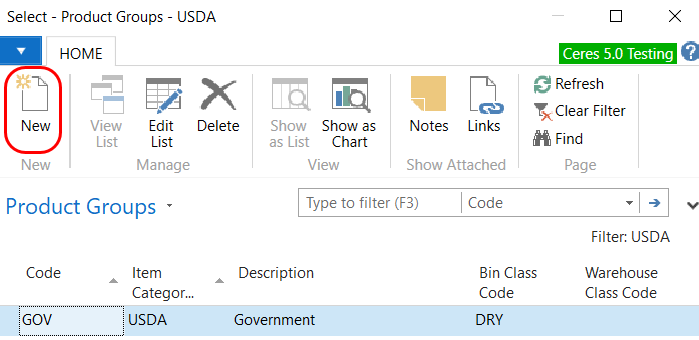
-
Fill in the fields as necessary.
Code: Enter a unique Code to identify the Product Group.
Item Category Code: Select an Item Category Code to link the Product Group to a specific Item Category.
Description: Enter text to describe the Product Group.
Bin Class Code: Select a Bin Class Code. When the Product Group Code is specified on an Item Card, the Bin Class Code assists in providing storage requirements.
Warehouse Class Code: When the Product Group Code is specified on an Item Card, the Warehouse Class Code assists in providing storage requirements.