Item Journal – Suggest Lots
Food banks that receive large quantities of items in small batches (like bread) need an efficient way to write off the inventory. When writing off inventory via the Item Journal, manual data entry is required to choose Lots which can be very time-consuming when the inventory is recorded in lots of small quantities. The “Suggest Lots” function in the item journal provides an efficient method of auto-selecting inventory to write-off from the available lots, pallets and bins. The selection utilizes the FEFO (First Expired First Out) method when the lot “consume by” and lot “expiration” dates are available and the FIFO (First In First Out) method when lot expiration dates are not available. This should only be used when the specific Lot being disposed is not available.
This document illustrates how, in Ceres 5, to write off inventory via the Item Journal functionality and having the system suggest the oldest Lots.
Ceres Object release 5.00.00 is required for the functionality described in this document.
Negative Inventory Adjustments Using Suggest Lots
-
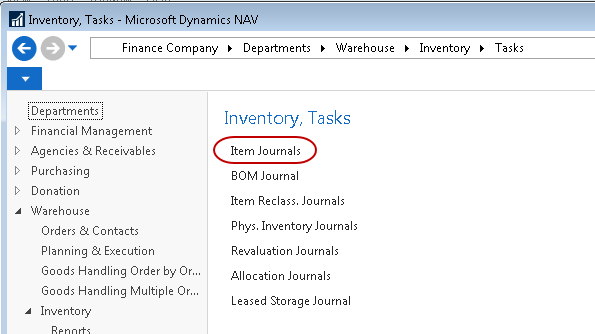
The Suggest Lots functionality is based on the Item Journal. The Item Journal can be accessed from Departments ▸ Warehouse ▸ Inventory ▸ Tasks ▸ Item Journals.
-
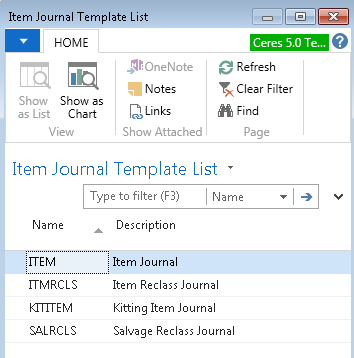
Select the Item Journal Template you want to use.
-
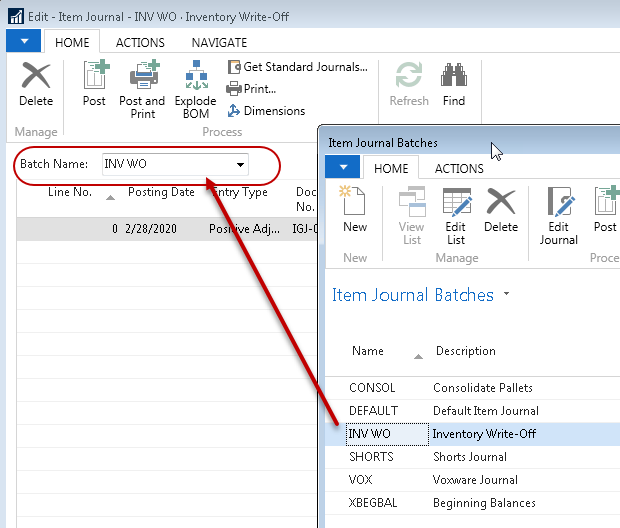
From the Item Journal, select the “Batch Name” to use for your write-offs.
-
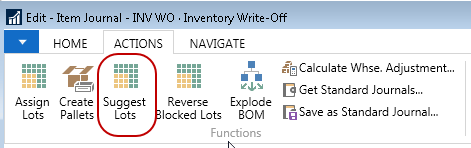
To access the “Suggest Lots” function, select Suggest Lots from the Actions ribbon.
-
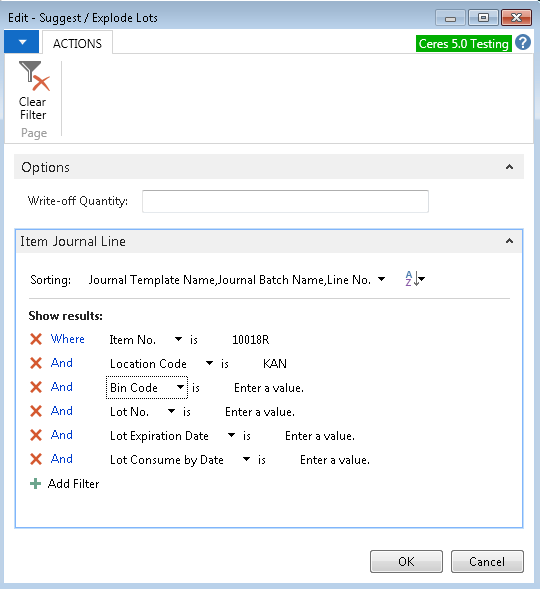
From the Suggest/Explode Lots form, enter the filter criteria for the items you wish to write off, such as Location Code, Lot Expiration Date, Lot No. or Bin Code.
-
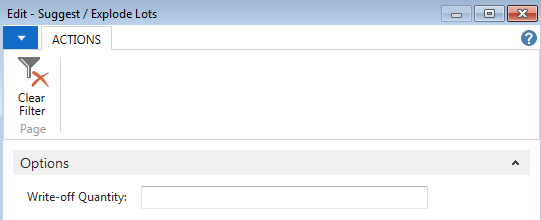
Write-off Quantity is used to specify a particular quantity that you want to write off, subject to the other filters on the “Item Journal Line” FastTab. If the Write-Off Quantity is blank or zero, the program will select all lots & pallets meeting the filter criteria specified on the “Item Journal Line” FastTab. For example, here we have chosen Item No. 10018R and Location Code KAN, and left Write-off Quantity blank to negatively adjust all quantity that meets that criteria.
-
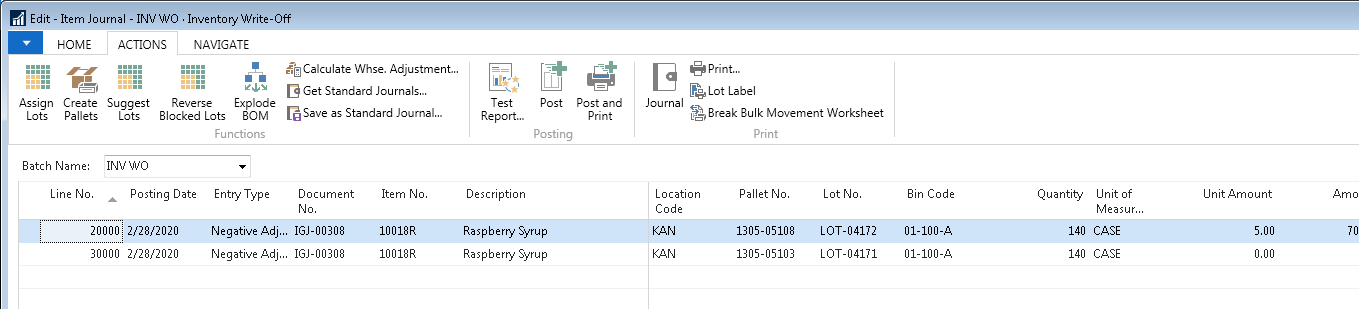
Press OK and Ceres will calculate and suggest the lots to write off. Each entry generated will be a “Negative Adjustment” with the appropriate Pallet, Lot, and Bin.
-
For reporting purposes, you should select a Reason Code for each line that corresponds with your Trash tracking.
-
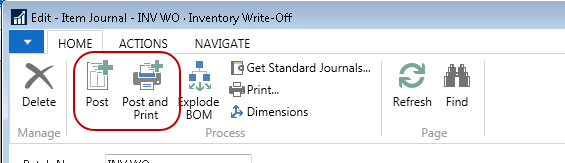
To complete the process and write-off the inventory, select either “Post” or “Post and Print” from the Home ribbon. Select “Yes” to confirm that you want to post the journal lines.
Related Topics
- Item and Lot Expiration, Ship by and Consume by Dates
- Item Journal Adjust Quantities
- Item Journal Repack and Reclass
- Physical Inventory Counts and Inventory Journal
- Reason Code Mandatory Overview
- Warehouse Pallets and Lots
- UNC Coding and Relation to FA Reporting