Roadnet Donation Pickup Exports
This document outlines the Donation Pickup portion of the Roadnet Export.
Ceres Object release 5.00.00 is required for the functionality described in this document.
Enabling Roadnet Integration
Food banks may choose if the Roadnet integration is enabled for deliveries, pickups, or both depending on their routing needs. Enabling the functionality for donation pickups allows users the ability to route and schedule donation pickups.
-
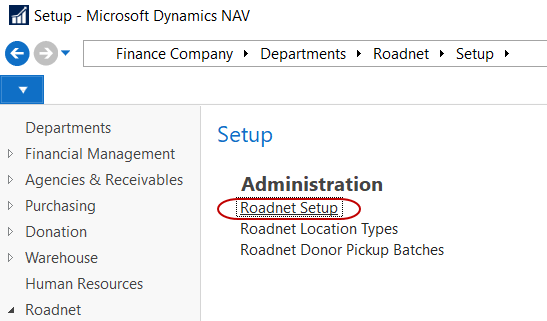
The Roadnet Setup can be accessed from Departments Roadnet Setup Administration Roadnet Setup.
-
To enable Roadnet for Donors, place a checkmark in the Enable Roadnet field on the Donors FastTab.
 note
noteThe General Tab setup options do not apply to the Roadnet export of donation order information. The export process will include the Order Type, Date Added, and Special Instructions and is not configurable.
-
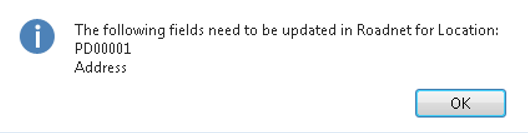
When Roadnet is enabled, any changes to the Donor Card will cause Ceres to show a warning informing you that you need to update the corresponding record in Roadnet. Currently, Ceres does not export the master Donor record change to Roadnet.
Roadnet Donor Pickup Batches
Donor Pickups are managed in batches prior to creating Donation Orders. Only one batch is necessary but creating multiple batches may help to separate orders for exporting.
-
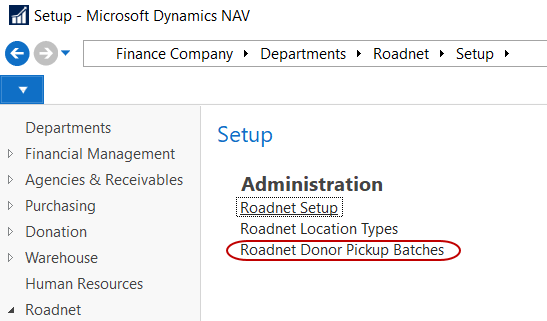
The Roadnet Donor Pickup Batches can be accessed from Departments Roadnet Setup Administration Roadnet Donor Pickup Batches.
-
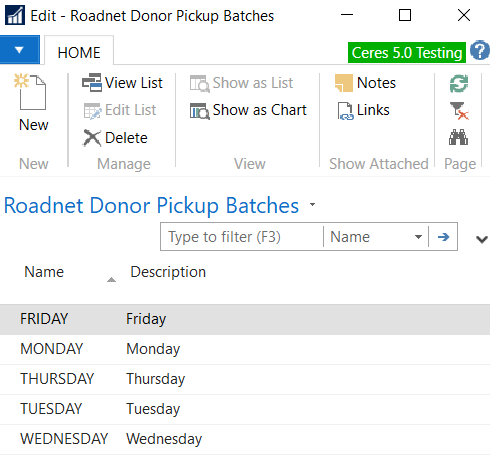
Select Home New to create a new Roadnet Donor Pickup Batch. Specify a name and description for each batch you wish to create.
Roadnet Location Types
Roadnet Location Types are optional fields that can assist your food bank with filtering donors. This can help with reporting or other informational purposes. When the actual donation pickup export is generated, the Location Type will show as DON to comply with Roadnet formatting standards.
-
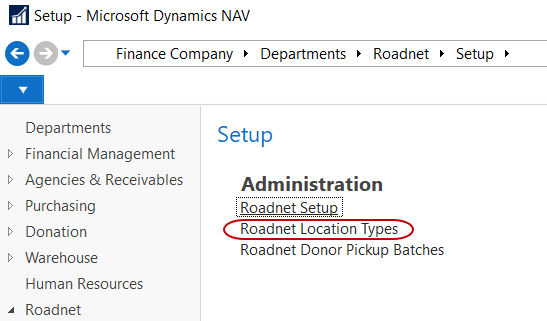
Roadnet Location Types can be accessed from Departments Roadnet Setup Roadnet Location Types.
-
Select Home New to create a new Roadnet Location Types. Create as many Codes for the Roadnet Location Types that are applicable to your food bank.
noteRoadnet Location Types are also available for Transfer Orders and Agency Orders that are sent to Roadnet for dynamic routing.

Preparing Donors
To reduce data input, users can setup pickup information and Roadnet Location Types on the donor records, which flows to new donation orders.
-
The Donor Card can be accessed from Departments Donation Planning Lists Donors.
-
Select and open a donor that will be routed by Roadnet.
-
On the Receiving FastTab, select a Roadnet Location Type by doing a lookup on the field. In the Special Instructions field, enter any special instructions that need to be mentioned.

Donor Pickup Specification
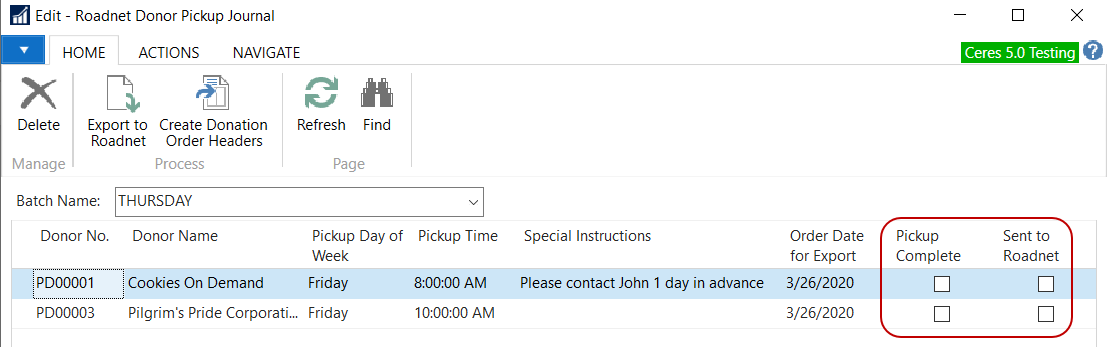
Donation pickups that are being routed through Roadnet utilize the Roadnet Donor Pickup Journal as a starting template for dynamic routing. Users are able to schedule expected pickups for each donor by model day and time, and then track status for the actual day once routed. Once the information is sent to Roadnet and the pickup is complete, users are able to generate Donation Order Headers from the journal.
-
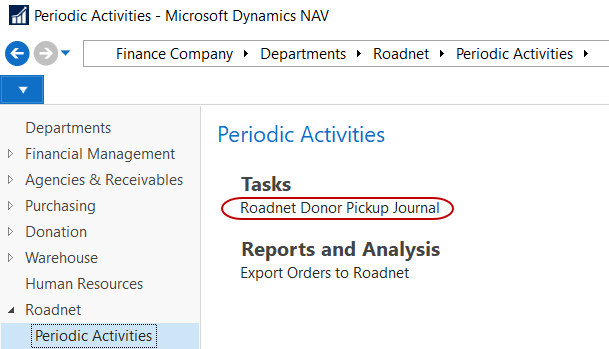
The Roadnet Donor Pickup Journal can be accessed from Departments Roadnet Periodic Activities Roadnet Donor Pickup Journal.
-
Click on the Batch Name field. Select the desired batch and click OK
-
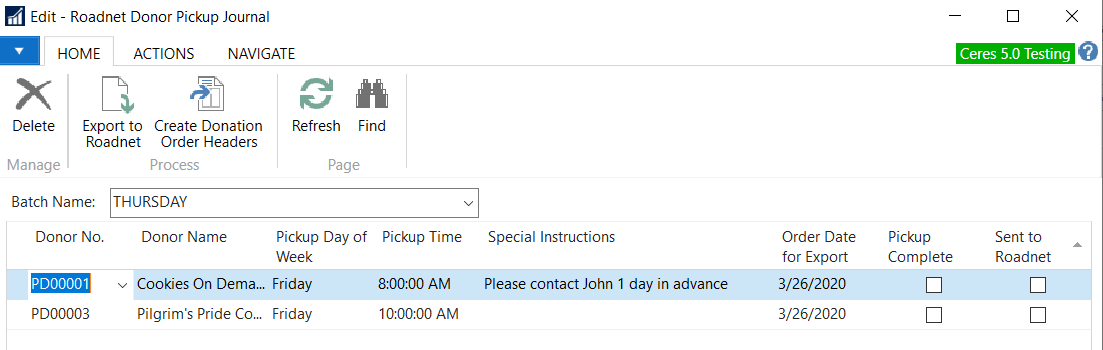
Move to the lines of the Journal. Here you specify the preferred information for the donation pickups.
-
In the Donor No. field, enter the donor number or use the lookup to select the donor from a list. The Donor’s Name and Special Instructions will flow to the line.
-
In the Pickup Day of Week field, set the day of the week the pickup is requested to occur.
-
In the Pickup Time field, set the time the pickup is requested to occur.
-
In the Special Instructions field, review the instructions that flowed from the Donor Card. You may edit the field if necessary.
-
In the Order Date for Export field, set the date the pickup will occur. The Pickup Day of Week will adjust to match the date specified.
-
Repeat the steps above for each additional planned pickup.
Exporting Pickups
Once donation pickups have been prepared in the journal, users will submit the information to Roadnet for routing. Ceres provides a report where users can review the information, and then export the data to a tab delimited text file for uploading.
-
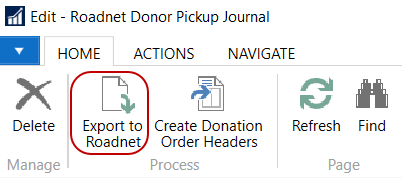
From the Roadnet Donor Pickup Journal, select Home Process Export to Roadnet.
-
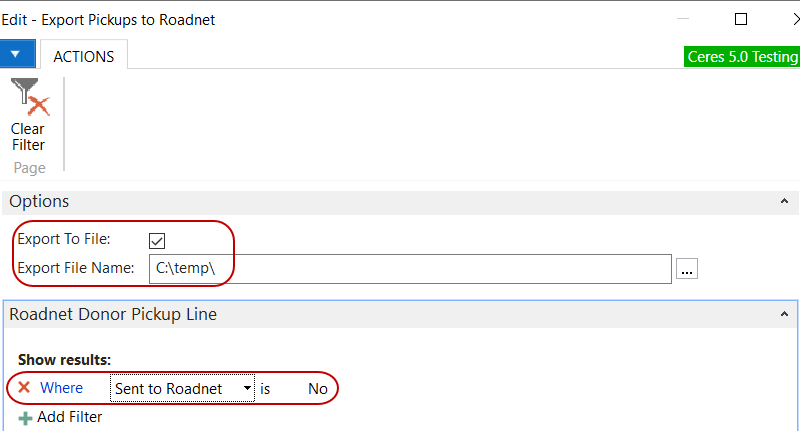
The Export to Roadnet Pickups Request Page will display.
-
On the Options Tab, place a checkmark in the Export to File field in order to create an export file or leave it blank to preview the report first. In the Export File Name field, use the ellipses button to set the name and path for the export file. If Export to File is unchecked, Ceres will not update the value of the Sent to Roadnet field for the journal.
-
On the Roadnet Donor Pickup Line Tab, set the filters to limit the pickups that are included in the export. To add additional filters, click the Add Filter button, pick the correct field from the dropdown, then enter the filter value.
-
Regardless of filtering, the report only considers pickup lines where the Pickup Complete field is unchecked. You can only process one batch at a time. To process multiple batches, you must select the batch one by one from the Roadnet Donor Pickup Journal.
noteThe Order Date for Export maps to the Session date in the Roadnet software. When you submit an export file to Roadnet that includes multiple dates, a session in Roadnet will be created for each date.
-
Click the Print button or the Preview button.
Note: If Export to file is checked and a file exists with the same name as the one specified in the Export File Name field, Ceres will send a warning message. Click Yes to overwrite the file or click No and change the Export File Name field on the Report Request Page.
Below is an example of the Export Pickups to Roadnet Report.
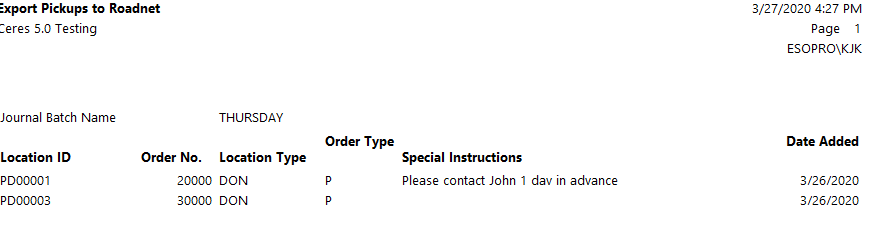
Below is an example of the exported file.

Once the export file is created, the corresponding Roadnet Donor Pickup Journal lines will change so that the Sent to Roadnet field will be checked.
Creating Donation Orders
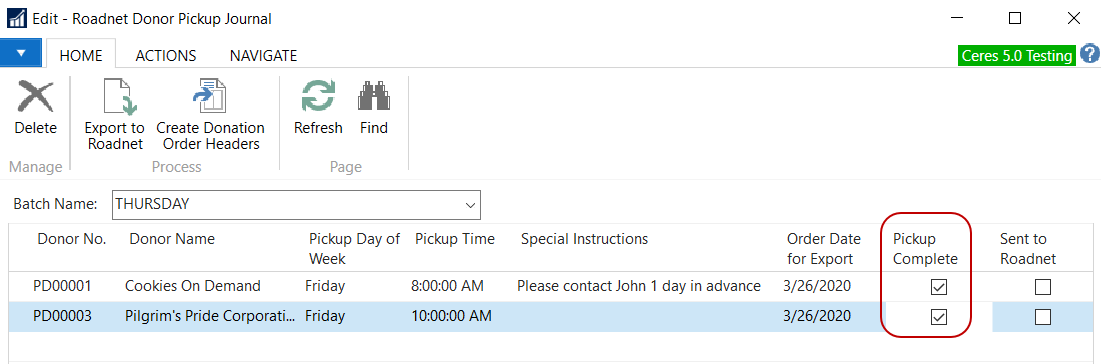
Upon completion of a Roadnet routed pickup, the user will update the Roadnet Donor Pickup Journal by placing a checkmark in the Pickup Complete field. Users will then be able to run a routine that creates the Donation Order Headers for each planned donation that was picked up.
Note: If a pickup was not completed, the Pickup Complete field should remain unchecked.
-
From the Roadnet Donor Pickup Journal, select the desired batch and review the lines.
-
For each line that has been picked up, place a checkmark in the Pickup Complete field.
-
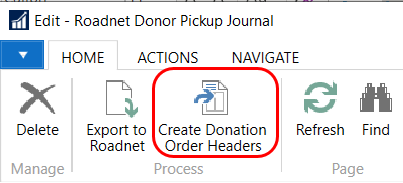
To create donation orders, select Home Process Create Donation Order Headers.
-
If there are lines in the Donor Pickup Journal that have not been sent to Roadnet, a message indicating as such will display. Select Yes to proceed or No to cancel the process.

-
A notification will display indicating the number of donation orders that were created.

-
The processed lines will reset the Pickup Complete and Sent to Roadnet fields so that users can re-use the Donor Pickup Journal entries for recurring pickups.
-
To access the donation orders that were created, go to Departments Donation Order Processing Donation Orders.
-
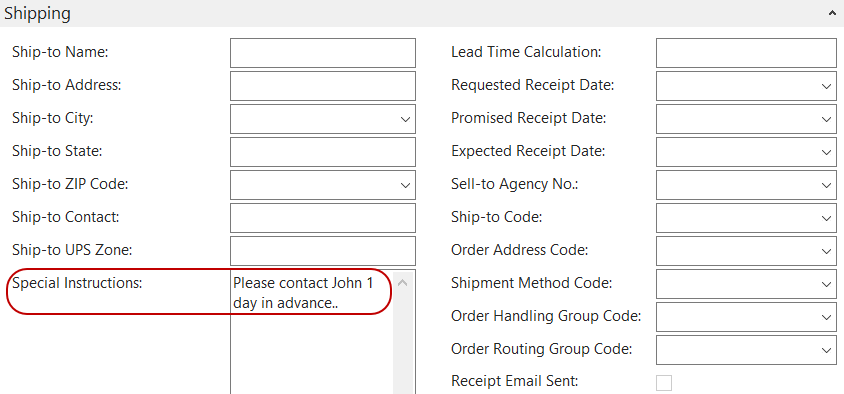
Locate the newly created donation orders and update them with the items that were picked up. Then process them like you would any other donation order. Notice that the Special Instructions flow to the order.
-
Repeat the above steps to convert the other donor pickups to orders as they become fulfilled.