Appian Overview and Integration
This document describes the setup and functional steps to set up and use Ceres 5 with the TMW Systems Appian software to facilitate routing related to Agency deliveries, Donation pickups, and Warehouse/Location transfers.
Ceres Object release 5.00.00 is required for the functionality described in this document.
Setup
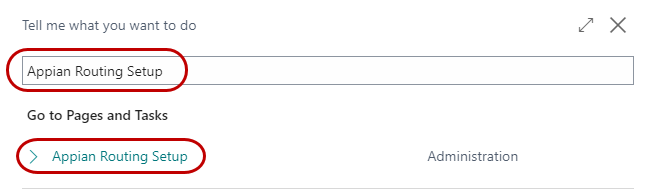
The Appian Routing Setup can be accessed from Departments ▸ Appian ▸ Setup ▸ Administration ▸ Appian Routing Setup.
General FastTab
The General FastTab describes the basic setup for Appian.
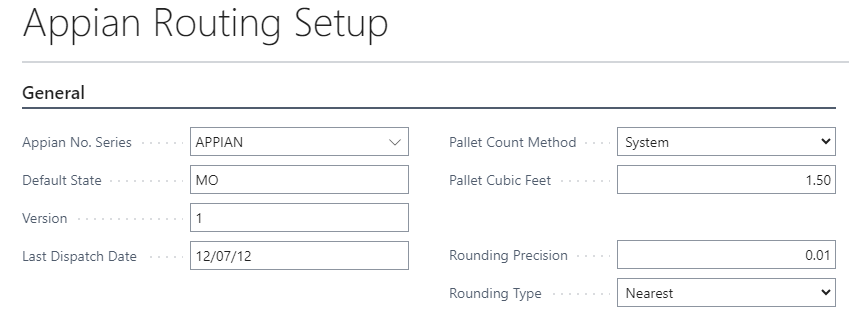
Appian No. Series: Allows the user to define a number series so multiple export files can be stored in the same folder without appending or overwriting each other.
NST Outbound Appian Directory: Directory where the outbound Appian files will be stored.
Appian File Directory: Directory where the Appian files will be stored.
Default State: Typically the state where the food bank resides. This field is updated automatically from the routing import.
Version: Version of the Appian file. This field is updated automatically from the routing import.
Last Dispatch Date: Date the information was last dispatched. This field is updated automatically from the routing import.
Pallet Count Method: Select from the drop-down as to how you would like the pallet count to be calculated. The options are System or Manual.
System – The Pallet Count will be calculated by dividing the Total Cubic Feet by Pallet Cubic Feet.
Manual – The Pallet Count will be calculated by totaling the Frozen Pallet Count, Ref Pallet Count, and Dry Pallet Count as specified on the Delivery/Web FastTab of the Order Header.
Pallet Cubic Feet: Average pallet size used to calculate truck loads and capacity.
Rounding Precision: Input the rounding precision for the total cubic feet calculation. Input .01 to round to two decimals.
Rounding Type: Select the rounding precision for the total cubic feet calculation. The options are Nearest, Up, or Down.
Agency FastTab
The Agency FastTab provides information about the Agency & Agency Order/Pick files.

Last File Processed: Name of the Agency file that was last processed. This field is updated by Appian.
Last File Processed Date/Time: Date and time the last Agency file was processed. This field is updated automatically by Appian.
User Defined Fields 1-5: The user can select up to fields from the Sales (Agency) Header Table to be included in the export file. These fields are not mandatory.
Donation FastTab
The Donation FastTab provides information about the Donation Order files.

Last File Processed: Name of the Donation file that was last processed. This field is updated by Appian.
Last File Processed Date/Time: Date and time the last Donation file was processed. This field is updated automatically by Appian.
User Defined Fields 1-5: The user can select up to five fields from the Purchase/Donation Header Table to be included in the export file. These fields are not mandatory.
Transfer FastTab
The Transfer FastTab provides information about the Transfer Order files.

Last File Processed: Name of the Transfer file that was last processed. This field is updated by Appian.
Last File Processed Date/Time: Date and time the last Transfer file was processed. This field is updated automatically by Appian.
User Defined Fields 1-5: The user can select up to five fields from the Transfer Header Table to be included in the export file. These fields are not mandatory.
Administration
-
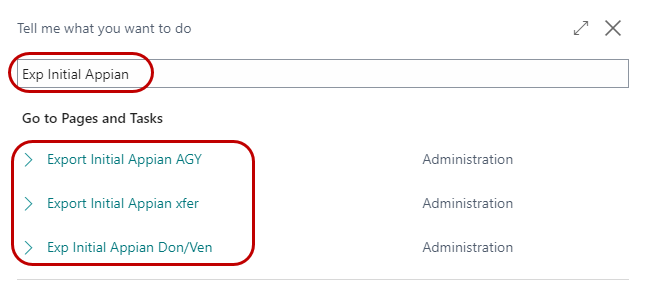
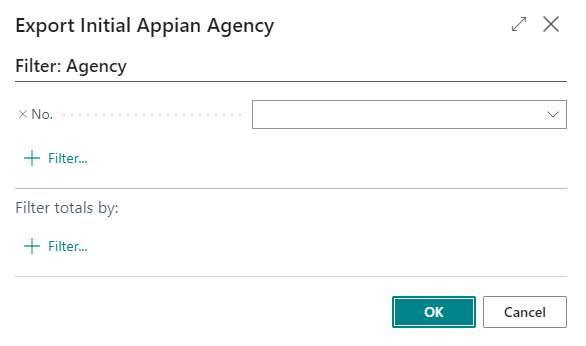
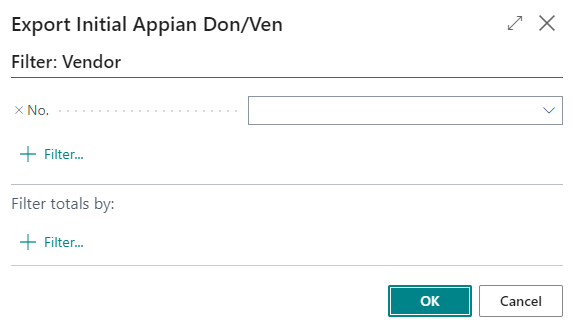
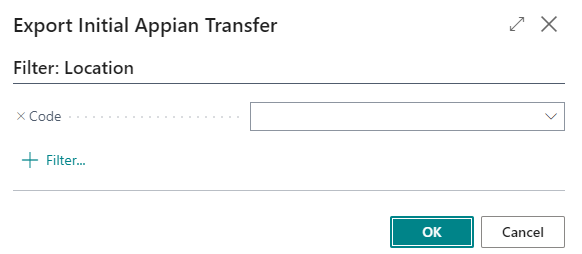
Prior to the first time you route either Agency, Donation, or Transfer orders, you need to run the Export Initial Appian Agency, Export Initial Appian Don/Vendor, and/or Export Initial Appian Transfer functions. This creates a Master File for Appian with the Addresses for Agencies, Donors, and Locations. The processes can be found by going to Departments ▸ Appian ▸ Setup ▸ Administration.
-
It is only necessary to run these functions one time. If a new Agency, Donor/Vendor, or Location is added afterward, Appian will automatically pick them up.
Workflow
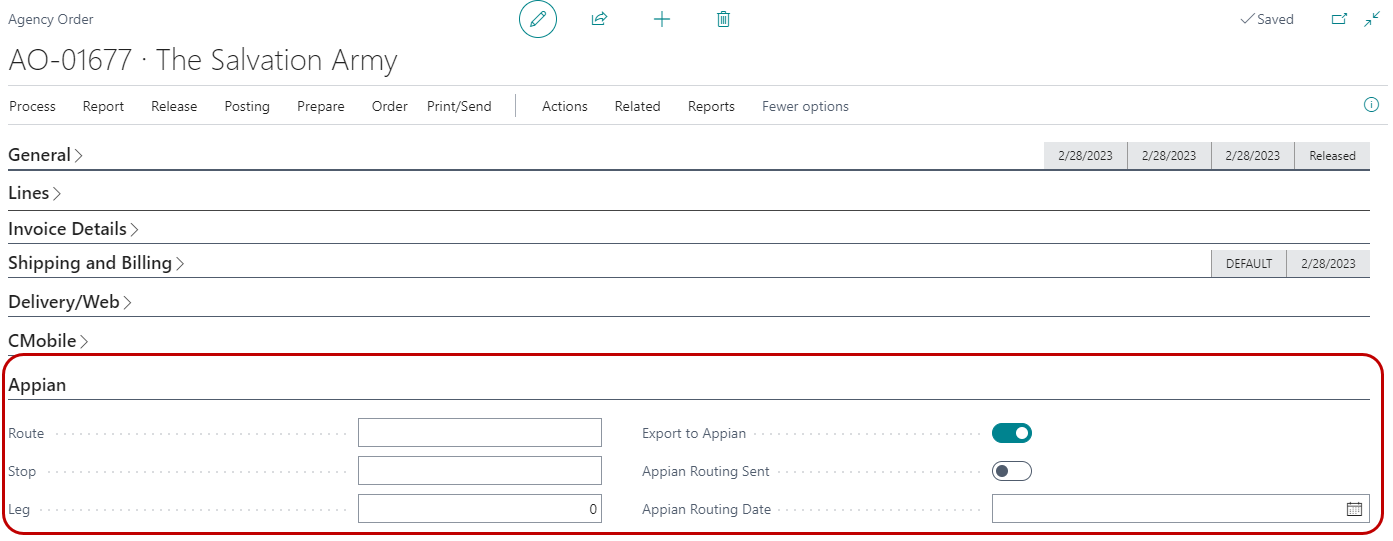
The Agency Order, Donation Order, or Transfer Order page will have an Appian FastTab where all information related to the routing status is selected and updated.
-
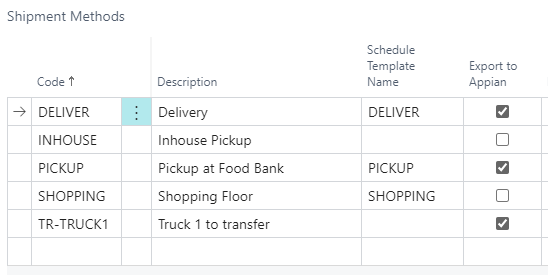
All Agency Orders will, by default, be routed through Appian. If the user doesn’t want a particular order routed, uncheck the Export to Appian field in the Shipment Method setup. In the below example, only orders with a Shipment Method of DELIVER and PICKUP will be routed.
 note
noteShipment Method is required to export Agency Orders and/or Donation/Purchase Orders to Appian, it is not required for Transfer Orders.
-
The Appian Routing Sent and Appian Routing Date fields are automatically updated when exporting the data to Appian.
-
The Route, Stop, and Leg fields are updated when routing information from Appian is imported back into Ceres.
Create Appian Export File for Agency Orders, Donation Orders, or Transfer Orders
-
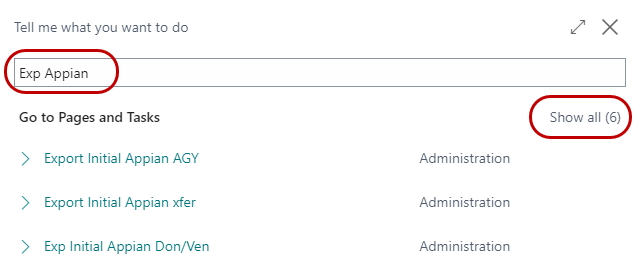
To create the export file to use in Appian, go to Departments ▸ Appian ▸ Periodic Activities.
-
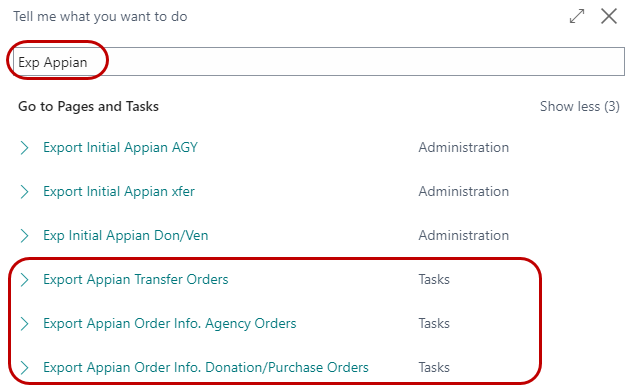
Select Export Appian Order Info. Agency Orders, or Export Appian Order Info. Donation/Purchase Orders, or Export Appian Transfer Orders.
-
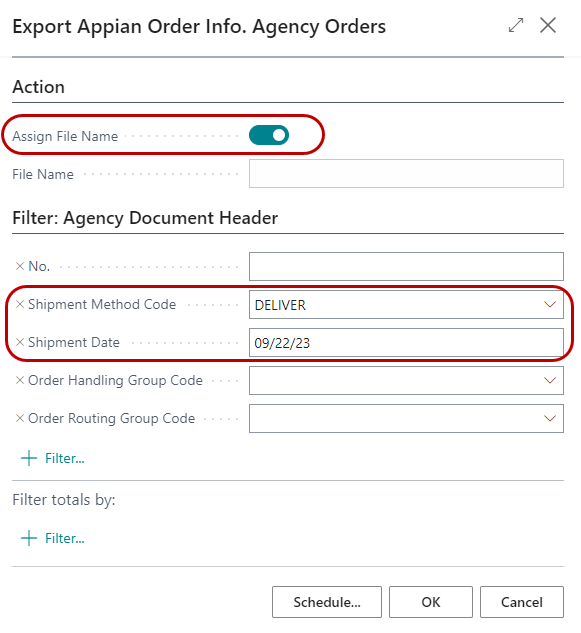
If Assign File Name is checked, Ceres will automatically create a unique file name for the export file based on the Number Series that was set up for Appian.
-
Enter the appropriate filters you want and then click, OK.
-
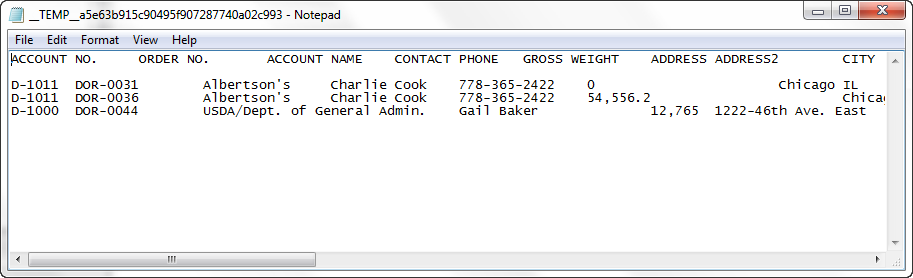
The export file will be generated and placed in the folder specified on the Appian Setup page.
-
Locate the exported file and import it into Appian for route assignments.
-
Once the export is processed by Appian, an export file will be generated by Appian with a recommended Route and Stop. This information file must be imported by the user in order to update the Inventory Picks. The user will run the import for the matching released Agency Orders with the Appian Export Date populated. The fields for Route and Stop will be updated on the Agency Order Header and flow to Picks when they are created*.*
-
To import the file from Appian into Ceres, go to Departments ▸ Appian ▸ Periodic Activities and select Import Appian Routing Info.
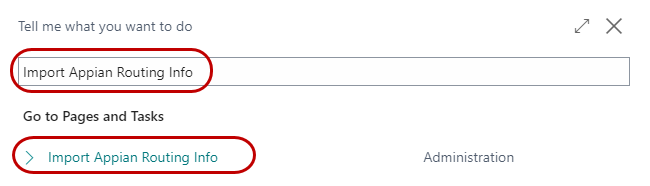 note
noteThe Import Appian Routing Info process imports routing information for all document types (Agency Orders, Donation/Purchase Orders, and Transfer Orders). Due to this, the number series used for each document type must be unique.
-
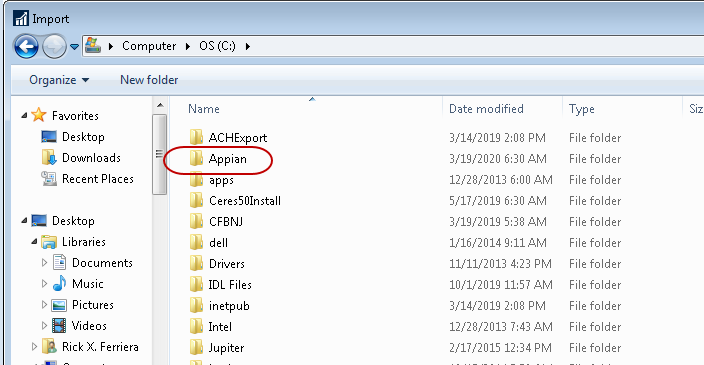
The file dialog opens up. Browse to the folder where you stored your Appian files and select the appropriate file to import. Click Open to import the file.

-
If Ceres is unable to import the file, for whatever reason, an error message similar to the one below will display. Resolve any file issues and try importing again.
-
Once the import is completed, a recap of the import will be displayed.

-
Once the Route and Stop are populated on an Agency Order, the Inventory Picks can be generated by Shipment Date, Route, and Stop.
Supplemental Addresses
When Donation Orders are exported by Appian, the Donor’s physical address will be used and not the Supplemental Address, if applicable.