Donation Order Archiving Wye
Donation orders are used to process orders/product receipts from donors that do not involve a dollar value. Ceres allows you to archive donation orders, and this document discusses the process to set up and execute the archival. This document discusses the process to execute the archiving of donation orders.
Ceres Object release 6.00.00 is required for the functionality described in this document.
Setup
-
Archiving of donation orders is a configurable setting in the Donation Setup. Archiving of Donation Orders can be accessed by clicking the magnifying glass and typing Donation Setup.
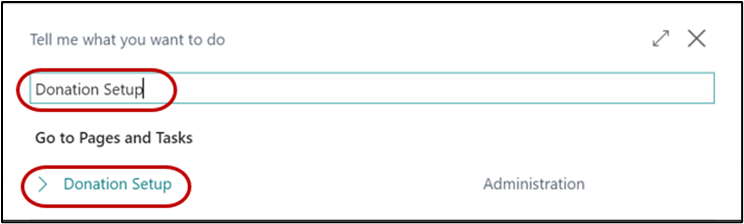
-
The Archive Donation Order field allows you to specify whether you want Ceres to automatically archive donation orders during the posting process. For automatic archiving, place a check mark in the box.
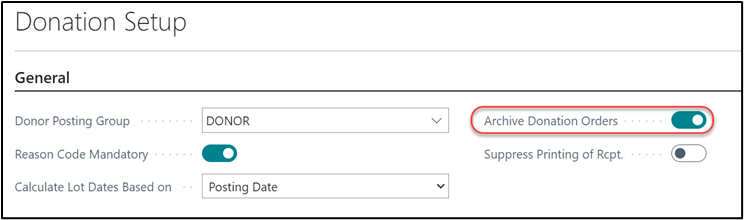
Archiving Donation Orders
-
Donation orders can be archived manually or automatically. To archive a Donation Order, select “Search” from the Dynamics 365 Business Central Banner and entering “Donation Orders” in “Tell me what you want to do” then selecting “Donation Orders” from the results in the Go to Pages and Tasks section OR by selecting the “Donation Orders” menu action (if present) from your Role Center home page.
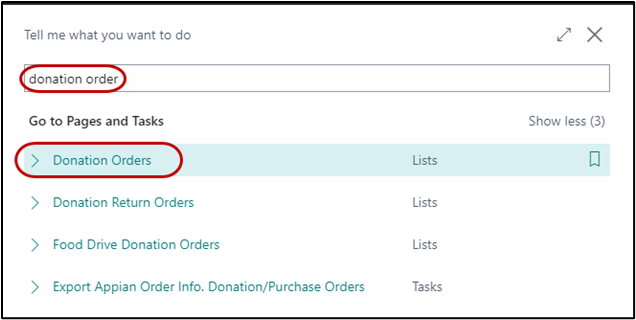
-
If you are using batches, select your batch from the batch list; otherwise click Cancel.
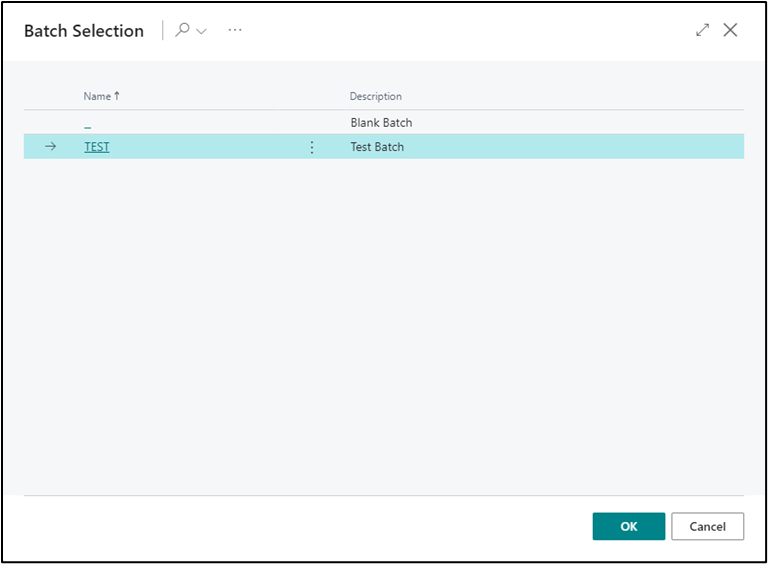
-
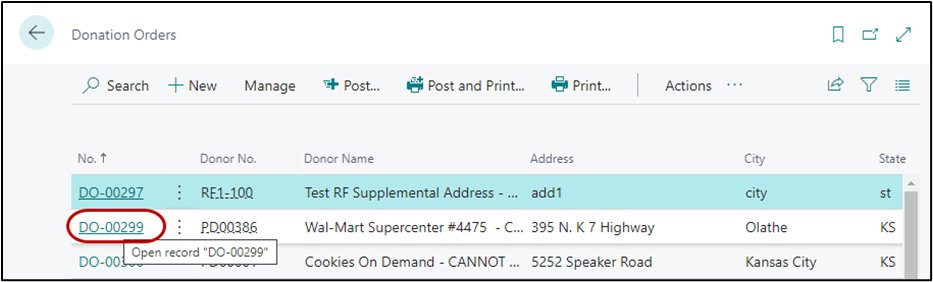
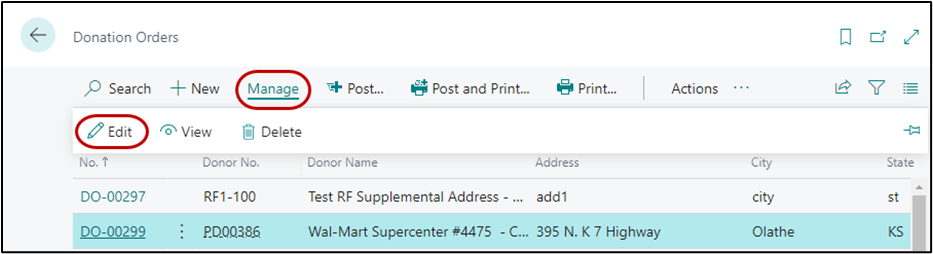
A list of open donation orders will be displayed. To manually archive a donation order, highlight the order and click on the No. to open the document, or use Manage à Edit to open the order:
-
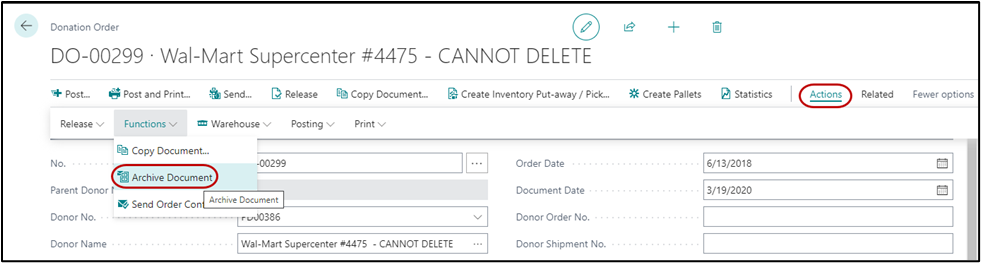
Select Actions à Functions à Archive Document.
-
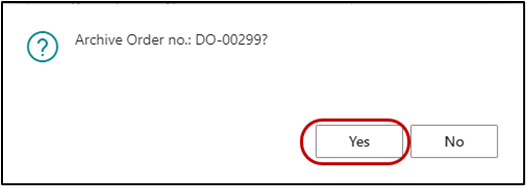
An Archive Order no: message will display. Select Yes to archive the order or No to cancel the process.
-
Once the donation order is archived, a confirmation message will display.

-
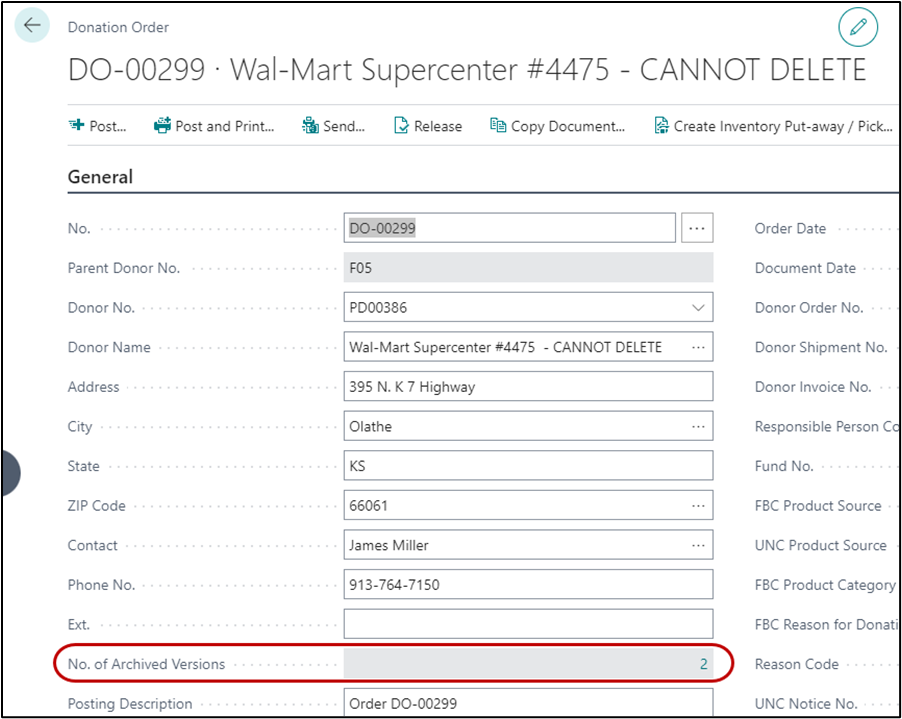
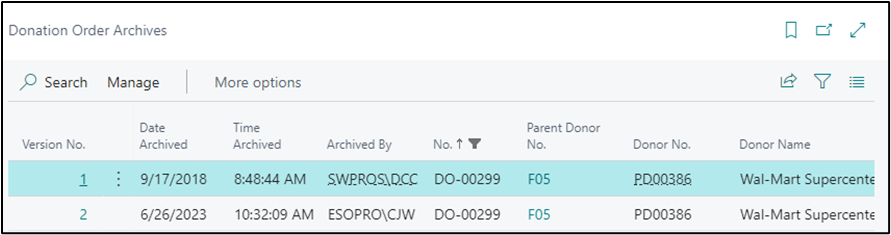
The No. of Archived Versions field is updated to reflect the number of times an order has been archived. You can drilldown to the archived orders by clicking on the value associated with the No. of Archived Versions field.
-
Automatic archiving occurs when a donation order is posted.
Archived Donation Orders
-
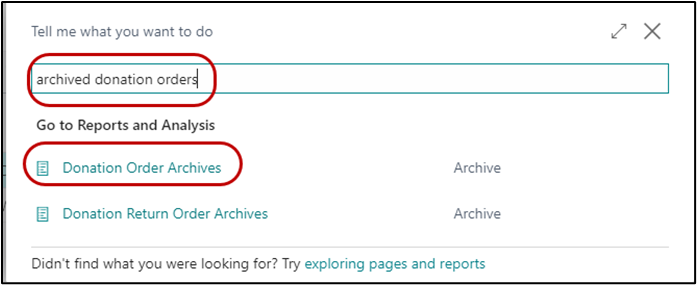
To view Archived Donation Orders once the donation order has been posted, select “Search” from the Dynamics 365 Business Central Banner and entering “Archived Donation Orders” in “Tell me what you want to do” then selecting “Donation Order Archives” from the results in the Go to Pages and Tasks section OR by selecting the “Donation Order Archives” menu action (if present) from your Role Center home page.
-
From the list, locate the document you want to view and select Home à Manage à View.