Contact Management Overview
Contact Management provides users with the ability to setup and define parameters related to the Relationship Management – Contact functionality in Ceres 5. Contacts can be used by food banks to supplement the available Contact fields on Agency Cards, Vendor Cards, Donor Cards, or Shoppers. Please note – if you are hosted by Feeding America, then the email logging functionality may not be supported.
Ceres Object release 5.00.00 is required for the functionality described in this document.
Marketing Setup
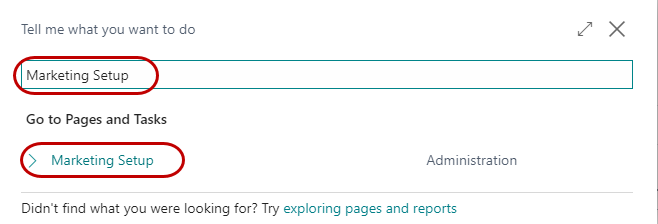
To access the Marketing Setup, go to Departments ▸ Agencies & Receivables ▸ Setup ▸ Marketing Setup.
Update the setup parameters on each of the FastTabs.
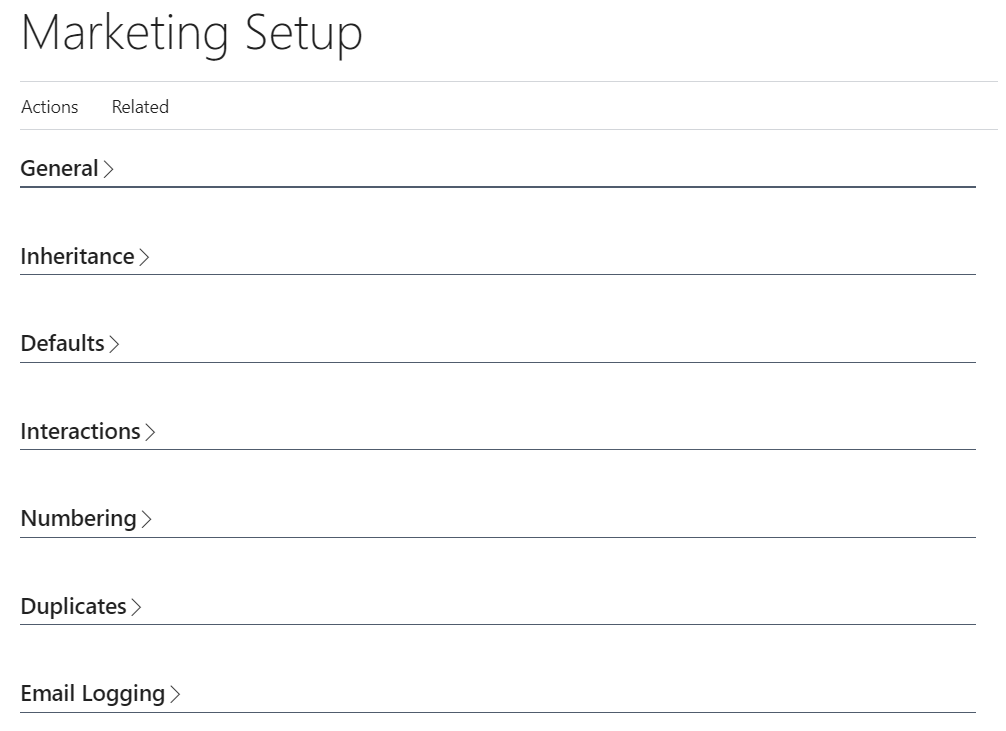
General FastTab
The fields on the General FastTab define where the Contact data will be stored.

Attachment Storage Type – Indicates where Ceres stores the attachments you want to use when creating interactions. Attachments can be Microsoft Word documents, for example standard letters, Excel, or PowerPoint files. The options are Embedded or External. The only option supported in Ceres is Embedded.
Attachment Storage Location – Indicates where the attachments are located when the Attachment Storage Type is External. Not used in Ceres.
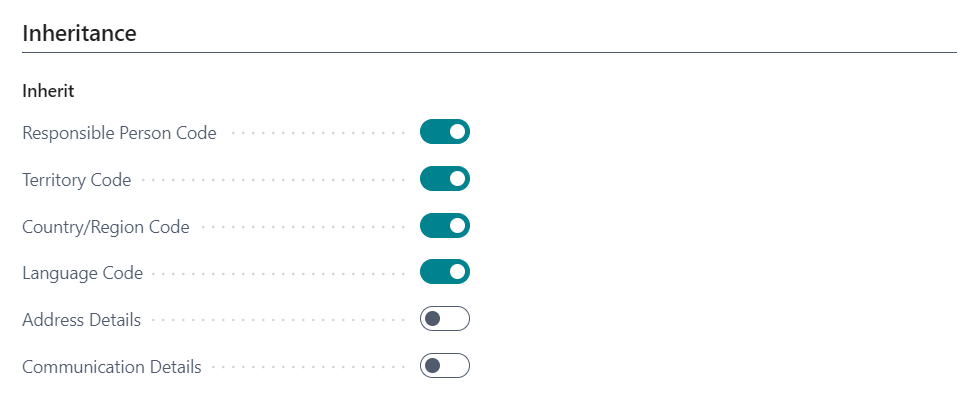
Inheritance FastTab
A check mark in each of the Inherit fields indicates you want Ceres to copy the address details from the Contact Card of a vendor, donor or agency to the Contact Card for the individual contact person(s) for that organization.
When you enter a new contact person for an organization recorded as a contact, Ceres will copy the content of the fields containing the details of the contact's address (for example the Address and Address 2 fields) from the organization’s contact card to the person's contact card.
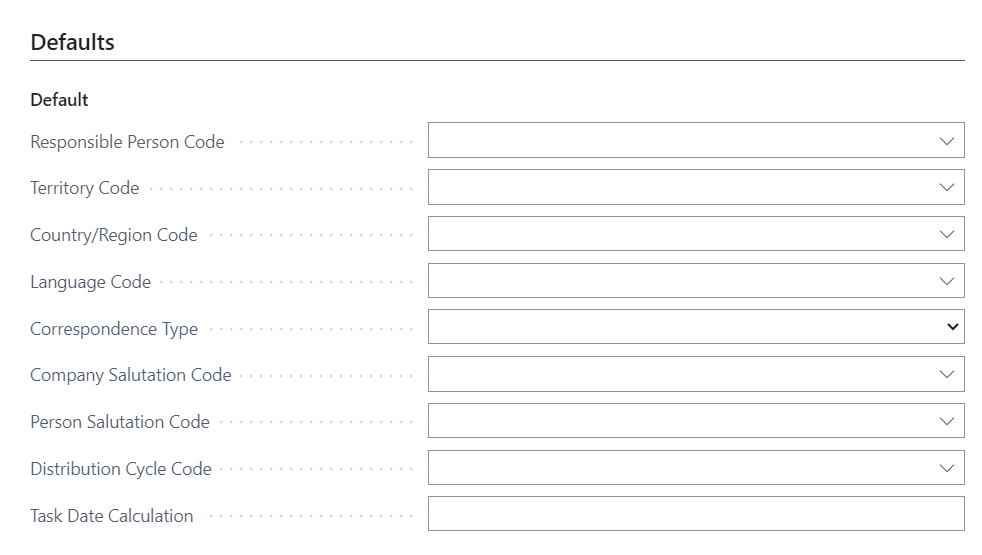
Default FastTab
Input a value in each of the fields below that you want Ceres to automatically assign to contacts when they are created. For example, if the default value in the Responsible Person Code field was Mary, then Mary would be assigned as the Responsible Person for each contact that is created.
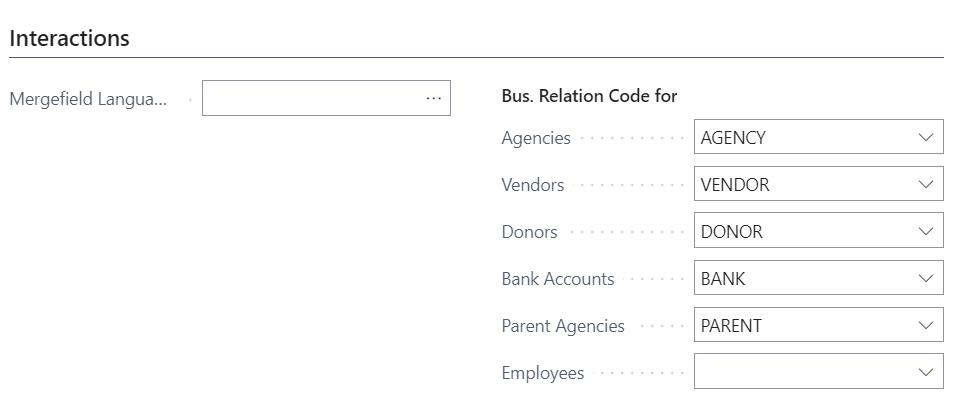
Interactions FastTab
The Business Relation Code identifies that a contact is linked to an Agency, Vendor, Bank Account, Donor, or Shopper. If you enter a Code in this field, Ceres will synchronize the Agency Card, Vendor Card, Bank Account Card, Donor Card, or Shopper and the Contact Card. This means you only have to update information in one place. In addition, it will add a new Contact whenever you create a new Agency, Donor, and Shopper etc. When you create contacts from Agencies, Vendors, Bank Accounts, Donors, or Shoppers Ceres automatically assigns the business relation code to these new contacts. Mergefield Language ID is not used in Ceres.
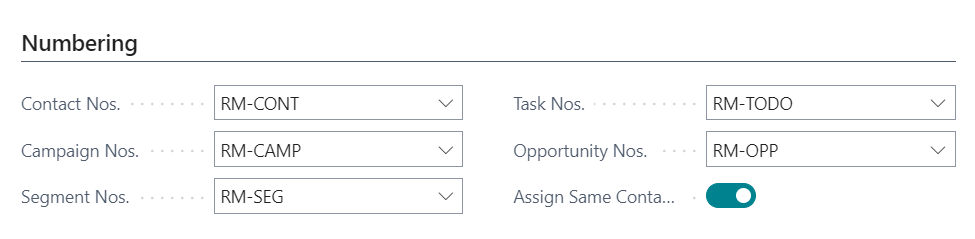
Numbering FastTab
The Number fields contain the codes for the Number Series that you want Ceres to use when assigning numbers to Contacts. Place a check mark in the Assign Same Contact No. field if you want the number to be assigned to the Company or People Contact based on the Agency, Vendor, Bank Account, Donor, or Shopper it was created from.
Duplicates FastTab
The Duplicates fields indicate how you would like Ceres to research for duplicate Contacts.

Maintain Dupl. Search Strings – A check mark in this field indicates that Ceres automatically updates the search strings it uses to search for duplicate records. You can set up the search strings in the Duplicate Search String Setup Table.
Autosearch for Duplicates – A check mark in this field indicates that you want Ceres to automatically search for duplicates each time a Contact is created or modified. When searching for duplicates, Ceres uses the search strings that you have defined in the Duplicate Search String Setup Table.
Search Hit % – This field contains the level of precision you want the program to apply when searching for duplicates.
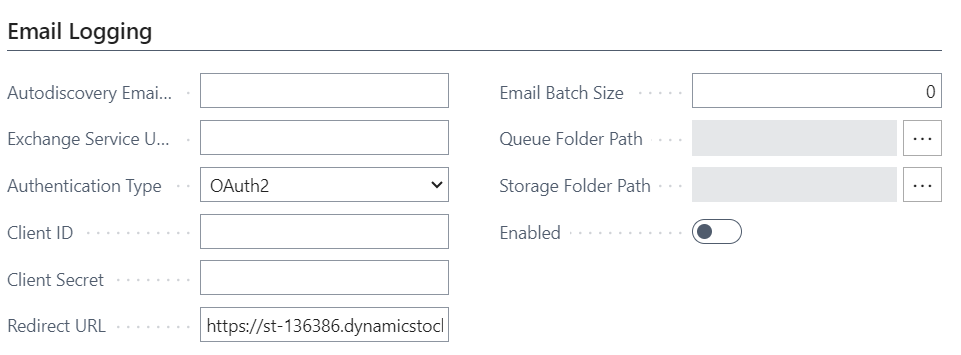
Email Logging FastTab
The Email Logging functionality is not supported in Ceres.