Zebra Printer Preferences Not Saving
Problem:
When printing to a Zebra Printer and labels in Ceres, print settings are not saved between print runs. The user needs to change page size, margins and any other options each time a new label is printed. Typically labels from a Zebra printer are used for Pallet tags if you have barcodes on your Ceres pallet tags.
Versions affected: Ceres 4.x, Ceres 5.
Solution:
-
Close Ceres
-
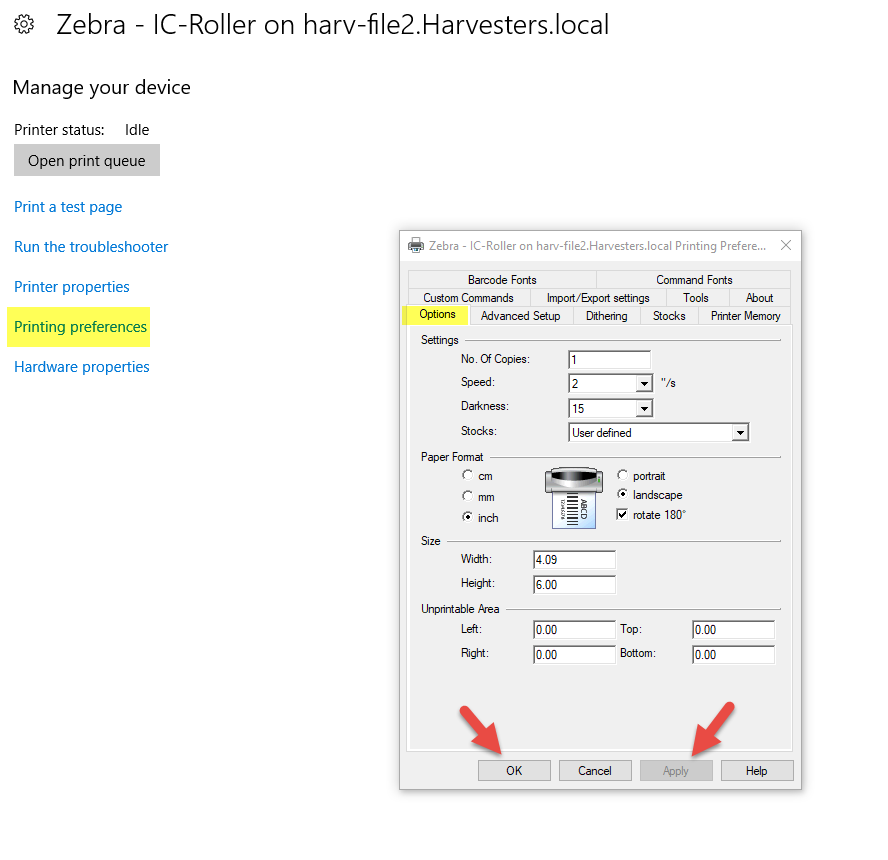
Open printing preferences for the Zebra Printer Driver on each computer that will need to print labels.
a. In Windows 7 & 8, this can be found under Windows Settings / Devices / Printers & Scanners / [Printer Name] / Manage / Printing preferences b. In Windows 10 & 11, this can be found under Windows Settings / Bluetooth & Devices / Printers & Scanners / [Printer Name] / Printing preferences
-
Modify the printing preferences.
-
Click the Apply button.
-
Click the OK button.
-
Re-open Ceres. The printer settings should now be saved as defaults.
Example Zebra Printer Driver printing preferences for a 4 x 6 barcoded label are shown below.