Remote Application 2.0 - Web Access Login Procedure
This document is intended to assist users logging in to the new Remote App 2.0 environment.
Feeding America Ceres Hosting: Differences While Using the New Remote Applications for Ceres and/or Excel
New Remote Desktop Apps for Ceres and Excel
The following procedure will need to be run on each desktop computer that is running Ceres or Jet Reports in the hosted Excel app.
For Ceres, there are two separate processes: A setup process that is only run once per user, and the connection file that the user runs each time they want to connect to Ceres. The Ceres/Excel RDP file is downloaded to the local computer, however Feeding America prefers that users access the applications through the web portal, by downloading and running the RDP file every time they need to log in.
Users who need to design or run Jet Reports directly from Excel will run the Excel connection file.
You will only have access to the applications that are published specifically for you. This is initiated by your project lead submitting a request with the impacted users to the Service Desk.
How to Run the Remote Applications for Ceres and Excel from the Web Access Portal (First Login Only)
-
Navigate to: https://ceres.feedingamerica.org

-
Sign in using your Hungernet Username and Password
-
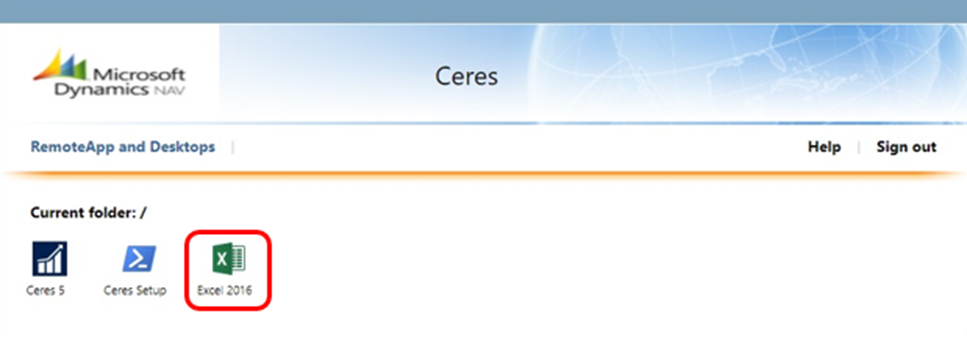
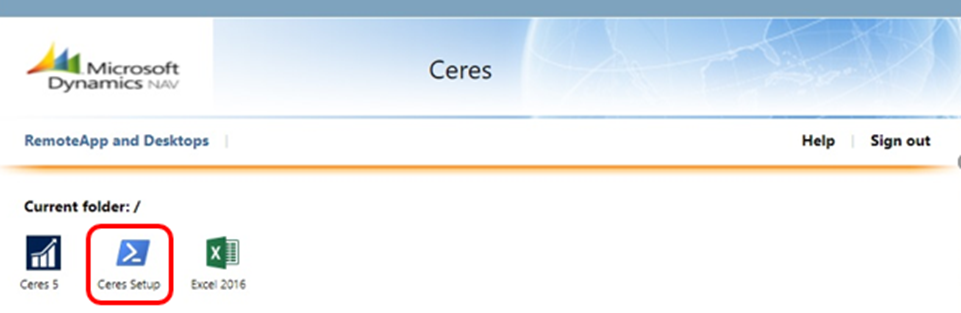
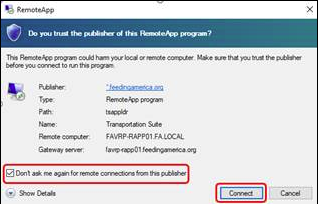
FIRST TIME ONLY: For each user of Ceres, download the Ceres Setup file to the user’s computer by double clicking the icon. It will download as an RDP file and appear in your downloads folder or, depending on your browser, at the bottom of your screen. Open (or save and run) the cpub-powershell-Applications-CmsRdsh.rdp file.
 note
noteYou will only see the specific version(s) of Ceres that your food bank is using in the web portal view above.
-
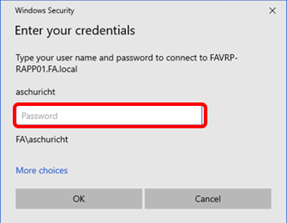
The RDP file will request your Hungernet password again. Enter your password.
-
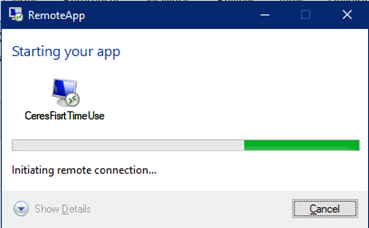
The RemoteApp setup will start to run.
-
The RemoteApp setup window will eventually transition to a PowerShell window, which will close automatically after ~30 seconds. Please wait for the window to close; do not close it yourself. Once closed, the first-time setup is complete.

-
To continue, skip to step #3 in following section.
How to Run the Ceres Remote Application (After First Login)
-
After first time setup is complete for Ceres, you may run the applications directly from the web portal: https://ceres.feedingamerica.org

-
Sign in using your Hungernet Username and Password
-
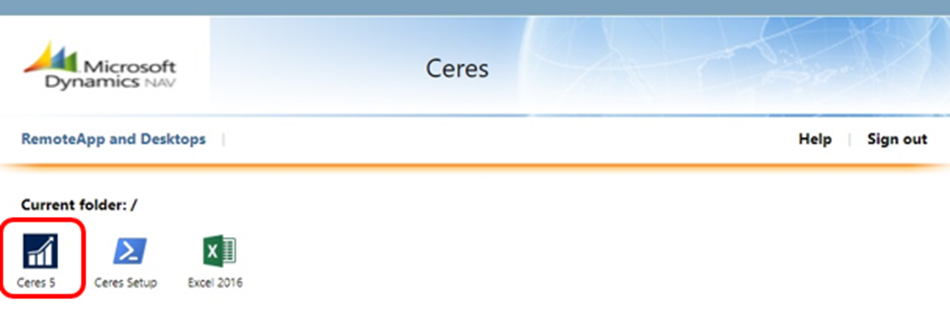
An icon corresponding to the version of Ceres appropriate to your food bank will appear in the Feeding America Remote Applications list. Double click the icon. It will download as an RDP file and appear in your downloads folder or, depending on your browser, at the bottom of your screen. Open (or save and run) the file accordingly.
-
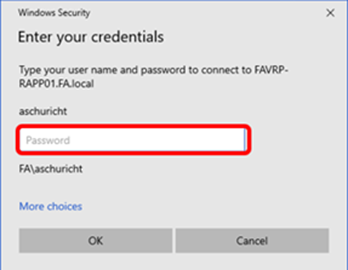
The RDP file will request your Hungernet password again. Enter your password.
-
The RemoteApp setup will start to run.
-
The RemoteApp setup window will eventually transition to a PowerShell window, which will close automatically after ~30 seconds. Please wait for the window to close; do not close it yourself. Once closed, the first-time setup is complete.
-
You will now be logged in directly to your Ceres database. Before proceeding, please verify that you are in the correct database and company. See address example below in red.

How to Access Ceres 5.1 Test from Within Ceres 5.1 LIVE
You can access Ceres 5.1 test from within Ceres 5.1 LIVE, by clicking on blue box with the the small white caret in the upper left hand-corner of the Ceres 5.1 window, and then selecting “Select Server” from drop down menu.
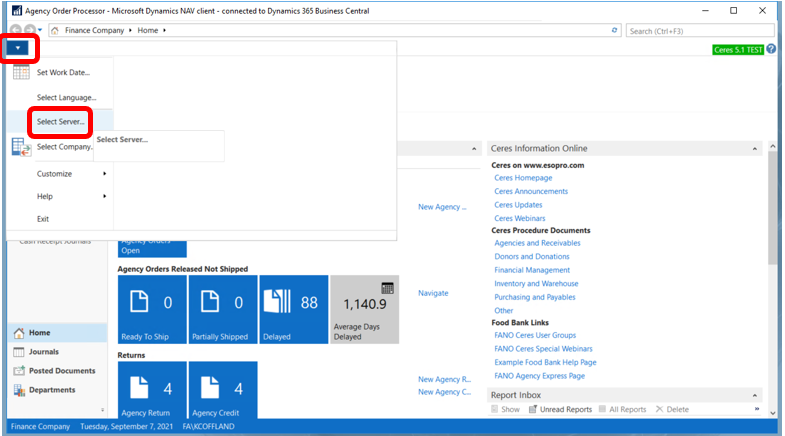
Next, the “Select Server” window will open. Delete the “Server Address” in the box and then copy and paste the following AGS Ceres 5.1 Test server path into the box: favnp-hub215:7746/DynamicsNAV_AGS_DEV. Click “Ok”.
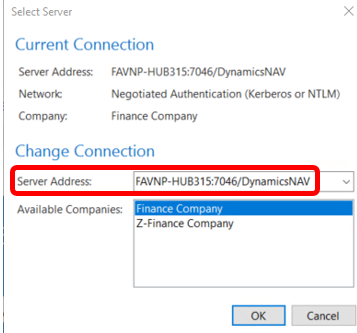
To verify what database you are currently logged into, always double-check the upper right hand corner of your Ceres 5. 1 window and look at the highlighted Ceres 5.1 text with either “Live” or “Test” shown.

How to Run the Remote Application for Excel
-
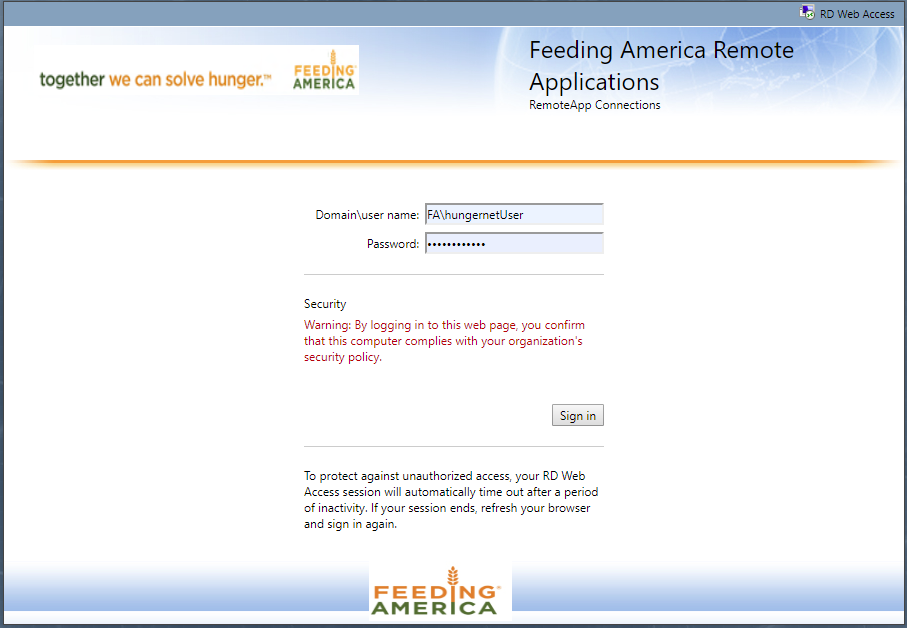
Navigate to: https://ceres.feedingamerica.org
-
Sign in using your Hungernet Username and Password
-
Icons for Excel and will appear in the Feeding America Remote Applications list. Double click the appropriate icon. It will download as an RDP file and appear in your downloads folder or, depending on your browser, at the bottom of your screen. Open (or save and run) the file.