Duplicate Lot Numbers
This document describes how Ceres 5 prevents duplicate Lot Numbers and what can be done if a potential duplicate Lot Number condition exists.
Ceres Object release 5.00.00 is required for the functionality described in this document.
Prevention of Duplicate Lot Numbers
For Purchase and Donation Order transactions, Ceres automatically generates Lot No. Information records when a user specifies a Quantity for the transaction. For positive adjustments via the Item Journal or output via the BOM Journal, Lot No. Information records are created manually using the “Assign Lots” action.
Regardless of how the Lot is created for the transaction, Ceres will not allow the “Item No.” to be changed. Doing so would result in duplicate Lot No. Information records having the same “Lot No.” but a differing “Item No.”
Once the Lot No. Information record has been created, it is permanently attached to that specific Item No. Attempting to change the Item No. on an inbound transaction will result in an error message like the one shown below.

Correcting Lines
If a Lot number already exists on the transaction and the user needs to change the Item Number on the Line, follow these steps:
- For a Purchase Order, Donation Order, or positive adjustments via the Item Journal, clear the “Lot No.” field. If the Item is palletized and a Pallet number exists, it will be cleared from the transaction automatically. The Item can now be changed and a new Lot created via the normal transaction processes.
For a BOM Journal Line (used in Kitting) you must delete the entire line and recreate it with the new Item number and generate a new Lot number for that Item.
Example:
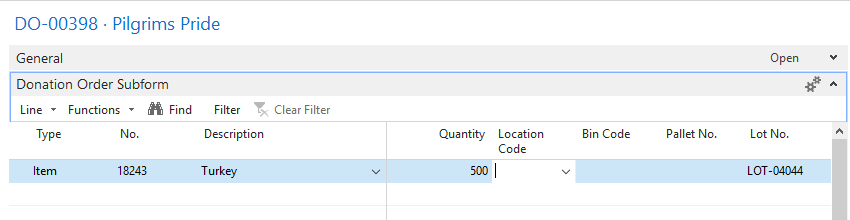
Entering the quantity on this donation order populates the Lot No. Field.
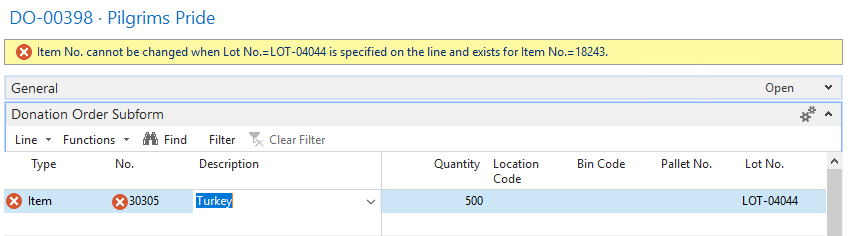
Attempting to change the item number results in an error.
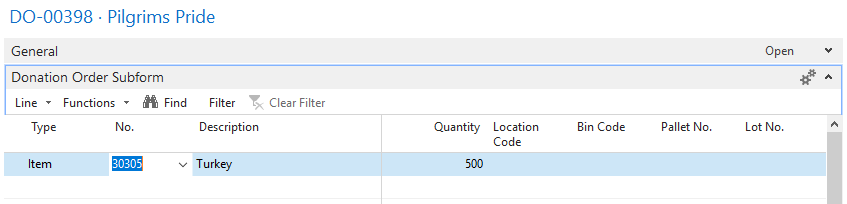
Deleting the lot number allows you to select a different item number.