Document Sending Profile
In Ceres 5, the Post and Print button found on Agency Orders in previous versions of Ceres has been replaced with a Post & Send button. Setting up a Default Document Sending Profile allows you to print Agency Orders without having to select a sending option every time you click the Post and Send button. You can also set up each Agency with a preferred method of sending order documents so that you do not have to select a sending option every time you choose the Post and Send button.
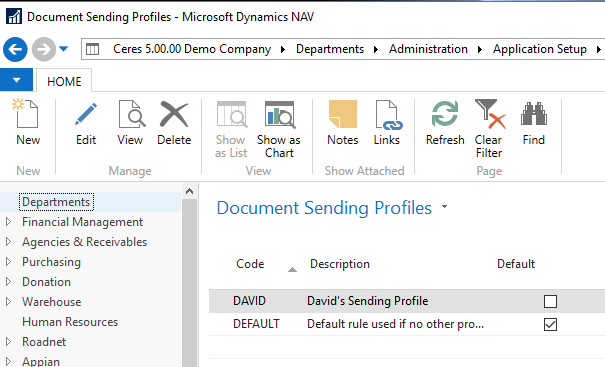
In the Document Sending Profiles window, you set up different sending profiles that you can select from in the Document Sending Profile field on an Agency Card. In the Document Sending Profile window for a sending profile, you can select the Default check box to specify that the document sending profile is the default profile for all Agencies, except for Agencies where the Document Sending Profile field is filled with another sending profile.
Ceres Object release 5.00.00 is required for the functionality described in this document.
Setting up a Document Sending Profile
-
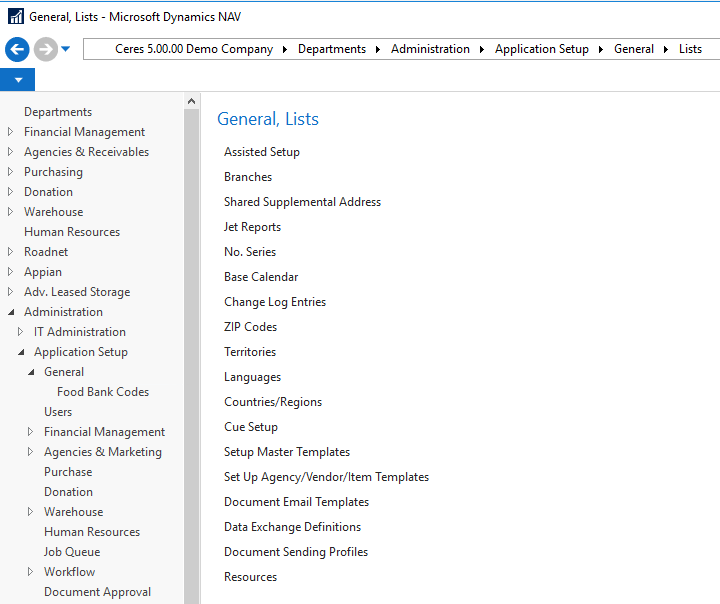
The Document Sending Profile can be found by navigating to Departments Administration Application Setup General Lists, or by typing Document Sending Profiles in the search box.
-
On the Home ribbon, choose New.
-
Enter the fields as described below:
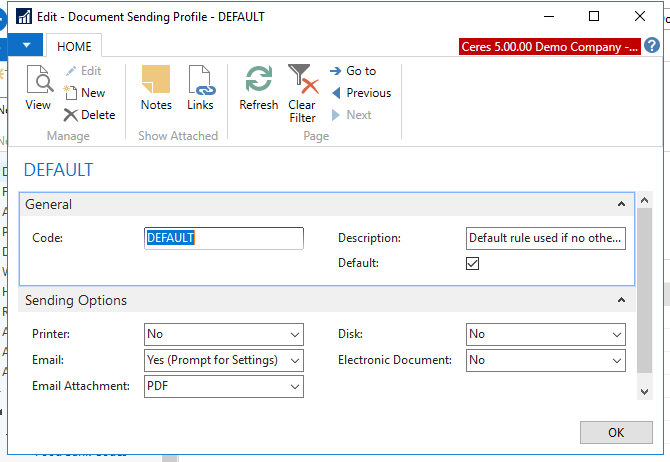
- Code identifies the document sending profile in the system.
- Description describes the document sending profile.
-
To use this document sending profile for All agencies by default, check the Default box. The Default check box can only be selected for one Document Sending Profile record.
-
Printer determines whether and how the document is printed when you choose the Post and Send button. The options are:
- No: No document is printed
- Yes (Use Default Settings): The document is printed according to the default printer setup for that computer.
- Yes (Prompt for Settings): The document is printed according to settings that you make on the printer setup dialog.
-
E-Mail specifies whether the document is sent by e-mail to the Agency when you choose the Post and Send Button, subject to the SMTP settings of your Ceres implementation. The options are:
- No: No email is sent
- Yes (Use Default Settings): The document is attached to an e-mail to the customer according to the default settings for e-mail sending.
- Yes (Prompt for Settings): The document is attached to an e-mail according to settings that you make in the Send Email window.
-
In the E-Mail Attachment field, select the type of file to attach. The only supported option in Ceres is PDF.
-
Disk specifies that you want to save the document to a file location when you choose the Post and Send button. The options are:
- No: No file is saved.
- PDF: The document is saved as PDF to the location that you specify.
- The other options are not supported in Ceres.
-
The Electronic Document option is not supported in Ceres.
Specify a Sending Profile on an Agency Card
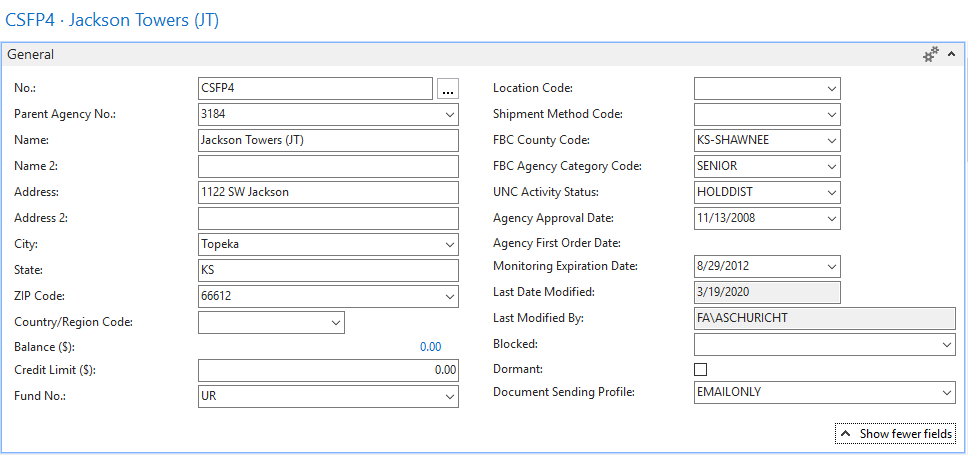
You can set up an Agency with a method of sending order documents that is different from the default by setting a specific Document Sending Profile for that Agency.
-
In the Search box, enter Agencies, and then choose the related link.
-
Open the card of the Agency for which you want to set up a sending profile.
-
On the General FastTab, in the Document Sending Profile field, select a profile that you have set up as described in the previous procedure.