Agency Credit Memos
An Agency Credit Memo should be used when the intention is to create a financial credit to the Agency Account to reverse Agency Fees on an Order. Agency Return Order functionality overlaps, but those are more typically utilized when Items and Quantity are being returned. A financial credit is automatically created and posted as part of the Return Order process (if applicable).
Ceres Object release 5.00.00 is required for the functionality described in this document.
Setup Options
Ceres has some configurable options available that will affect both Agency Credit Memos and Agency Return Orders. The two options available allow the ability to configure Ceres to disallow the entry of items on Agency Credit Memos, forcing product returns to be handled through the Agency Return Order process. In addition, Ceres can be configured to allow new pallets to be created on product returns instead of returningproduct to the pallet it was shipped from. Both of these options can befound on the General Tab of the Agency & Receivables Setup page.
-
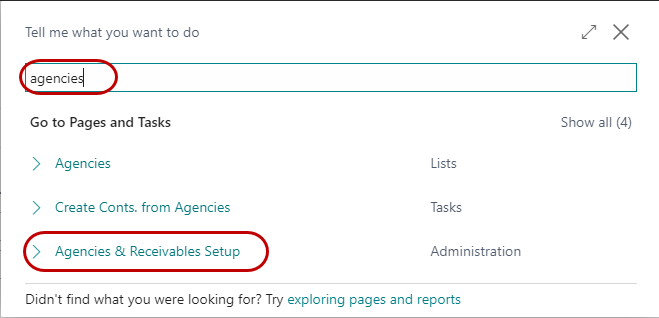
The Agencies & Receivables Setup page is accessed from Departments ▸ Agencies & Receivables ▸ Setup ▸ Agencies & Receivables Setup, or by searching for Agencies & Receivables Setup:
-
Additional information on the fields on this page may be found in the documentation in the Related Topics section, but the two fields important to both Agency Return Orders and Agency Credit Memos are documented here.
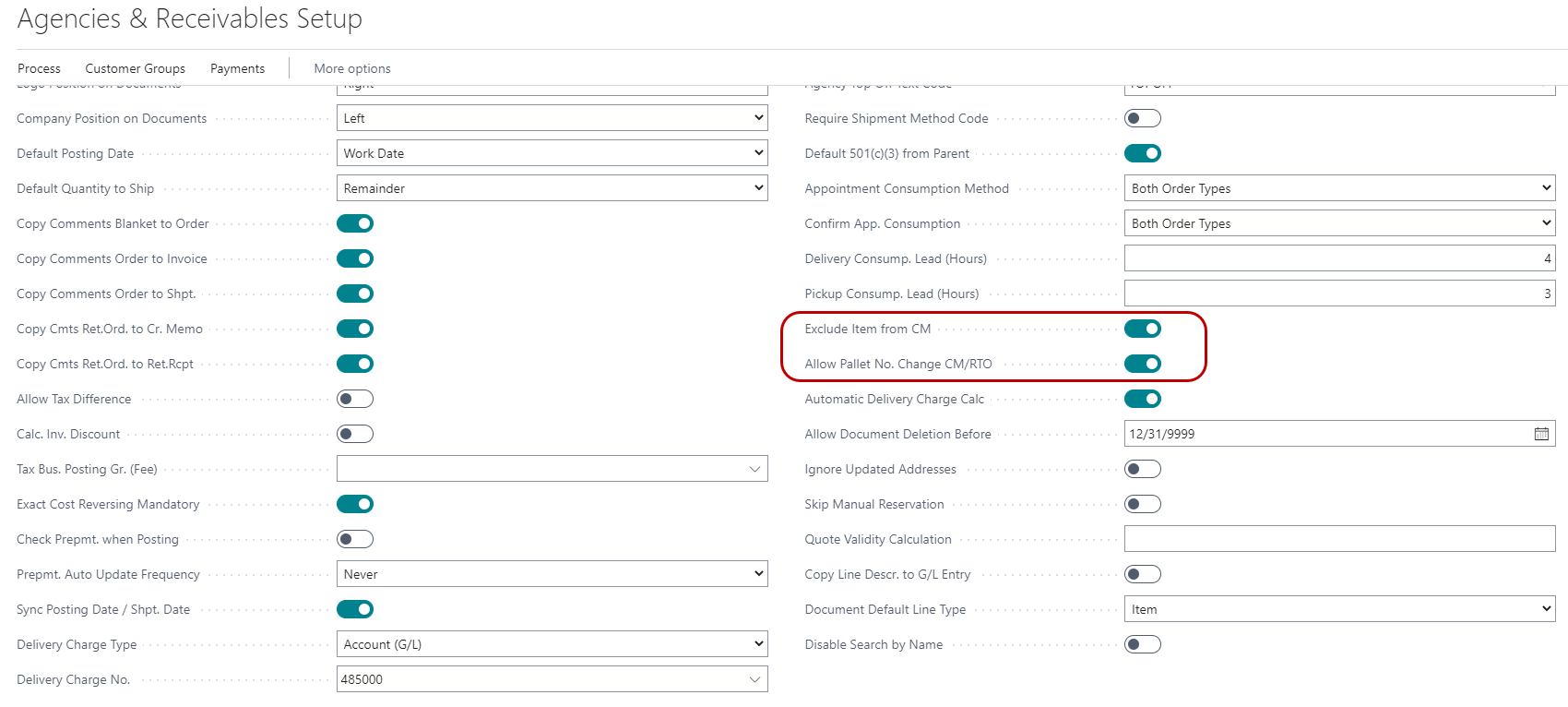
Exclude Item from CM – Check this box to configure Ceres to prevent the entry of items on Agency Credit Memos. To return items to inventory from Agency Orders, the user must use Agency Return Orders. An attempt to place items on an Agency Credit memo with this field checked will result in the following error.

Allow Pallet No. Change CM/RTO – check this field to configure Ceres to allow creation of a new pallet when returning product or to allow the user to return the product to another pallet of the same item. If a new pallet is created, the pallet will inherit all the properties of the original pallet, including lot number and FBC & UNC codes. If the user attempts to return the item to another existing pallet, it will only be allowed if the coding of the FBC & UNC codes matches exactly to the coding of the original pallet the item was shipped from. If no existing pallets have the same coding as the original pallet, the user will be forced to create a new pallet. With this option checked, the user still has the ability to return the product to the original pallet it was shipped from. If Exclude Item from CM is checked, this will not apply to Credit Memos as Items will not be able to be returned.
Creating Agency Credit Memos
-
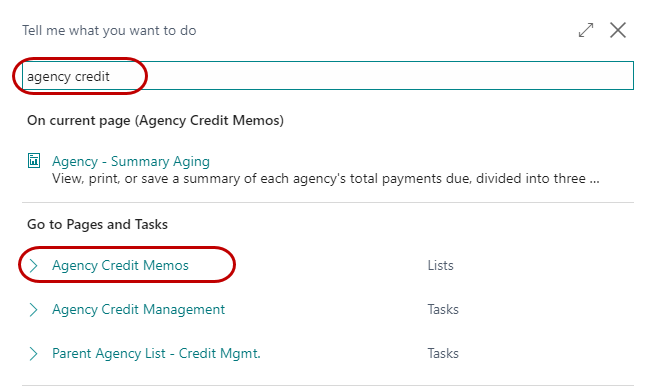
Agency Credit Memos can be accessed from Departments ▸ Agencies & Receivables ▸ Order Processing ▸ Agency Credit Memos, or search for Agency Credit Memos.
-
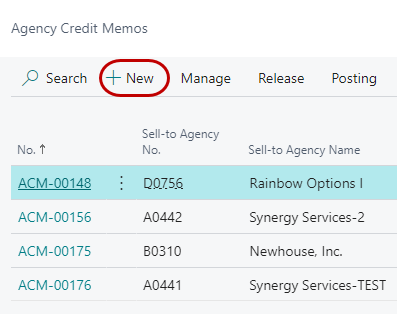
If you are using batches, select your batch from the batch list; otherwise you will see the listing of open Agency Credit Memos that exist within Ceres. Select one from the list to Edit it or click New to create a new Credit Memo.
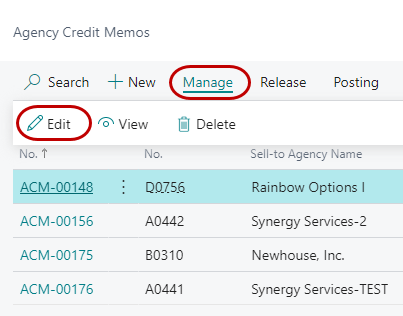
Agency Credit Memo Header
-
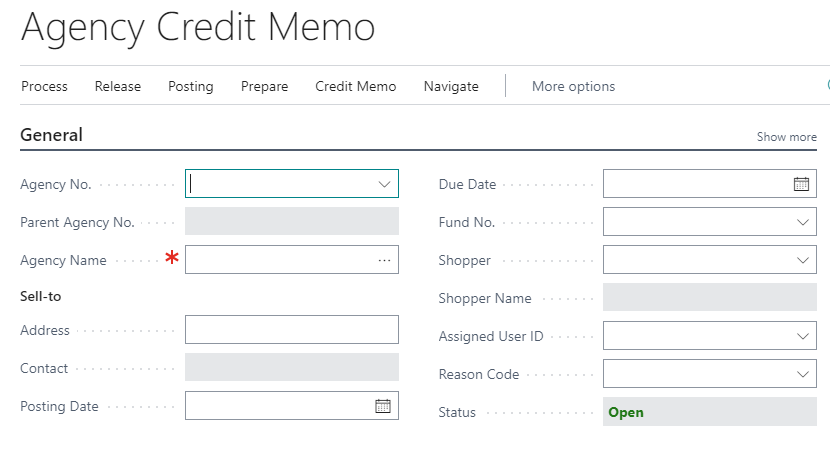
On the Home ribbon, click New to create a new Agency Credit Memo. The Document window will open:
-
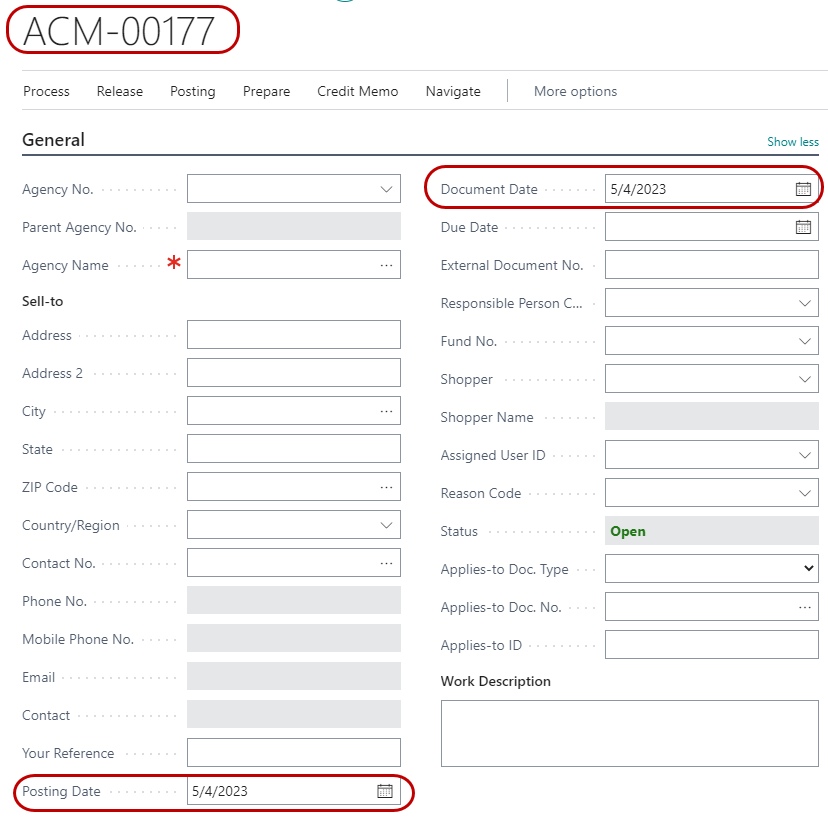
Press the Enter key to have Ceres automatically assign the next document number in the No. field. This will also fill in the Posting Date and Document Date by using the current Work Date.
-
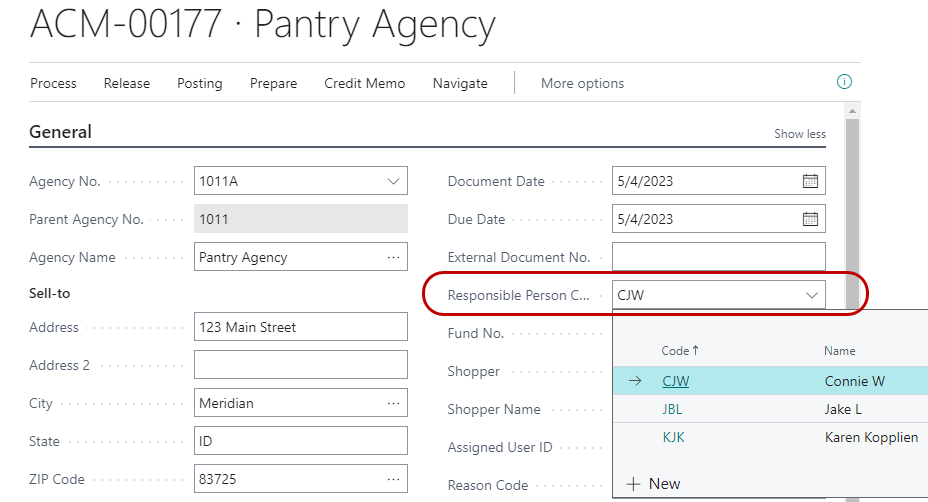
In the (Sell-To) Agency No. field, enter the Agency No. or use the lookup to select the Agency from the list. The Agency’s name, address, contact, Branch Code and Fund No. will flow from the Agency Card.
-
If required, fill in the Responsible Person field. This is the person who is creating the credit memo.
-
If applicable, select the Shopper who placed the original order that you are correcting or crediting (if you have checked “Exclude Item from CM” in Agencies & Receivables Setup, then you will likely not need to select a Shopper as you can only enter G/L lines on the Credit Memo in this scenario).
Agency Credit Memo Lines
-
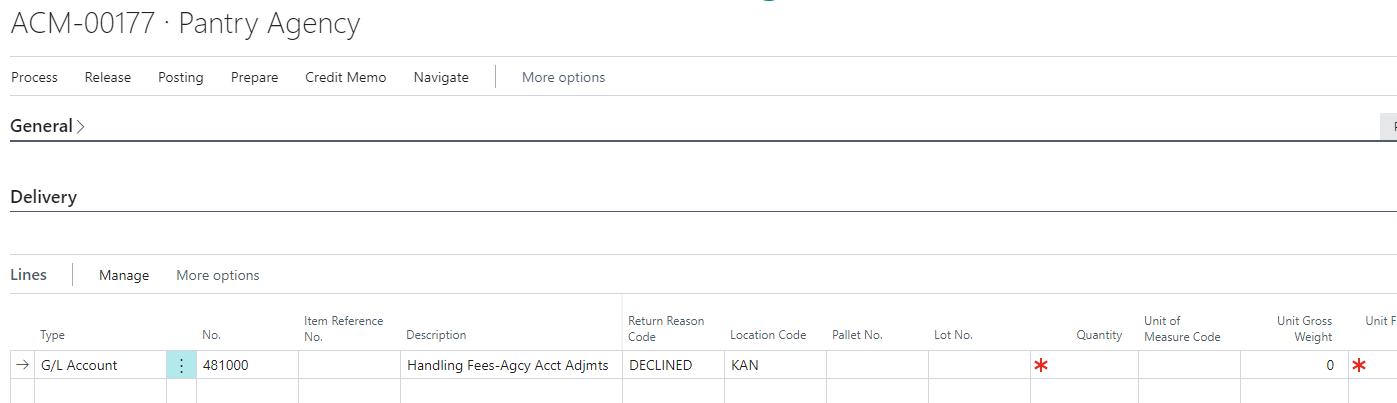
Move to the lines of the Agency Credit Memo.
-
In the Type field select Item if product is being returned. Otherwise select G/L Account to record a credit on their account.
noteThe Type field can also be used to add additional text to Agency Credit Memos with Standard Text Codes.
-
In the No. field, type in the item number or the G/L Account number. You can also use the lookup and select from the list. The Item’s Description, Unit of Measure, and Unit Gross Weight will flow forward to the line. If a G/L Account was selected, the name of the G/L Account will flow.
-
Enter a Return Reason Code (if required).
-
In the Location Code field, select the Location where product is being returned to. If a G/L Account is selected, then no Location information is required.
-
If the Location you specified is set up to require Bins, select a Bin Code. The Bin selected should be the bin where the product is being returned to.
-
In the quantity field enter the quantity, cases, pounds, etc., that are being returned. If the Account Type is G/L Account, then enter 1.
-
In the Unit Fees column, enter the unit fee or the amount that you are crediting.
noteIf you are not crediting the entire quantity, in order for the Amount Including Tax field to update, the Credit Memo must be released. If the Quantity has to be changed again, you must Reopen the Credit Memo, adjust the Quantity and then Release it again to update the Amount Including Tax field. (When the Credit Memo is reopened, the Amount Including Tax is set to $0.00 on the lines). If you do not Release the CM after changing quantity and before posting, the Amount on each line will not be calculated correctly.
-
If required, enter any Dimension Codes for posting on the lines.
-
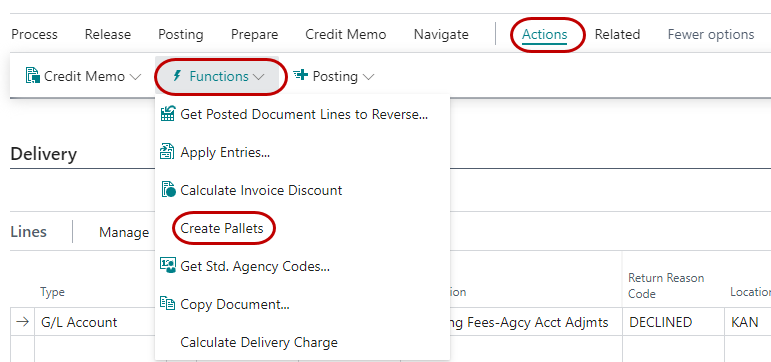
If Ceres is configured to allow new or changing of pallets, you may enter the pallet number you wish to return the product to. If it is desired to create a new pallet for the returned item, you must ensure that a proper tier and height is entered on the line and that the pallet number field is blanked out. At that point you can create pallets by selecting Create Pallets on the Actions ribbon.
Posting the Agency Credit Memo
-
When the Agency Credit Memo is complete and has been reviewed, you can post the Credit Memo by selecting Post. A hard copy (or .pdf copy) of the Credit Memo can be printed by selecting Post and Send.
-
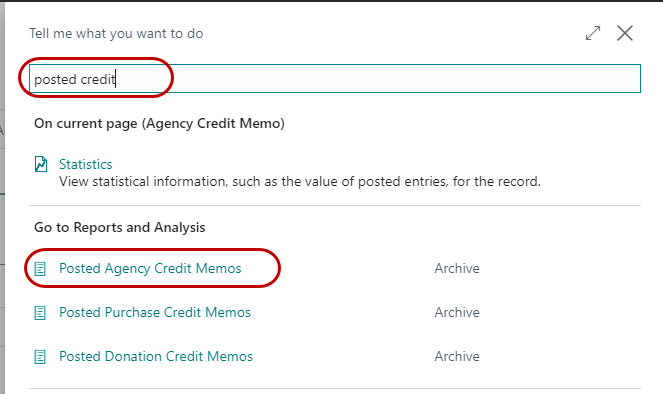
The posted Credit Memo can be viewed from Departments ▸ Agencies & Receivables ▸ Archive ▸ Posted Agency Credit Memos, or searching for Posted Agency Credit Memos
Using Copy Document
You can use the “Copy Document” routine to copy an existing document to the Credit Memo. This function can be used to copy an un-posted or posted document. If you are copying lines from a purchase order that include items, this will result in an error if “Exclude Item from CM” is selected in Agencies & Receivables Setup.
-
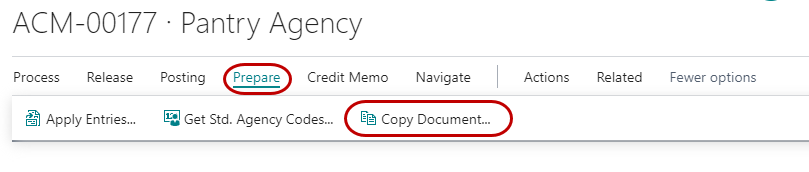
On the Agency Credit Memo, on the Home ribbon, click Copy Document.
-
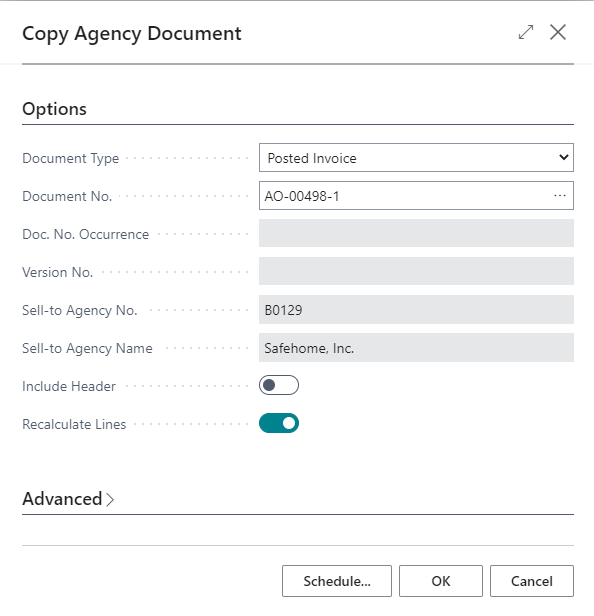
This will open the Copy Agency Document Window. Select the Document Type you wish to copy from (i.e. Posted Invoice or Invoice) and enter the Document No. to copy or select from the drop-down.
-
In the Include Header field, place a check mark in this field if you want Ceres to copy the information, including dimensions, from the document header you are copying from to the document you are creating. The document lines will be copied regardless of the entry in this field.
-
In the Recalculate Lines field, place a check mark in this field if you want to recalculate the lines in the document you are creating. The process retains the item numbers and item quantities but recalculates the amounts on the lines based on the agency information on the new document header. In this way, the process accounts for item prices and discounts that are specifically linked to the agency on the new document header.
-
The information has been copied to the new document. Edit as needed prior to posting.
-
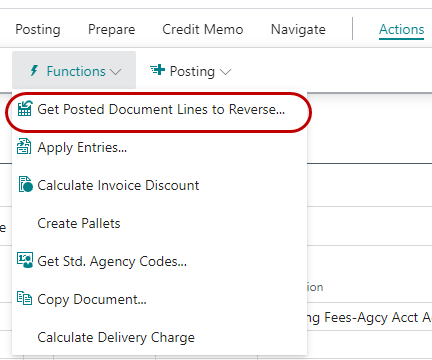
You can also use the “Get Posted Document Lines to Reverse” function to copy one or more document line from one document to another. This allows you to select specific lines from multiple documents or the same document if you are not crediting the entire document(s).
-
The Get Posted Document Lines to Reverse is covered in additional detail in the Agency Return Orders Document.
-
Once the lines have all been entered or copied and a review of the document to verify the information on the lines and total credit memo has taken place, then the document can be posted.
Related Topics
- Agency Order Overview
- Agency Return Orders
- Agency Credit Order and Recreate
- Agency Card Overview webinar
- Agency Orders webinars Part 1 & Part 2