Cancelling Agency Orders
The Cancel Agency Order process provides the ability to delete Open Agency Orders that will not be fulfilled, recording an image of the deleted Agency Order along with a user defined/selected Reason Code. Using the archived Agency Order functionality will provide the user the ability to view deleted orders and the reason for deletion. The purpose of this document is to outline the workflow process for cancelling Agency Orders.
All of the restrictions for deletion of open agency orders will still apply. If deletion of the agency order is prohibited for any reason, this process will also respect those restrictions and not allow the cancellation of open agency order. See Agency Order Overview and Agency Express 3 Managing Web Orders for more information.
Ceres Object release 5.00.00 is required for the functionality described in this document.
General Workflow
Setup
The process of canceling an Agency Order will attempt to email the Agency notifying them of cancellation. The email address used for this notification is found on the Communication FastTab of the Agency Card. It does not send to the associated Shopper.
Agency Order
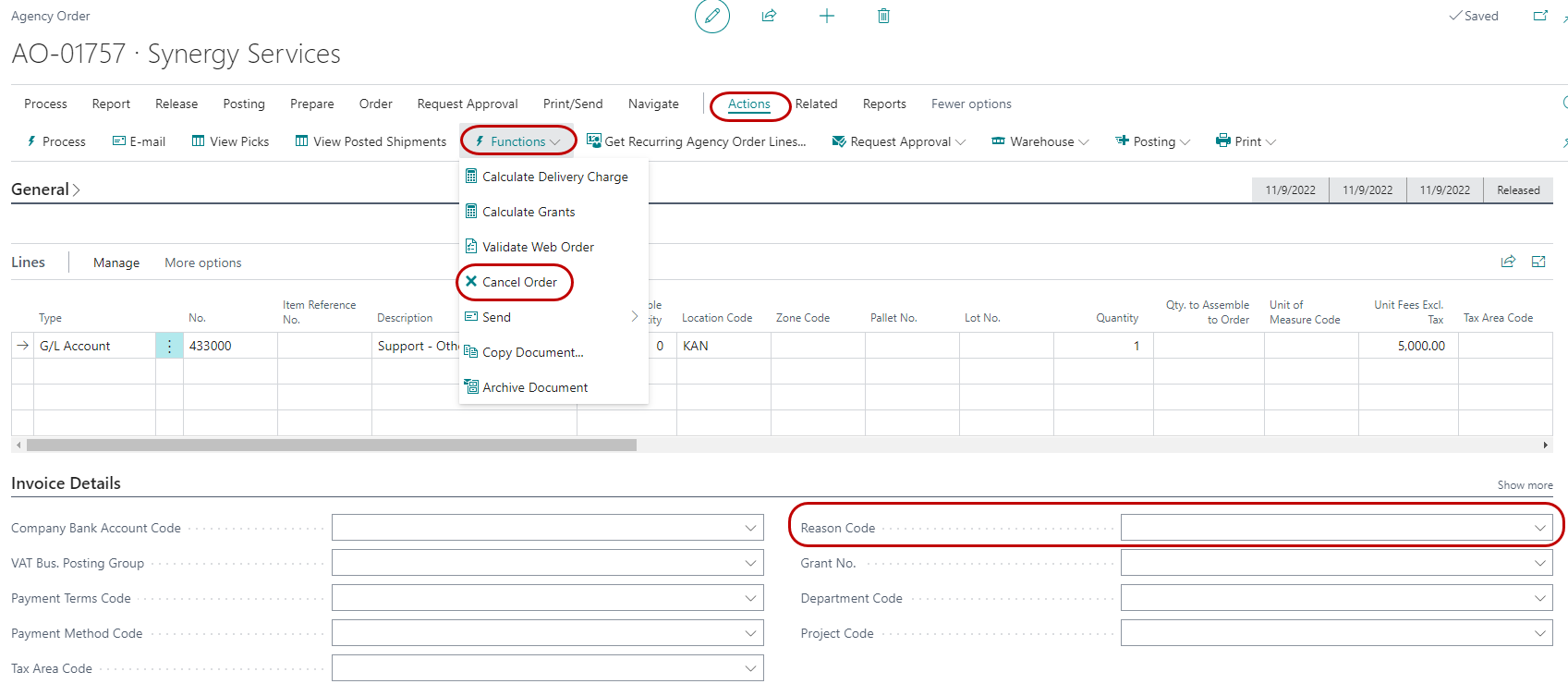
Two new fields have been added to the Agency Order called Cancel Order and Reason Code. The Reason Code will be selected from a list of valid Codes.
-
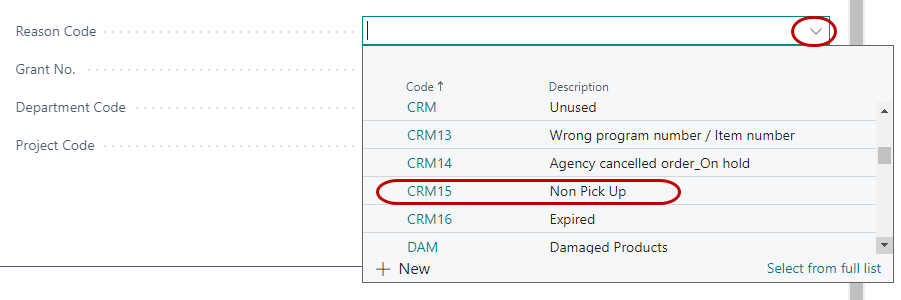
To initiate the process of cancelling the Agency Order, select a Reason Code. In this example, a Reason Code CMR15 was selected denoting the Agency did not pick up the product.
-
Next click the Cancel Order check box to indicate that you wish to initiate the Agency Order Cancellation process.

-
A dialog box will appear asking you to confirm your decision to cancel the Agency Order. Select Yes if you wish to continue with the Agency Order cancellation process. Select No if you have made an error or do not wish to abort the Agency Order cancellation process for any reason. This is the last chance to cancel the process. Selecting Yes will perform the appropriate database checks to ensure that deletion is allowed, and if there are no restrictions prohibiting deletion, the order will be cancelled.
-
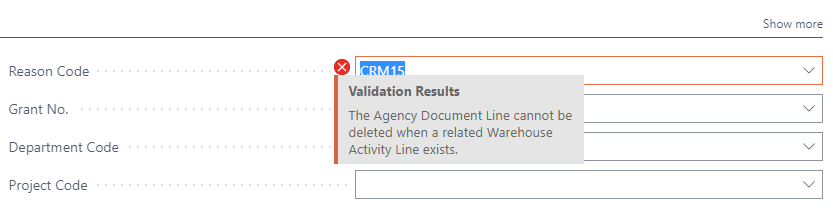
Below is an example of a restriction that may occur stopping the cancellation of the Agency Order. Agency Order deletion is not allowed if there are outstanding warehouse documents pending against the Agency Order. In below example, there outstanding inventory pick documents open which results in an error message. It will be necessary to clear any restrictions before continuing with the cancellation process.

-
Clear the restrictions and proceed with the cancellation process. Click the Cancel Order check box and select Yes to continue.

-
After clicking Yes in the confirmation dialog box the process begins. This message will be displayed. You can view/print the respective documents if necessary from the agency order archives.
-
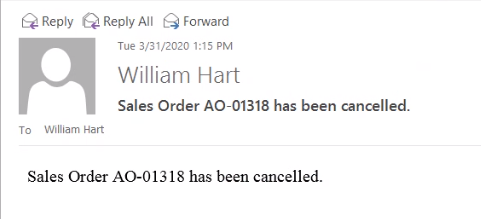
At this point, the latest version of the Agency Order has been archived and the Agency Order has been cancelled. If the Agency email address was valid, an email notifying the Agency of the order cancellation has been sent. Below is an example of the email received.
-
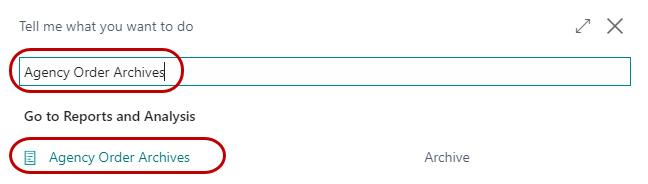
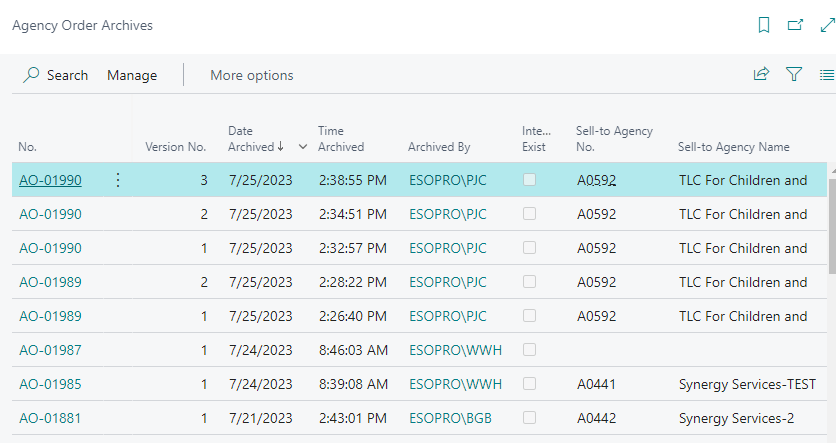
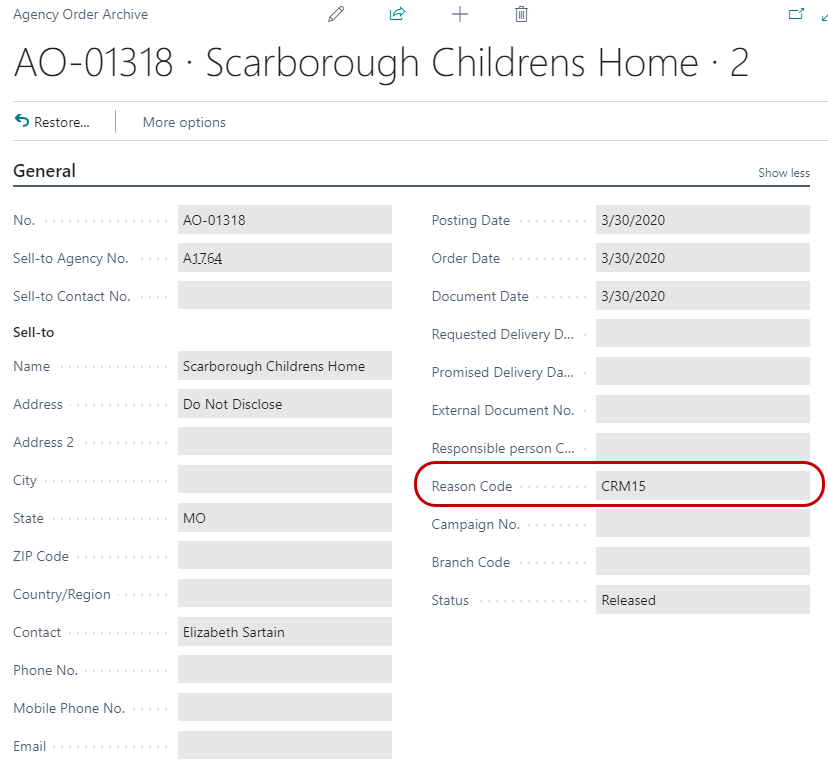
To view archived agency order documents go to Departments Agencies & Receivables Archive and then select Agency Order Archives. A list of archived orders will be displayed. Select the correct Order and double-click on it to open the archived document.
-
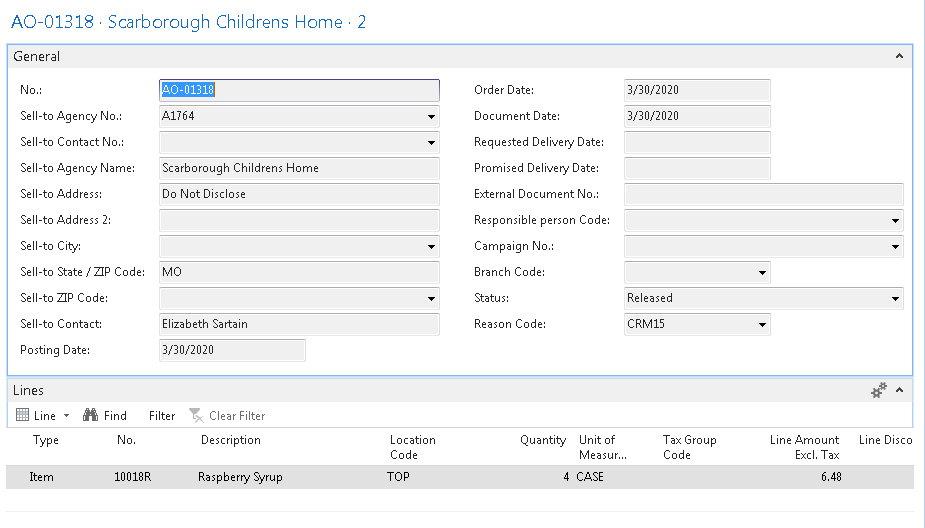
Below is an example of the cancelled Agency Order. Note the Reason Code is displayed on the General FastTab.