Agency Fees Setup
The Agency Fees functionality provides food banks with the ability to create and maintain special Item unit fees charged to agencies for designated items. For example, other Food Banks could be charged a reduced fee for the same Item without specific manual discounting on the Agency Order. Agency Fees can be setup to apply to all Agencies, Agency Groups, individual Agencies or a Campaign.
Ceres 5 will check all applicable unit fees for the combination of Agency and Item and select the lowest unit fee the Agency qualifies for. Standard Unit fees are established on the Item Card which will be used only if no other applicable Agency Fees are found in the Agency Fee table. Agency Fees can have start and end dates and if populated are only active for agency orders within the specified date range.
If established and synchronized, then Agencies will see the specific fees on Agency Express as in Ceres.
Ceres Object release 5.00.00 is required for the functionality described in this document.
Accessing the Agency Fees Setup Page
The Agency Fees Setup page may be accessed from either the Agency List or the Item List. Access from the Agency List will filter the records to only those agency fees applicable to the selected Agency. Likewise, access from the Item List will filter the records to only those agency fees applicable to the selected item.
Viewing Agency Fees from the Agencies List
-
Go to Departments ▸ Financial Management ▸ Receivables ▸ Agencies, or type “Agencies” into the search bar. You will see the listing of Agencies.

-
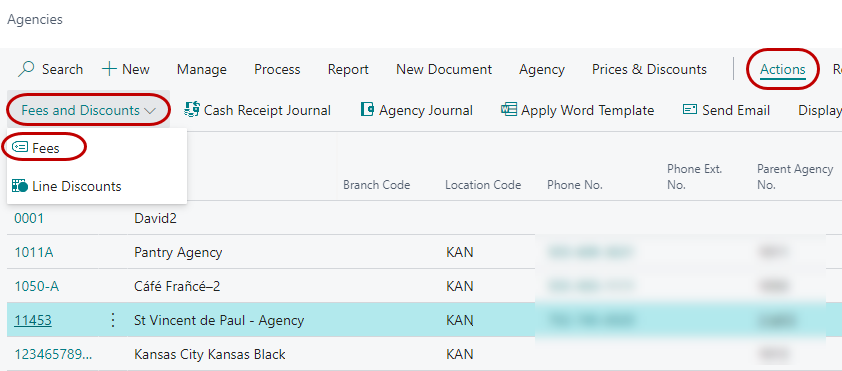
Select the Agency you wish to use by clicking on it once. This will highlight the selected Agency. On the Actions ribbon, in the Fees and Discounts section, click the Fees button to open the Agency Fees form.
-
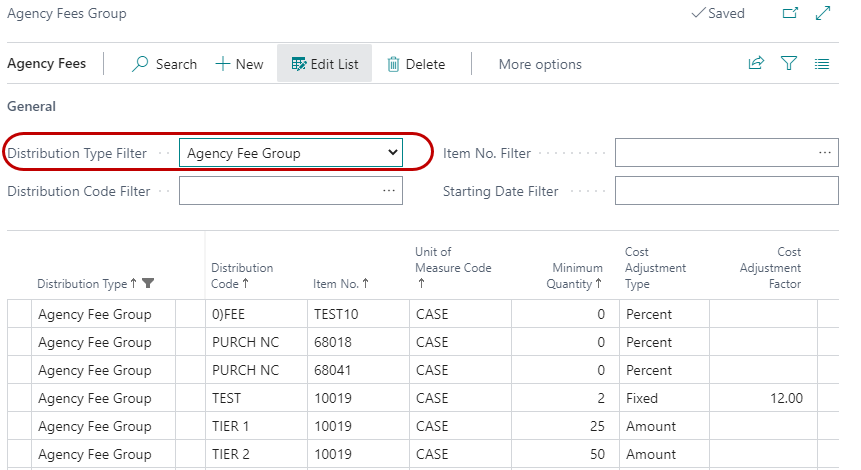
This opens the Agency Fees window for that Agency, where you can view the fees based on your Distribution Type Filter (described in Agency Fees Setup below).
-
Agency fees can also be viewed from the Agency Card. The Fees button can be found on the Navigate ribbon in the Fees and Discounts section.
Agency Fees from an Item
-
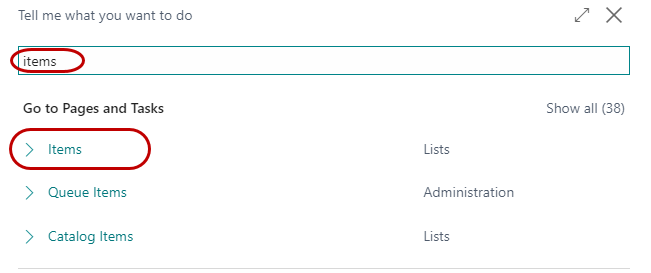
Go to Departments ▸ Agencies & Receivables ▸ Inventory & Fees ▸ Items, or type “Items” into the search bar. You will see the listing of items.
-
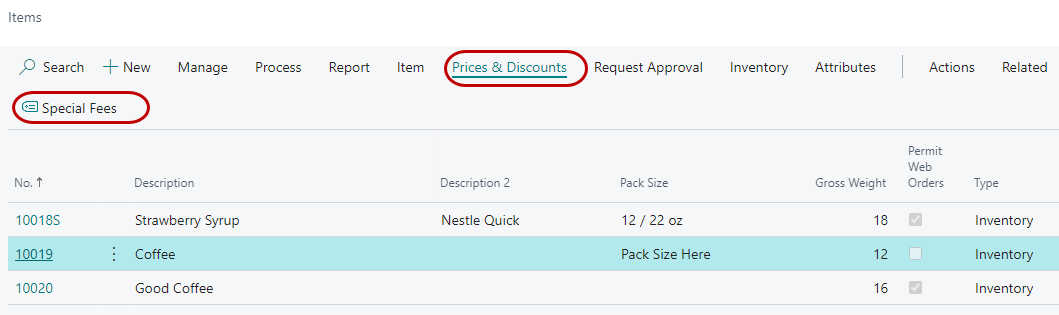
Select the item you wish to use by clicking on it once. This will highlight the selected item. On the Navigate ribbon, in the Distribution section, click the Fees button to open the Agency Fees form.
-
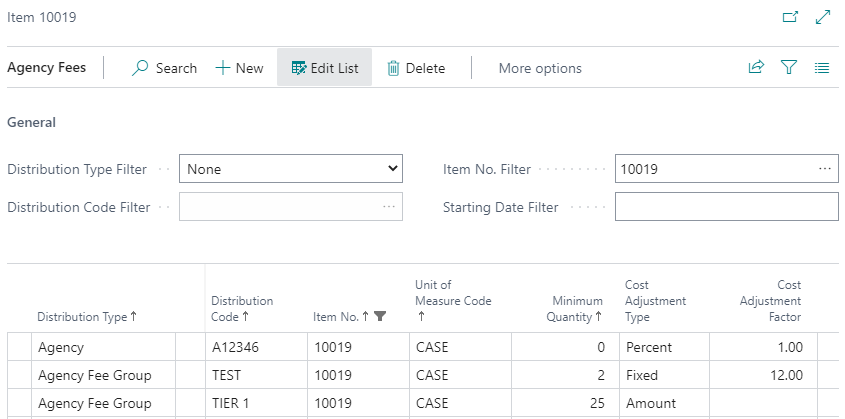
This opens the Agency Fees - Item window for that Item, where you can view the fees based on your Distribution Type Filter (described in Agency Fees Setup below).
-
Agency fees can also be viewed from the Item Card. The button can be found on the Actions ribbon in the Special Agency Fees & Discounts section. Here the button is labeled “Special Agency Fees & Discounts”.
TODO: Add screenshot
Agency Fees Setup
After opening the Agency Fee page, you can create the table of fee options.
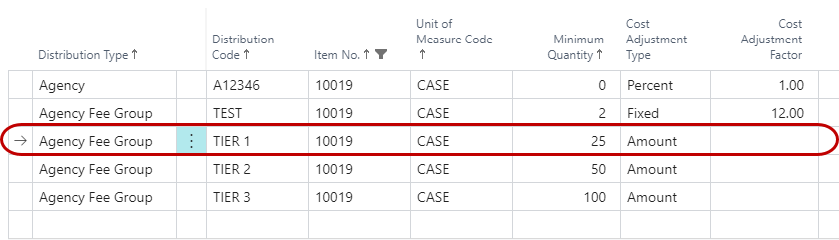
To enter a new Agency Fee, go to a blank line. To edit an existing Agency Fee, click on the line you want to change.
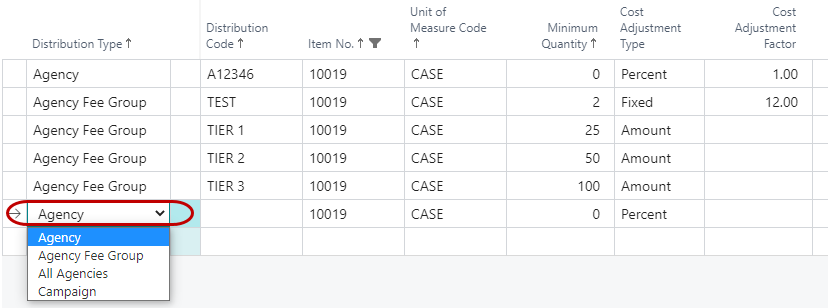
Distribution Type Choose what the fee applies to:
Agency - This line applies only to the Agency No. specified by the Distribution Code field.
Agency Fee Group - This line applies to agencies with the same Agency Fees Group as specified by the Distribution Code field. If you wish to export Agency/Item fees to Agency Express 3, you need to specify a Fee Group on every Item that matches the Agency Fee group. This is required for the Item Fees and Items to show on Agency Express. Please note that this is not the same as Agency Groups for Qualifiers.
All Agencies - This line applies to all agencies. (Do not use this if your Item Fees need to export to Agency Express 3, use Agency Fee Groups instead).
Campaign - This line applies to agencies associated with the selected campaign specified by the Distribution Code field.
Distribution Code is the specific discount for that Distribution Type. If the Distribution Type is All Agencies then this field is left blank. The AssistButton will display valid entries for the distribution type selected.
Item No. for the item this fee applies to. Multiple Items require setting up multiple lines.
Unit of Measure Code will default to the Item’s base unit of measure and should not be changed.
Minimum Quantity needed to order to qualify for this fee if desired. Quantity breaks can be accomplished by adding multiple records with different Minimum Quantities for the same Distribution Code and Item Code relationship.
Cost Adjustment Type Enter the Cost Adjustment Type. See Item Overview for more information.
- Amount – The Cost Adjustment factor will be added to the unit cost of the item.
- Percent – The Cost Adjustment Factor will be multiplied times the unit cost of the item
- Fixed – The Cost Adjustment Factor will be used and with considering the cost of the item.
Cost Adjustment Factor This field relates to the Cost Adjustment Type and should be entered accordingly. This field is used to help determine the Unit Fees. If the item’s cost should not be included in the fee charged to agencies, leave this field blank. See Item Overview for more information.
Handling Fee (per Lb) amount This field is used to calculate the Handling Fee ($) based on the gross weight of the item. Typically used for Donated Items and/or when the cost of the Item should not be a factor in the fee calculation. See Item Overview.
VAP Fee (per Lb) amount This field is used to calculate the VAP Fee ($) based on the gross weight of the item. See Item Overview.
Starting Dates If this fee should only be valid for a period of time enter the date this fee begins. If no starting and ending dates are specified, the agency fee record never expires. If the distribution type is campaign, the starting and ending dates for the agency fee record will default to the corresponding dates from the campaign card.
Ending Dates If this fee should only be valid for a period of time enter the date this fee ends. If no starting and ending dates are specified, the agency fee record never expires. If the distribution type is campaign, the starting and ending dates for the agency fee record will default to the corresponding dates from the campaign card.
Calculation of Agency Fees
The Unit Fees will calculate based on this formula:
If Cost Adjustment Type = Percent; then Unit Fees = (Unit Cost [on the Item Card] x Cost Adjustment Factor) + Handling Fee $ + VAP Fee $
If Cost Adjustment Type = Amount; then Unit Fees = Unit Cost [on the Item Card] + Handling Fee $ + VAP Fee $ + Cost Adjustment Factor
If Cost Adjustment Type = Fixed; then Unit Fees = Cost Adjustment Factor + Handling Fee $ + VAP Fee $.
The Default is Cost Adjustment Type of Percent with a Cost Adjustment Factor of 0. The result is that the cost has no impact on the Item Fee in Fee Groups.
See Item Overview for more information on Costs and Fees for Items.
Agency Fees with Agency Express
Starting with Ceres 4, Ceres no longer requires that an agency fee be setup for each agency fee group. In the absence of a specified agency fee for the agency fee group, Ceres will default to the fee established on the distribution tab of the item. However, Agency Express requires that a matching agency fee records exist for all defined agency fee groups for every item. For this reason, Ceres sends valid agency fee records for all agency fee groups for all items. When creating the item fee’s update transmission file to Agency Express, Ceres will always create a record for every agency fee group defined in the system regardless of whether any have been set up on the item’s distribution fee table. Ceres will first check if the combination of item number and agency fee group exist and if it does it will send that record. If the particular combination of item number and agency fee group does not exist in the item’s distribution fee table, Ceres will use the fee from the Item Card and send that fee for the combination of item number and agency fee group. Ceres does not create any additional records in the database nor does it require any additional maintenance. The process is in place only to satisfy the Agency Express requirement to have valid fee records for every combination of item and agency fee group.