Agency Delivery Zones and Delivery Fees
Agency Delivery Zone and Delivery Fee functionality in Ceres provides food banks with the ability to designate delivery zones and subsequently calculate delivery fees associated with a given delivery one. If an agency is assigned to a delivery zone, delivery fees will be calculated and charged to the agency on agency orders. Ceres provides the ability to calculate delivery fees based on flat rates, per pound, or tiers with different rates based on the pounds delivered to the agency on a given order. Automatic calculation of delivery fees can be configured by selecting this option on the Agency & Receivables Setup.
Ceres Object release 5.00.00 is required for the functionality described in this document.
Setup
Various parameters and components must setup to calculate delivery fees. Setup is comprised of delivery charge defaults, delivery zones, and delivery fee rates which are outlined below.
Agency & Receivable Setup
-
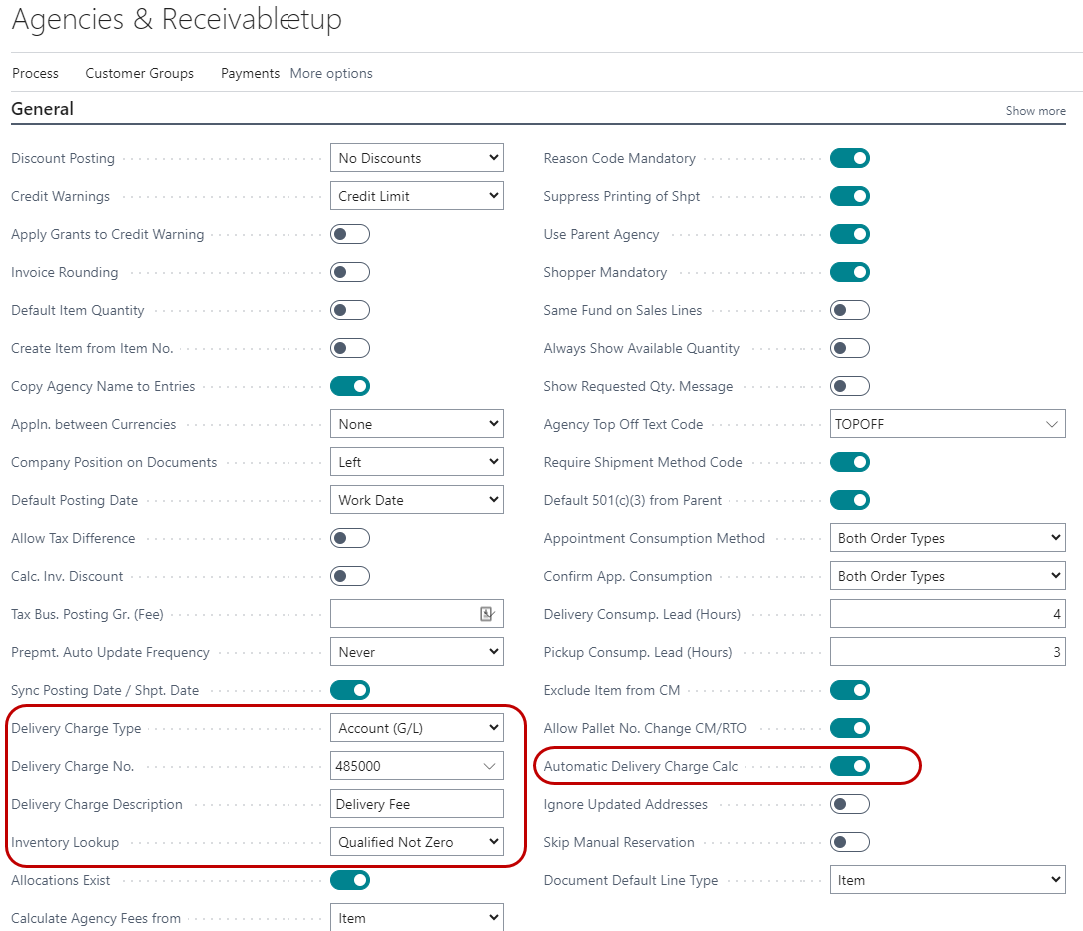
The Agency & Receivable Setup is where the delivery fee line that is inserted on the agency order lines is defined, and whether or not delivery fees are calculated automatically. To access Agencies & Receivable Setup, go to Departments ⯈ Agency & Receivables Setup ⯈ Agencies & Receivables Setup.
-
From the Agencies and Receivable Setup Page, enter or select values in the Delivery Charge fields.
Delivery Charge Type: Choose from G/L Account, Item or Resource
Delivery Charge No.: Enter the appropriate value based on the delivery charge type selected.
Delivery Charge Description: Enter the description you wish to appear on the delivery fees line on the order. This same description prints on the Agency Invoice.
Automatic Delivery Charge Calc.: Check this box if you wish to have delivery fees automatically calculated on agency orders. Automatic calculation of the delivery fee will be based on the agency order having the correct delivery zone entered. Leave this field unchecked to force manual calculation of delivery fees.
Delivery Zone Setup
Delivery Zones represent different zones/territories that an agency can be linked to for purposes of calculating delivery fees.
-
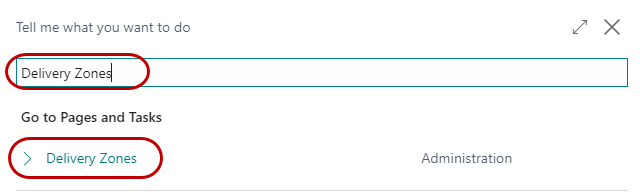
To access the delivery zone setup, go to Departments ⯈ Agency & Receivables Setup ⯈ Delivery Zones.
-
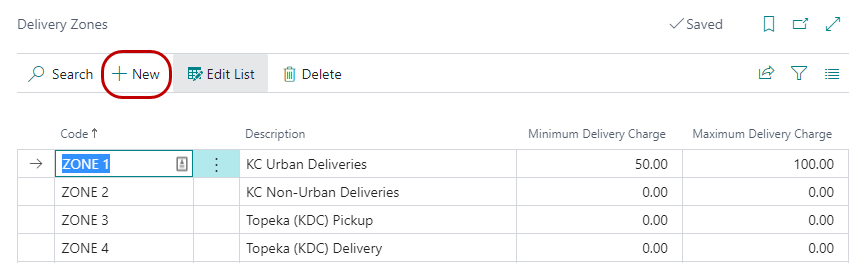
A list of Delivery Zones will display. To enter a new Delivery Zone, select Home New. To edit an existing Delivery Zone, highlight the line you wish to change and then select Home Manage Edit List.
-
Update the fields as necessary.
Code: Enter a unique Code for the delivery zone.
Description: Enter the description of the delivery zone.
Minimum Delivery Charge: Enter a Minimum Delivery charge amount if you would like Ceres to apply a minimum delivery charge. Leaving the Minimum Delivery Charge equal to zero indicates no minimum delivery charge.
Maximum Delivery Charge: Enter a Maximum Delivery charge amount if you would like Ceres to limit the delivery charge to a maximum amount. Leaving the Maximum Delivery Charge equal to zero indicates no maximum delivery charge.
-
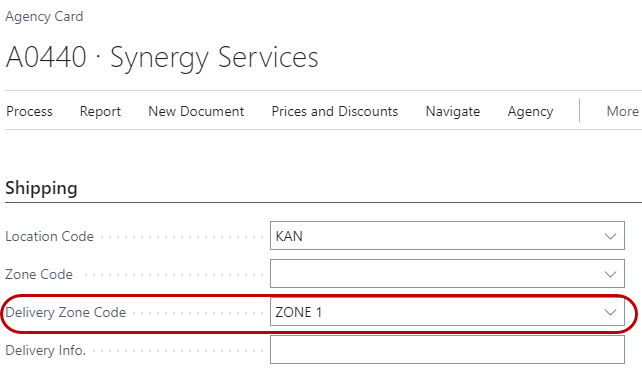
Once Delivery Zones are created, assign your agencies to the correct delivery zone in order to have their delivery fee calculated on agency orders. Refer to the Agency Overview Procedure Document for more information on agency setup. The default delivery zone on the agency will be copied to the agency order when the agency is selected. You can override the default delivery zone on an agency order if needed. Below is an example of the Delivery Zone Code on the Shipping FastTab of the Agency Card.
Delivery Fee Setup
The delivery fee setup is where rates for delivery fees are defined based on Delivery Zone and Type.
-
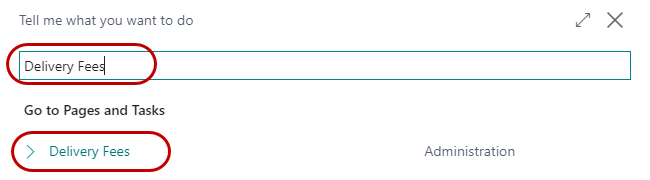
To access Delivery Fees, go to Departments ⯈ Agency & Receivables ⯈ Administration Setup ⯈ Delivery Fees.
-
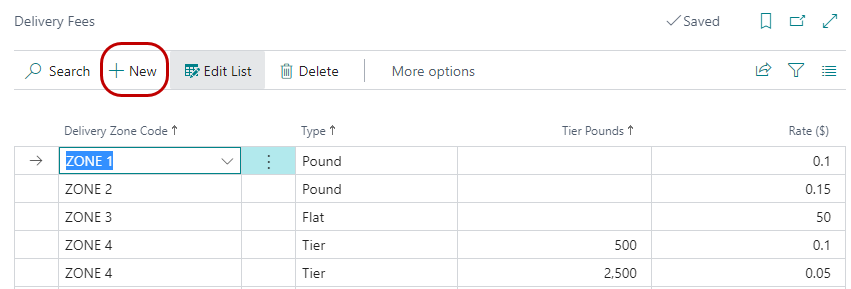
A list of Delivery Fees will display. To enter a new Delivery Fee, select Home New. To edit an existing Delivery Fee, highlight the line you wish to change and then select Home Manage Edit List.
-
Update the fields as necessary.
Delivery Zone Code: Select or input the Delivery Zone Code.
Type: Select the Type of calculation from the following options:
Pound - Define that a Rate ($) that will be charged for each pound shipped on the agency order.
Flat - Define a Rate ($) will be charged as a flat rate regardless of the pounds shipped on the agency order.
Tier - This calculates like the Pound option. However, you can specify in the Tier Pounds the minimum weight to qualify for this rate. Using this feature. you can discount the delivery charge for large agency orders to encourage delivery efficiency.
Synchronizing Delivery Fees with Agency Express
If you are using the Agency Express web ordering system, it is important to synchronize the delivery fees with Agency Express. This will enable an estimated calculation of the delivery fees on web orders entered through Agency Express. You should synchronize anytime you update the delivery fees table to ensure that Agency Express is using the current delivery fees.
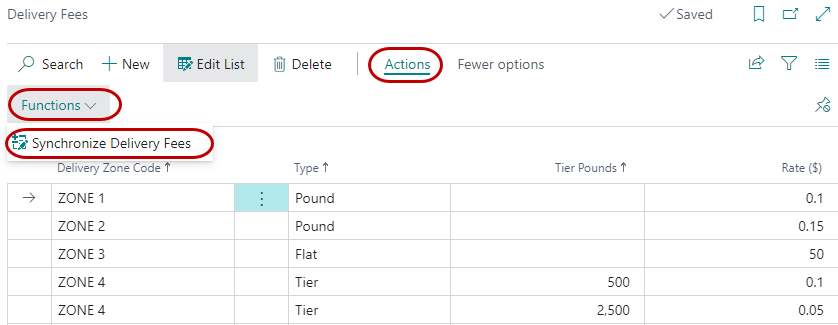
To synchronize delivery fees, select Actions Functions Synchronize Delivery Fees on the Delivery Fee Page.
Calculating Delivery Fees on Agency Orders
How and when delivery fees are calculated as based on the setup and the shipping option. Delivery fees can be calculated manually or automatically. Both methods are based on setup and the Delivery Zone Code that is associated with the agency order.
Calculating Delivery Fees Automatically
-
For delivery fees to calculate automatically, there must be a checkmark in the Automatic Delivery Charge Calc. field in the Agencies & Receivables Setup, and a Delivery Zone must be assigned on the Delivery/Web FastTab of the agency order. For shipping option 1, there is one additional requirement in that a Location Code must be entered on the Shipping and Billing FastTab of the agency order.
-
When delivery fees are calculated depends on the shipping option. With shipping option 1, delivery fees are calculated once the agency order is released. Whereas with shipping option 2, delivery fees are calculated once the inventory pick is shipped (i.e. posted). With both shipping options, a new delivery fee line is added to the agency order when the delivery fees are calculated.
TODO: New screenshot required here?
-
Once calculated, delivery fees can be changed by updating the Unit Fees on the delivery fee line.
-
Confirm the delivery fees are correct before posting the agency order.
noteDepending on the shipping option your food bank is set to, you may need to "Ship and Invoice" the Agency Order so that the delivery fee is transferred to the Agency Invoice. In these instances, an Entry Type of G/L Account will not post to the invoice unless that line is "shipped."
Calculating Delivery Fees Manually
-
To calculate delivery fees manually, the agency order must be in the Open status, since a new line will be added to the agency order, and a Delivery Zone must be assigned on the Delivery/Web FastTab of the agency order.
-
Generally, delivery fees are calculated once the agency order has been picked and after the quantities and weights have been updated on the agency order lines. This is necessary to make sure the delivery fees that are based on pounds or tiers calculate correctly.
-
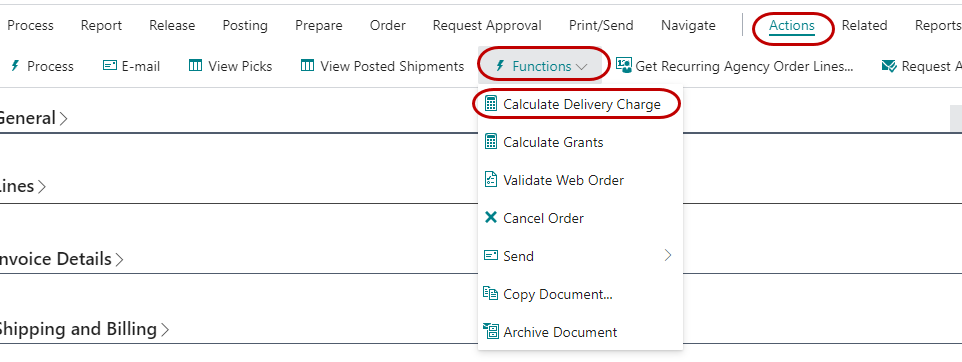
To manually calculate delivery fees from an agency order, select Actions Functions Calculate Delivery Charge.
-
A new line with Type of G/L Account is added to the agency order.

-
Once calculated, delivery fees can be changed by selecting a different Delivery Zone Code on the Delivery/Web FastTab of the agency order and then recalculating the fees, or by updating the Unit Fees on the delivery fee line.
-
Confirm the delivery fees are correct before posting the agency order.
noteDepending on the shipping option your food bank is set to, you may need to "Ship and Invoice" the Agency Order so that the delivery fee is transferred to the Agency Invoice. In these instances, an Entry Type of G/L Account will not post to the invoice unless that line is "shipped."