Fund Overview
Food banks frequently receive contributions that have donor-imposed restrictions on their use and must be tracked until those restrictions are released. Other contributions, such as pledges, are considered restricted until the pledge is fulfilled. The Fund field in Ceres is one way to assign a code to revenue, expense or other transactions so that they can be used to populate appropriate net asset accounts through periodic journal entries. This functionality also overlaps with Dimensions and Grants, and can be enhanced with the GL Self-Balancing capabilities in Ceres 5.
Like Global Dimensions, Fund codes appear in columns in the General Ledger Entries table, making it relatively easy to filter for them. Unlike Global Dimensions, Funds also contain additional properties: Fund Type, Fund Class and Fund Group. Like all Dimensions, Funds can default from master records to document lines, although the number of locations from which Funds can default is limited. Funds also lack some of the control available with Dimensions. It is possible, however, to assign a Dimension to a Fund.
This document illustrates how to setup Funds allowing the food bank to group entries with similar characteristics so that this data can be retrieved for analysis and reporting purposes.
Creating Funds
The Fund setup is comprised of Funds, Fund Types, Fund Classes, and Fund Group.
-
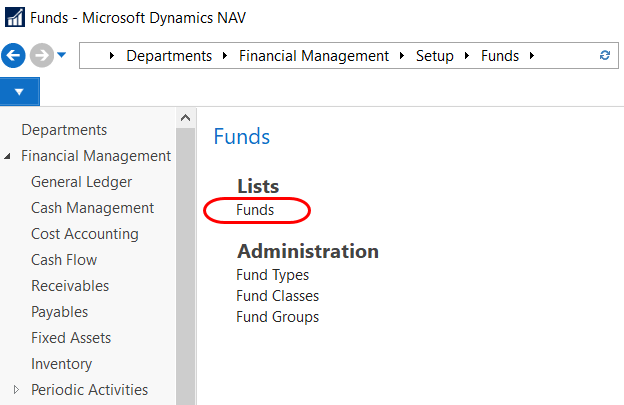
Funds can be accessed from Departments ▸ Financial Management ▸ Setup ▸ Funds ▸ Lists ▸ Funds.
-
Select a Fund from the List that displays or Click Home ▸ New to create a new Fund.

-
Input values in the following fields.
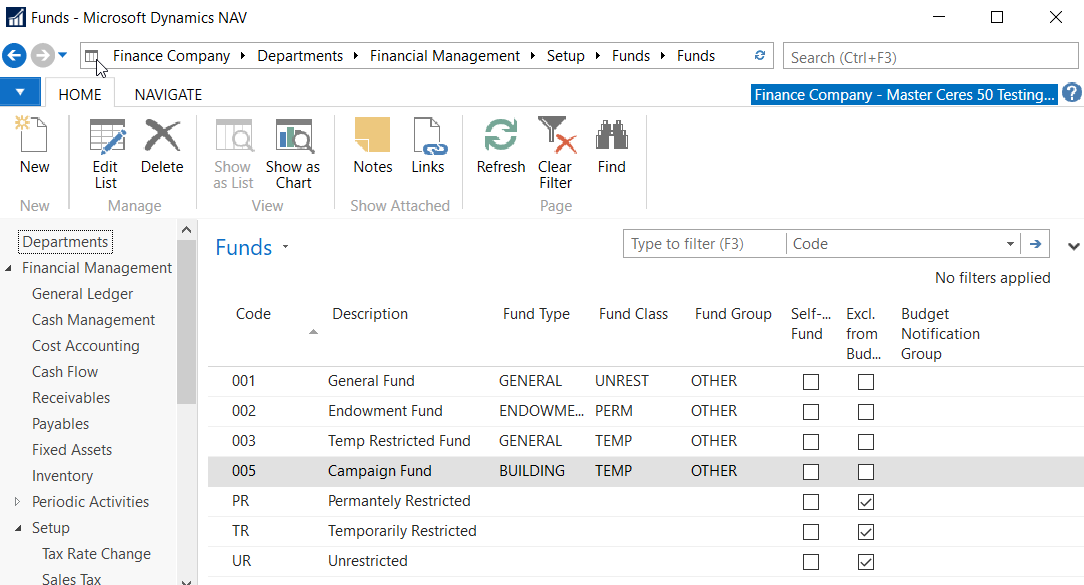
Code: A Unique identifier for the new Fund.
Description: A brief description of the Fund.
Fund Type: Identifies the Fund Type, selected from the Fund Types list.
Fund Class: Identifies the Fund Class, selected from the Fund Classes list.
Fund Group: Identifies the Fund Group, selected from the Fund Groups list.
Self-balance Fund: Indicates if the Fund is self-balancing. See GL Self-Balancing Overview for more information.
Excl. from Budget Enforcement: Indicates if the Fund is excluded from Budget Enforcement. See Budget Enforcement Overview for more information.
Budget Notification Group: Indicated the Budget Notification Group for the Fund. See Budget Enforcement Overview for more information.
-
Assign a default Dimension to the Fund if required. Select Navigate ▸ Funds ▸ Dimensions. See GL Dimensions and Dimension Values for more information.
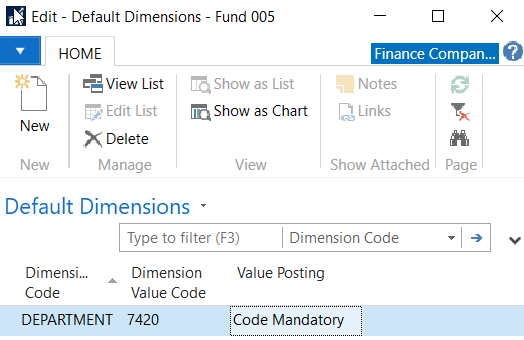
Dimension Code: Select the Dimension Code you want to default to when using this Fund.
Dimension Value Code: Select the default Dimension Value for this Fund.
Value Posting: Select from the options as to how you would like the Dimension to post that is related to the Fund. The options are Blank, Code Mandatory, No Code, or Same Code.
-
Select OK to close the window.
-
You may assign Default Funds to specific master records such as Donors, Agencies, and Vendors. A Fund value entered on a master record will automatically populate on any documents created with that master record. Unless the Dimension Value Code prohibits it, the Default Fund can be changed on individual document lines.
-
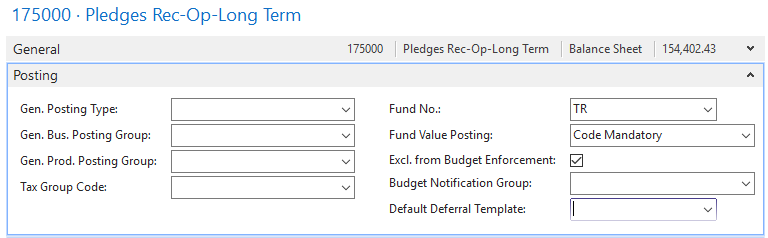
You may be required to select a Fund for various journal entries. For example, a Default Fund can be assigned to a specific General Ledger code, with a Dimension Value Code restriction, which could apply to many documents or transactions. Refer to the documents for that specific Journal for specific instructions.
Creating Fund Types
-
Fund Types can be accessed from Departments ▸ Financial Management ▸ Setup ▸ Funds ▸ Administration ▸ Fund Types.

-
Click Home ▸ New to create a new Fund Type.
-
Input values in the following fields:
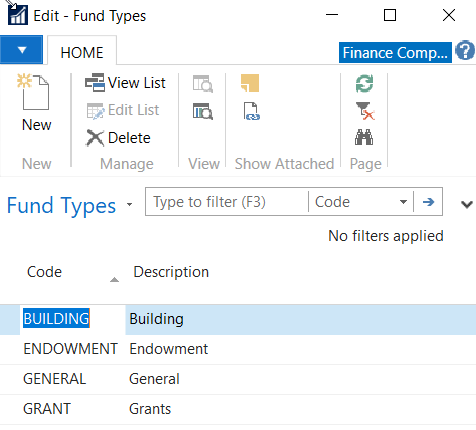
Code: A Unique identifier for the Fund Type.
Description: A brief description of the Fund Type.
Creating Fund Classes
-
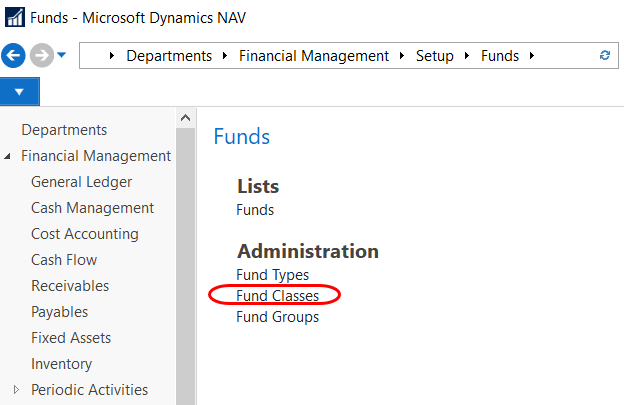
Fund Classes can be accessed from Departments ▸ Financial Management ▸ Setup ▸ Funds ▸Administration ▸ Fund Classes.
-
Click Home ▸ New to create a new Fund Class.
-
Input values in the following fields:
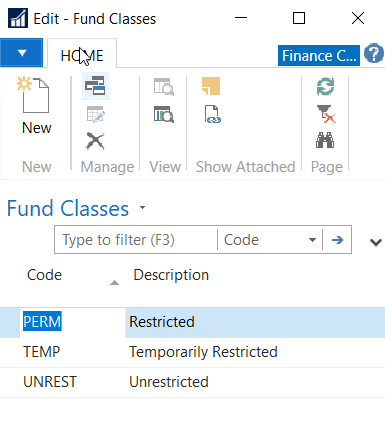
Code: A Unique identifier for the Fund Class.
Description: A brief description of the Fund Class.
Creating Fund Groups
-
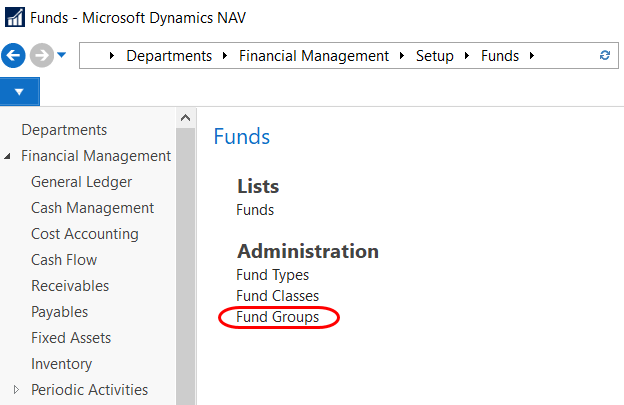
Fund Groups can be access from Departments ▸ Financial Management ▸ Setup ▸ Funds ▸ Administration ▸ Fund Groups.
-
Click Home ▸ New to create a new Fund Group.
-
Input values in the following fields:
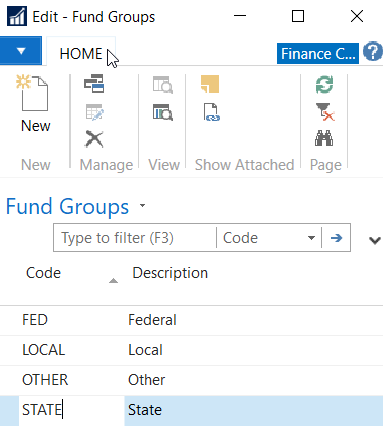
Code: A Unique identifier for the Fund Group.
Description: A brief description of the Fund Group.