Fixed Assets Processing
The Fixed Assets functionality in Ceres provides an overview of your fixed assets and ensures correct periodic depreciation. It also helps you keep track of your maintenance costs, manage insurance policies related to fixed assets, post fixed asset transactions, and generate various reports and statistics.
For each fixed asset, you must set up a card containing information about the asset. Buildings or production equipment can be set up as a main asset with a component list. A fixed asset can be split into several fixed assets, and several fixed assets can be combined into one. If a fixed asset is partially disposed of, it must be separated into two fixed assets, and then one of them can be sold. Fixed assets can be grouped in various ways, for example, by class, department, or location. You can set up budgeted assets. This makes it possible to include any anticipated acquisitions and sales in reports.
You can set up multiple depreciation books to accommodate various kinds of depreciation. A batch job is used to calculate periodic depreciation. For each asset, you can record maintenance costs and the next service date. Keeping track of maintenance expenses can be important for budgeting purposes and for making decisions about whether to replace a fixed asset. Each fixed asset can be attached to one or more insurance policies. You can therefore easily verify that insurance policy amounts are in accordance with the value of the assets that are linked to the policy. This also makes it easy to monitor annual insurance premiums.
This document will address using the fixed assets module in Ceres, including acquisition, setting salvage value, calculating and posting depreciation, writedowns and appreciation, splitting fixed assets, disposal and reporting. Please see the Fixed Assets Setup documentation for the required one-time setup.
Journal Type
There are two journal types: FA Journal and FA G/L Journals. They have different templates, batches, and functions. The FA G/L Journals make entries in both the fixed assets ledger and the general ledger. The FA G/L Journal needs to have the integration turned on as discussed in the setup document. The FA Journals only makes entries in the fixed assets ledger. If your integration to the general ledger is not turned on, you will use the FA Journal for all functions and you can’t use the other options such as purchase invoice or agency invoice to process transactions. Once you turn on the general ledger integration, make sure you are using the correct journal type for what you are trying to accomplish.
Acquiring Fixed Assets
When new fixed assets are received, they are initially assigned a book value through either a purchase order, purchase invoice or a FA G/L Journal. Donated fixed assets can also be received through a Donation Order, but the fair market value of the donated asset will need to be set manually through the FA G/L Journal.
Acquiring Via the Purchase Invoice
Update the header information as you would with any other purchase invoice. You can reference the Purchase Invoice Overview Documentation for more information. If using a Purchase Invoice to record the acquisition of a fixed asset, you will need to separately enter the Salvage Value (if using) on a FA Journal.
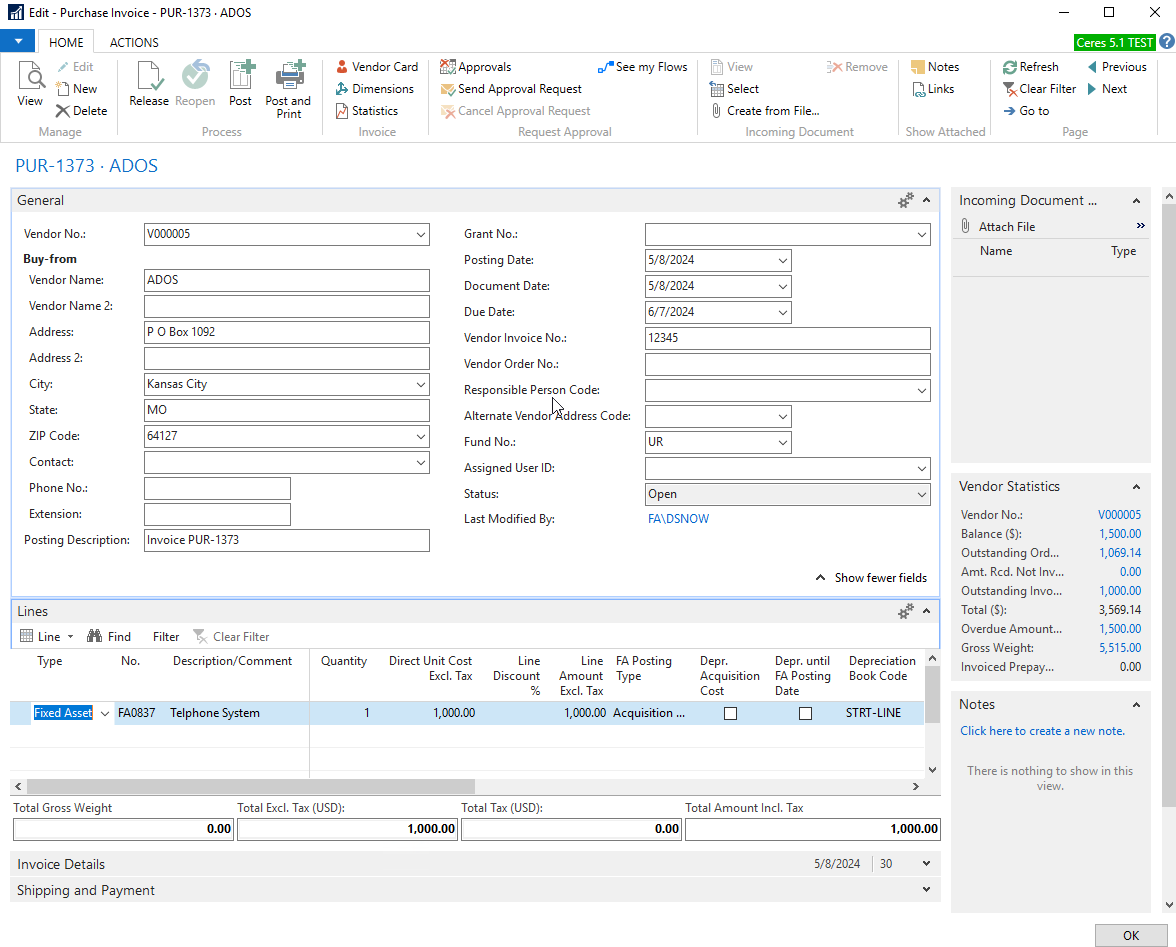
Use these fields in the lines section of a purchase Invoice to acquire a fixed asset:
-
Type should be set to Fixed Asset
-
No. is the number of the fixed asset that you are acquiring. If the Fixed Asset Card hasn’t been created for this item, choose New at the bottom of the dropdown window for the field and follow the setup of the fixed asset card in the Fixed Assets Setup instructions.
-
Description will automatically fill based on the Description field on the Fixed Asset Card
-
Quantity is to be set to 1. It is possible to easily duplicate Fixed Assets with the Copy Fixed Asset button on the Navigate ribbon of the Fixed Asset Card. Then you can add each individual unit as a separate line on the Purchase Invoice. Even though you put quantity as one, the asset card can represent more than one and be separated at time of disposal.
-
Direct Unit Cost Excl. Tax is the price (or fair market value) of the asset.
-
FA Posting Type is likely hidden on the Purchase Invoice, but can be added with Choose Columns. For acquisitions it should be set to Acquisition Cost.
-
Depreciation Book Code automatically sets to the first depreciation book on the asset**.**
-
Depr. Acquisition Cost - If you have already calculated depreciation for the existing Fixed Asset and you want the Depreciation Period to remain the same or a new asset that has been in service for a while but you haven’t processed the receipt transaction, then you should select the "Depr. Acquisition Cost" check box in the purchase line. When you post that line with the box checked, the program depreciates the acquisition cost in proportion to the amount by which the previously acquired fixed asset cost is already depreciated.
-
Depr. Until FA Posting Date – check to ensure that depreciation is calculated from the last fixed asset posting date to the posting date of the additional acquisition cost.
Posting the Purchase Invoice for a Fixed Asset will create the following entries:
-
FA Leger Entries – A single acquisition line
-
General Ledger Entries –
-
An entry for the associated asset account
-
An entry for the accounts payable account
-
Acquiring Via the Purchase Order
Update the header information as you would any other purchase order You can reference the Purchase Order Overview Documentation. This should only be used for brand new assets where you don’t want the additional cost to be caught up to values already depreciated through a certain date. If using a Purchase Order to record the acquisition of a fixed asset, you will need to separately enter the Salvage Value (if using) on a FA Journal.
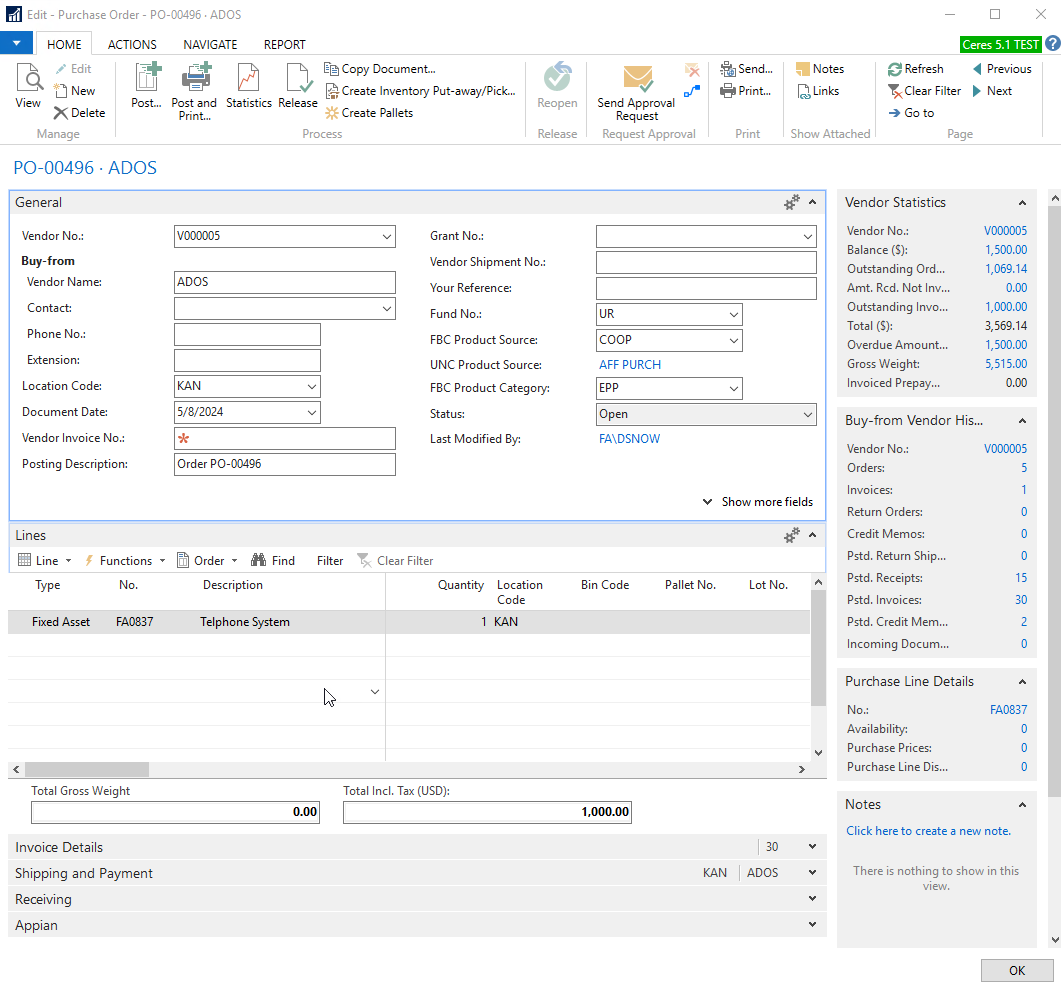
Use these fields in the lines section of a purchase order to acquire a fixed asset:
-
Type should be set to Fixed Asset
-
No. is the number of the fixed asset that you are acquiring. If the Fixed Asset Card hasn’t been created for this item, choose New at the bottom of the dropdown window and follow the setup of the fixed asset card in the Fixed Asset Setup instructions.
-
Description will automatically fill based on the Description field on the Fixed Asset Card
-
Quantity is to be set to 1. It is possible to easily duplicate Fixed Assets with the Copy Fixed Asset button on the Navigate ribbon of the Fixed Asset Card. Then you can add each individual unit as a separate line on the Purchase Order. Even though you put quantity as one, the asset card can represent more than one and separated at time of disposal.
-
Direct Unit Cost Excl. Tax is the price (or fair market value) of the asset.
-
FA Posting Type is not showable and automatically set to Acquisition Cost.
-
Depreciation Book Code is not showable and automatically set to the first depreciation book on the asset.
-
Depr. Acquisition Cost is not showable and automatically set to No.
-
Depr. Until FA Posting Date is not showable and automatically set to No.
Acquiring Via the FA G/L Journal
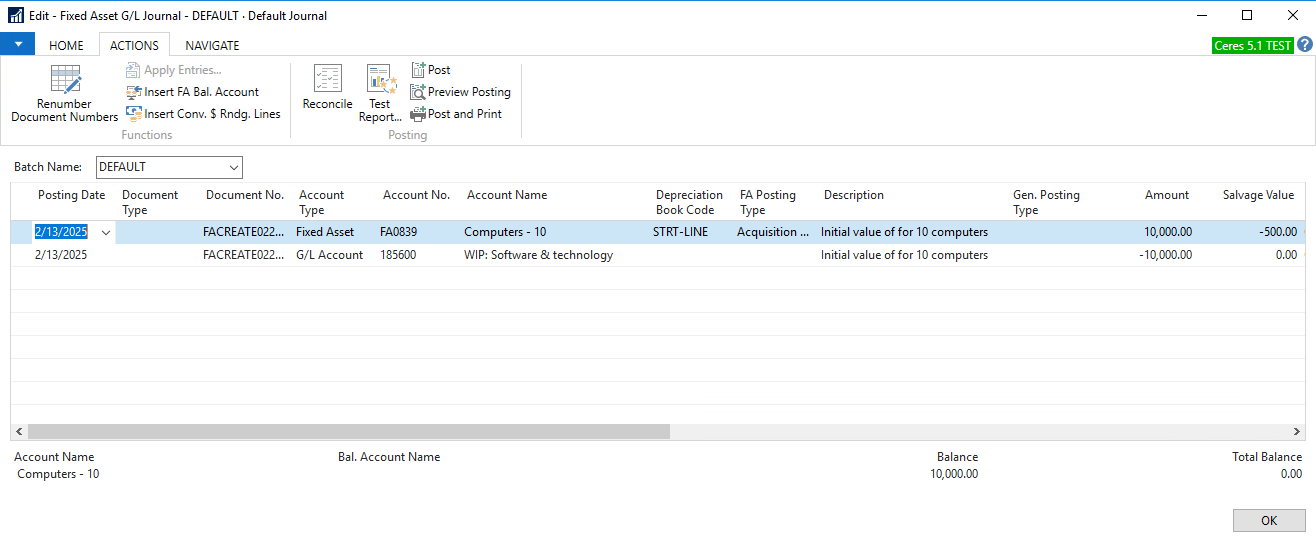
If you have been accumulating costs in a holding account on the balance sheet, you can manually move it to individual assets using the FA G/L Journal.
-
Posting Date is usually the same as the acquisition date
-
Document No. is required
-
Account Type is Fixed Asset for the new asset being created and G/L Account for the balancing holding account
-
Account No. is the number of the fixed asset that you’re setting salvage value for
-
FA Posting Type is Acquisition Cost for the new asset being created and blank for G/L Account for the balancing holding account
-
Amount is price (or fair market value) of the asset.
-
Salvage Value represents the value of the asset once it has been completely depreciated. Enter it in as a negative value.
To record the entry, post the journal.
Setting Salvage Value using the FA Journal
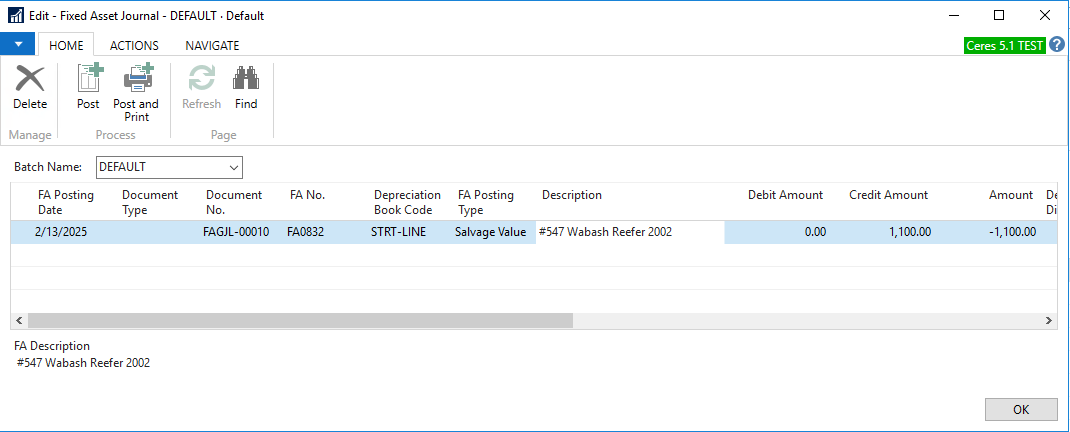
Salvage value represents the value of the asset once it has been completely depreciated. Since Ceres is currently unable to set salvage value from a Purchase Order or Purchase Invoice, you can enter it as a separate transaction using the FA Journal (not the FA G/L Journal) and filling in the following fields.
-
FA Posting Date is usually the same as the acquisition date
-
Document No. is required
-
FA No. is the number of the fixed asset that you’re setting salvage value for
-
FA Posting Type is Salvage Value
-
Amount is a negative amount representing the salvage value
To record the entry, post the journal.
Calculating and Posting Depreciation
One of the major benefits of maintaining fixed assets within Ceres is that posting depreciation is much faster (and more accurate) than tracking depreciation in a spreadsheet and transferring amounts into Ceres manually. Assuming the setups are complete, search for Calculate Depreciation…, or navigate to it in Departments/Financial Management/Fixed Assets/Periodic Activities. This task will send entries to the journal specified in the Depreciation Book. You can then review the entry and post it. It is recommended to check the default journal to ensure it’s empty before starting this process as it will append to the journal and not overwrite it. This prevents you from posting something you don’t want or accidentally posting depreciation twice.
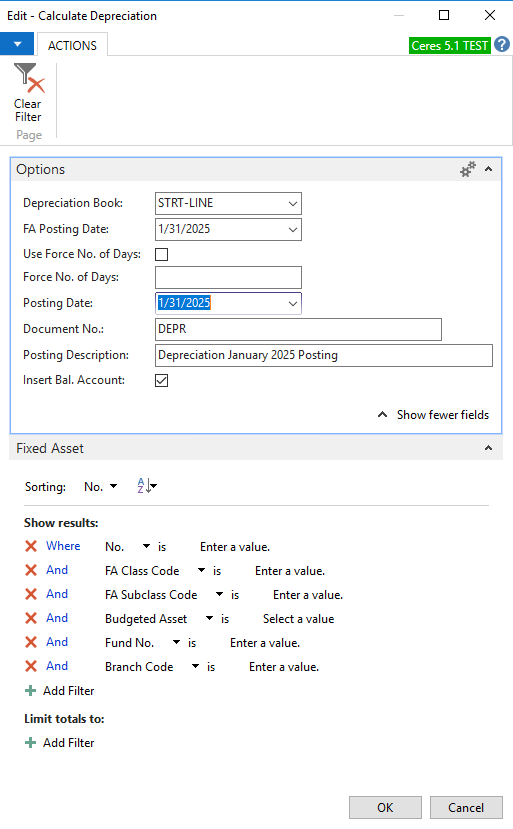
Options FastTab
-
Depreciation Book selects the depreciation book to be used for the batch job
-
FA Posting Date is the ending date of the depreciation calculation. Ceres will calculate depreciation from either the last date that a depreciation transaction was posted, or, if this is the first time depreciation is being posted, the depreciation starting date on the Fixed Asset card.
-
Use Force No. of Days and Force No. of Days can be used to specify exactly how many days you want to depreciate. These are safely left blank.
-
Posting Date is the posting date for the batch job and is generally the same as the FA Posting Date. If you have checked Use Same FA+G/L Posting Dates in the Depreciation Book setup, you can leave this field blank and it will populate with the FA Posting Date.
-
Document No. is used as the document number when the journal batch is created. Leave this blank if you have set up a numbering series for the fixed asset journal batch in the No. Series table and the journal is empty.
-
Posting Description is the text for the journal entries that result from the batch job.
-
Insert Bal. Account should be checked if you want the batch job to automatically insert balancing accounts in the resulting journal. The batch job uses the accounts that you have defined in the FA Posting Group. For example, the balancing account for accumulated depreciation on the balance sheet is depreciation expense on the income statement. If you don’t check this, you have to manually balance the journal by creating the balancing entries.
The filters can be used to post depreciation in batches of like assets, e.g., by Subclass Code.
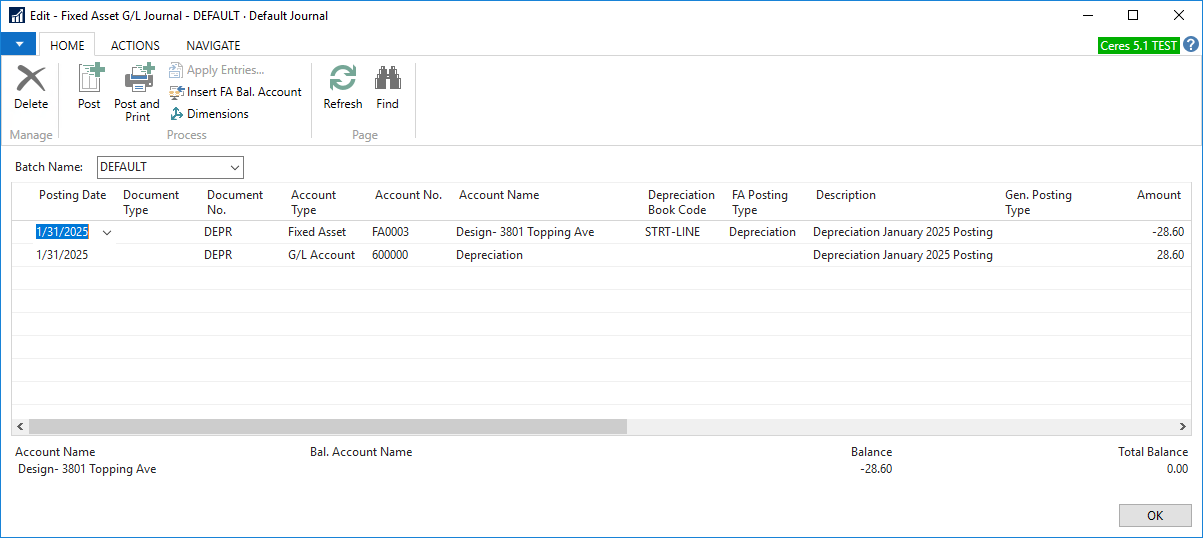
Clicking OK runs the batch job, calculates depreciation based on your setup, and transfers the entries to the Fixed Asset G/L Journal. You can then post the journal or adjust the entries before posting.
Write-downs and Appreciation
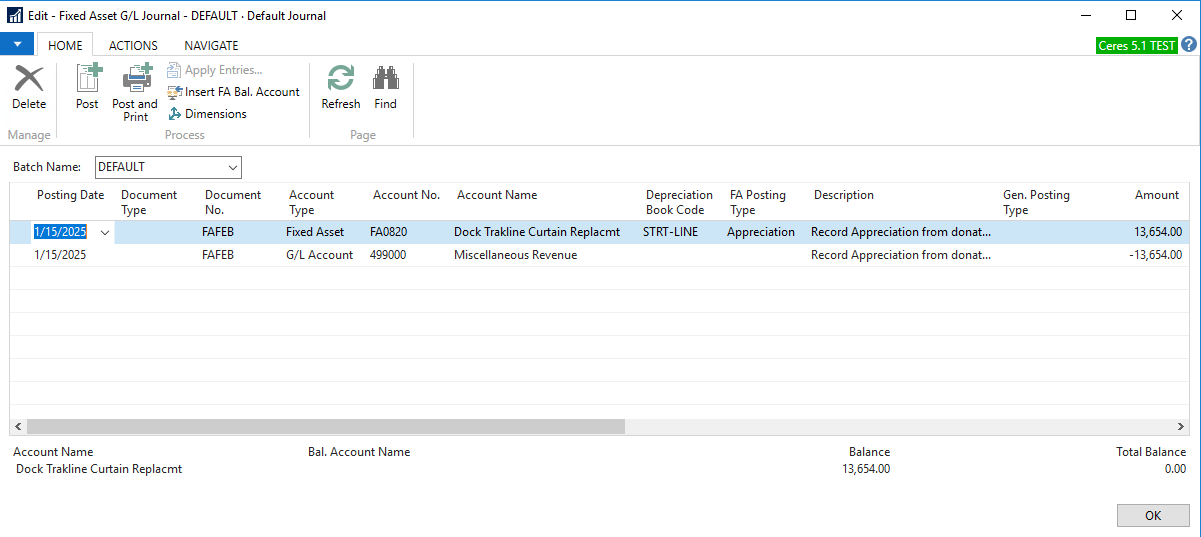
You may need to write down the value of a fixed asset in Ceres if the asset is damaged, becomes obsolete or there is a decrease in fair market value that you need to record. Alternatively, an asset’s book value may need to be increased when recording a fixed asset donation, which hits the G/L at a base value of $0 if processed as a Donation Order in Ceres.
Adjustments to fixed asset book value are made in the FA G/L Journal. Use the following fields:
-
Posting Date is the date of the adjustment
-
Document Type should be left blank
-
Document No. is required
-
Account Type is Fixed Asset
-
Account No. is the number of the fixed asset that you are adjusting
-
FA Posting Type is either Write-Down or Appreciation as required
-
Amount should be a negative number for a write-down, or a positive number for an appreciation.
A balancing account must exist for this type of transaction in the FA Posting Group. Click the Insert FA Bal. Account button in the ribbon, which will create a balancing transaction on the next line of the journal. Post your transaction to record it. If the Insert FA Bal. Account throws an error, that most likely means you need to set up the balancing account for Acquisitions (or Write-downs) on the associated FA Posting Group card.
Splitting of Assets
If one fixed asset card represents multiple physical assets, i.e., one asset was created for ten computers, and you want to dispose of one of the computers, you need to split the asset into two; one representing nine computers and one representing one computer. First you need to create a new asset that represents the group you want to dispose of following the instructions on the setup instructions. You will use the FAsset Reclass. Journal which will build both an FA G/L Journal and an FA Journal.
Search for or Navigate to the FA Reclass. Journal (Departments/Fixed Assets/FA Reclass. Journals.
-
Posting Date is the date of the adjustment
-
Document No. is required
-
FA No. is the original asset number
-
New FA No. is the new asset number
-
Description is the description of the journal
-
Reclassify Acq. Cost % is the percentage of the value of the original asset that you want to split out for all the types of transactions you check to reclassify.
-
Reclassify Acquisition Cost is checked if you want to move the Acquisition Cost
-
Reclassify Depreciation is checked if you want to move the Depreciation
-
Reclassify Salvage Value is checked if you want to move the Salvage Value
-
Insert Bal. Account is checked to insert a balancing account for the journal
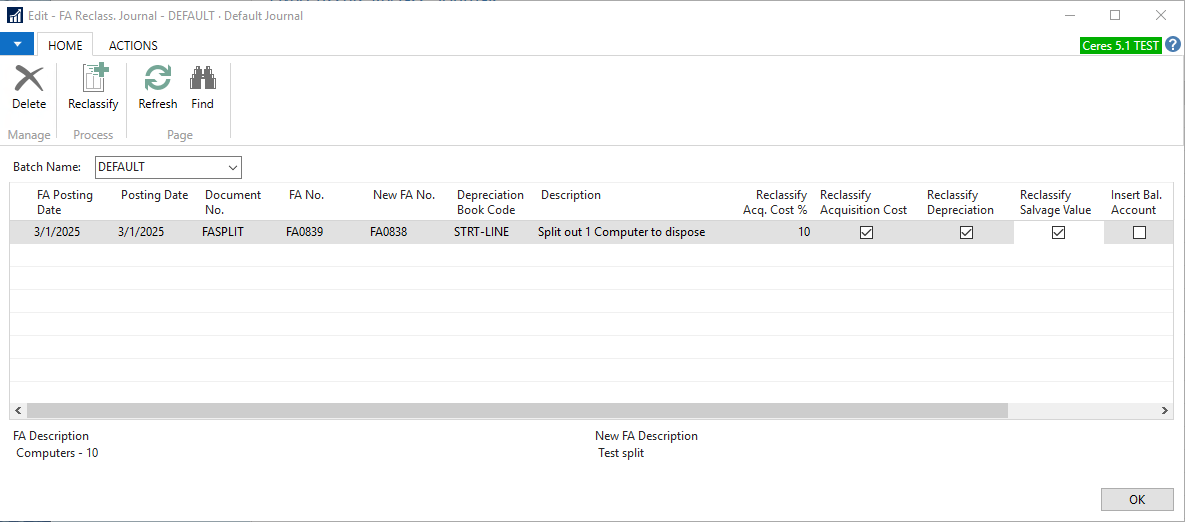
When fully populated, click the Reclassify button in the ribbon on the home tab.
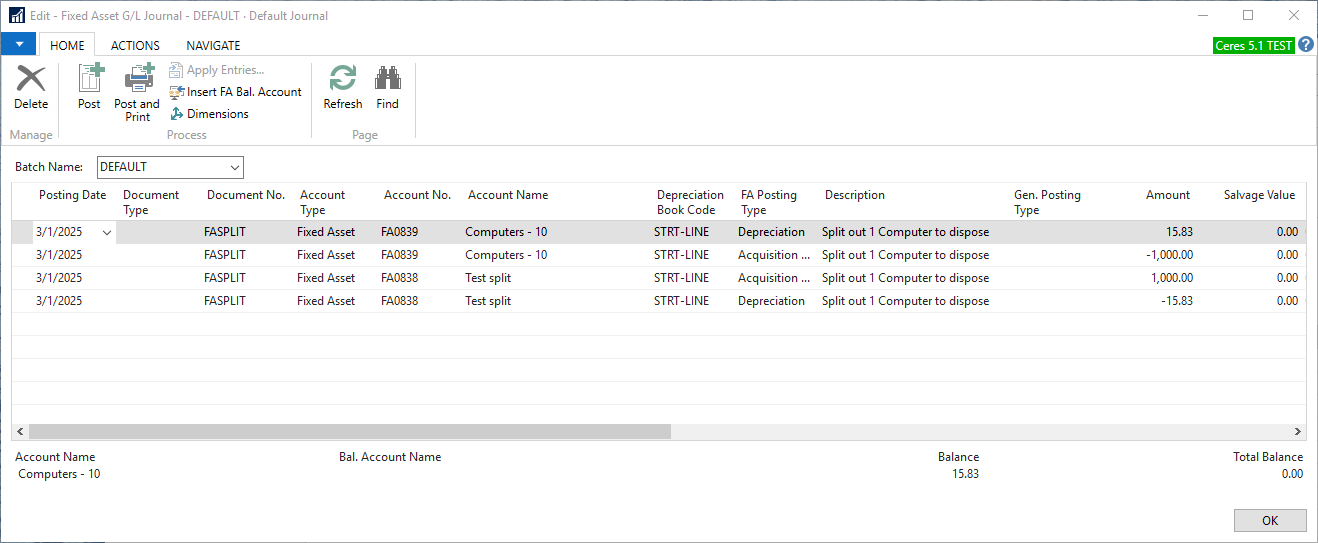
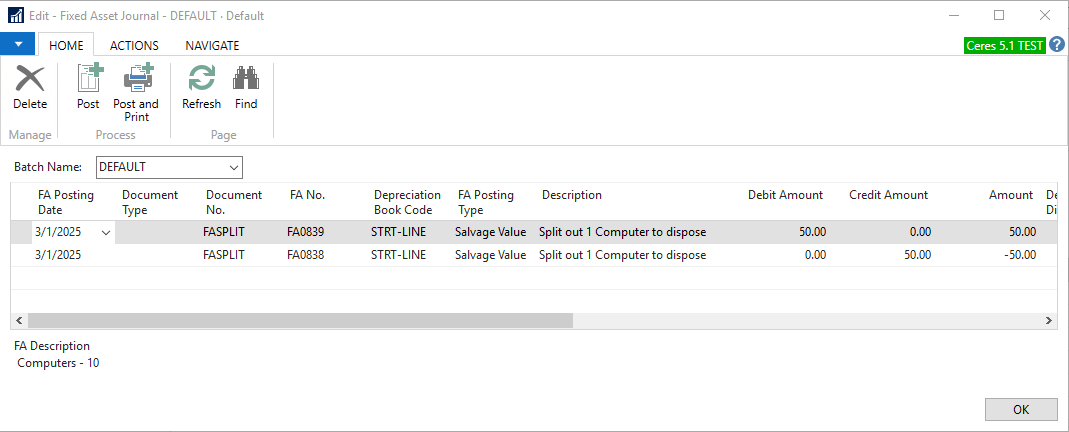
The system will build a FA G/L Journal for the Acquisition Cost and the Depreciation. The system will also build a FA Journal for the salvage value. You need to review each and post.
Disposal of Assets
When you sell or otherwise get rid of an asset, you record a disposal transaction to show that you no longer have it and to record any gain or loss. Disposal calculations are affected by the Disposal Calculation Method in the Deprecation Book.
Disposal Via an Agency Invoice
One way of disposing of an asset is to sell it through an Agency Invoice. While this method makes it easier to record payments, send invoices and properly track the entire transaction, the food bank specific customizations made to the standard Dynamics NAV Sales Invoice add some complications.
-
Create a New Agency Invoice
-
In the Sell-to-Agency No. field,
A. If you are selling the fixed asset to an existing agency, select it.
B. Otherwise, click the dropdown and select New to create a new Agency to whom you are selling the asset to. (Ceres does not care whether or not companies set up on Agency cards are actually agencies it thinks of them a customers.)
-
In the lines section of the Agency Order, enter the following information;
- Type is Fixed Asset
- No. is the Fixed Asset number. Note that the dropdown box does not work, and you need to type in the Fixed Asset number manually.
- Description will automatically fill from the No. field
- Quantity should be 1
- Unit Fees should be the price that you’re selling the fixed asset for

-
Post and Print the Agency Invoice. This will post to the G/L and Fixed Asset ledgers, and mark the asset as Disposed Of and reduce the Book Value to zero on the Fixed Asset card.
Disposal Via the FA G/L Journal
If you aren’t selling the asset, or you don’t want to create an Agency that isn’t really an agency, you can dispose of assets directly in the FA G/L Journal.
-
Posting Date is the date of the disposal
-
Document Type is blank
-
Document Number is required
-
Account Type is Fixed Asset
-
Account No. is the number of the fixed asset you are disposing of
-
FA Posting Type is Disposal
-
Description
-
Amount represents the proceeds you are receiving from the disposal of the asset, entered as a negative number. Enter zero if there are no proceeds.
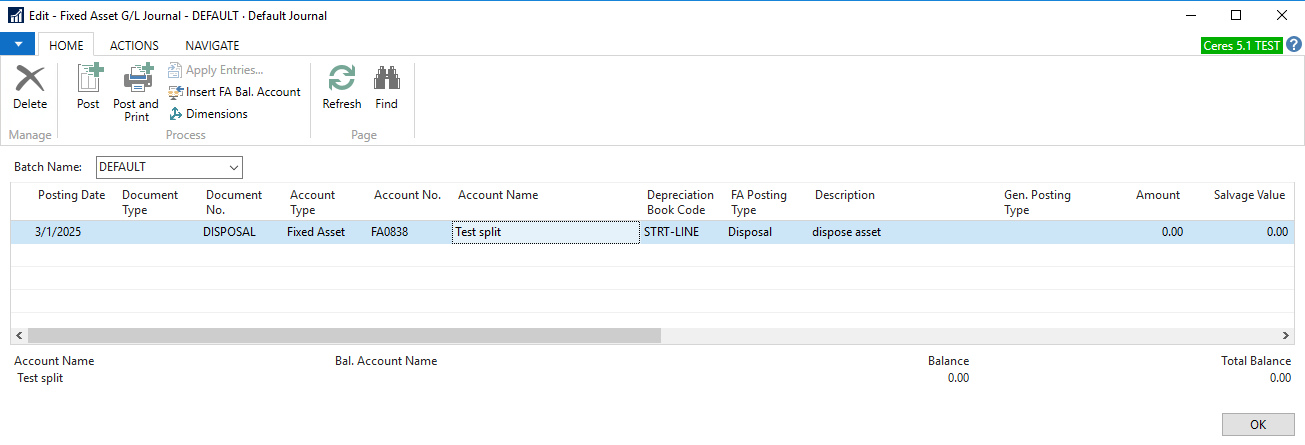
Posting the journal entry will post to the G/L and Fixed Asset ledgers, and mark the asset as Disposed Of and reduce the Book Value to zero on the Fixed Asset card.
Reporting
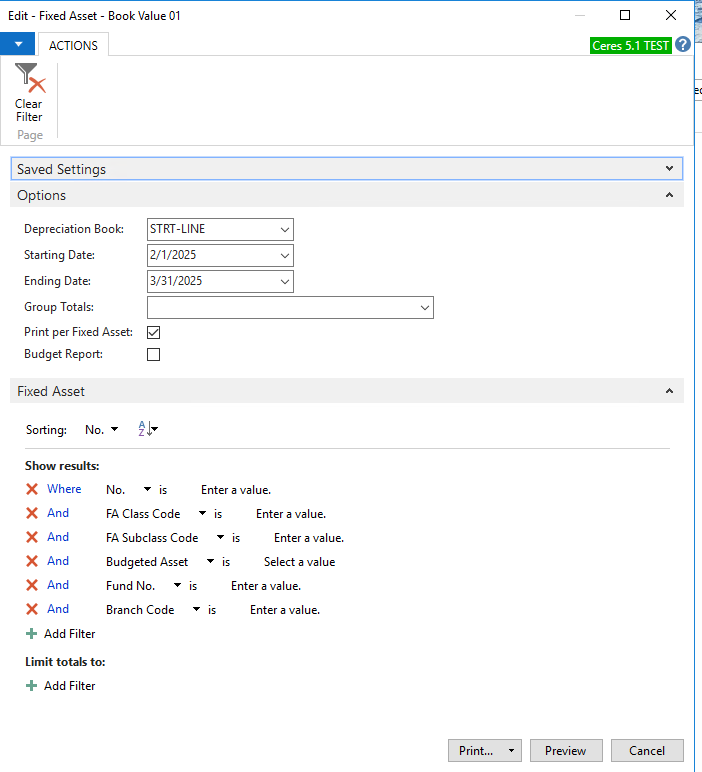
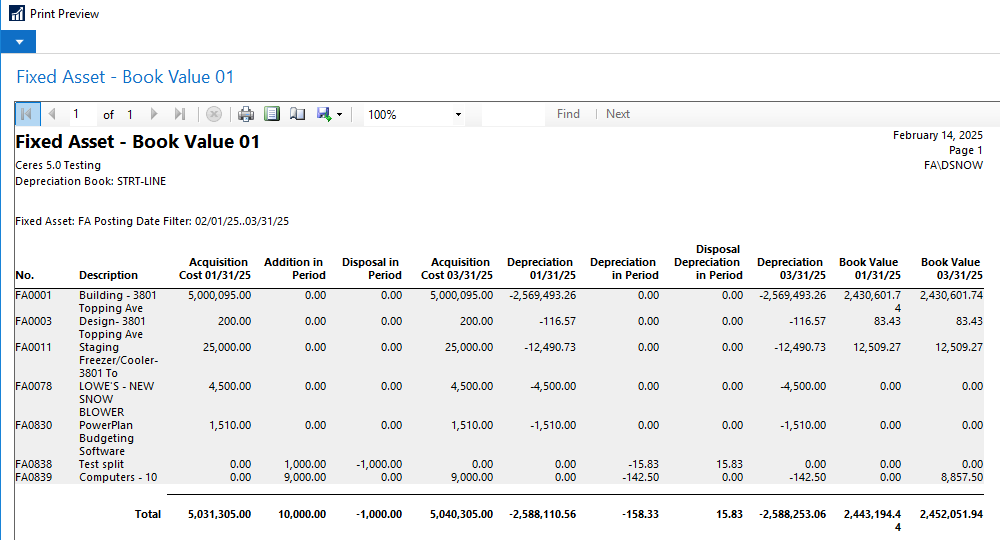
To run a report that shows a rollforward of the fixed assets or groups of assets you want to run the FA Book Value 01 report. You can do this by going to Departments/Financial Management/Fixed Assets/Reports/Fixed Assets and click on the option FA Book Value 01.