Fixed Assets Setup
A typical life cycle of a fixed asset in Ceres begins with the purchase or donation of a fixed asset, creation of a fixed asset card to record details about the fixed asset and ends with the disposal of the fixed asset. During this life cycle, you can perform various operations with the fixed asset, such as depreciation, revaluation, disposal, insurance, and maintenance, all of which can directly update the General Ledger.
Fixed Assets Setup

The Fixed Asset Setup page allows you to create basic settings and defaults for the fixed assets features of Ceres. To access the Fixed Asset Setup page, on the Navigation Pane, click Departments ▸ Administration ▸ Application Setup ▸ Financial Management ▸ Fixed Assets and then select FA Setup.
General FastTab
Default Depr. Book: is the depreciation book that Ceres will suggest when creating new assets.
Think of a depreciation book as a physical book that contains both the depreciation rules and ledger entries for a group of fixed assets that are treated the same way. Many food banks will have only one Depreciation Book.
Allow Posting to Main Assets: is an option that is used in combination with splitting items into components that might be depreciated at different rates, e.g., to depreciate the tires differently from the rest of a vehicle. This option lets you post to both the main asset (the whole car) and the components (the tires.)
Allow FA Posting From: and Allow FA Posting To: allows you to restrict the posting dates for fixed assets.
Insurance Depr. Book: is the depreciation book that Ceres will default to when updating insurance policy values to cover fixed assets.
Automatic Insurance Posting: allows for the acquisition costs posted to fixed assets to automatically post to the insurance coverage ledger when this is checked. When it is not checked, it creates lines in the insurance journal that you can review and post later.
Numbering FastTab
Fixed Assets Nos.: selects the number series used for Fixed Assets.
Insurance Nos.: selects the number series used for insurance policies that may cover the items.
Fixed Assets Posting Groups
Throughout the fixed asset lifecycle, Ceres can assist in posting transactions to the General Ledger. Fixed Assets Posting Groups tells Ceres where to post each type of transaction, which can be a different GL account for different asset types. To open the FA Posting Groups page, in the Navigation Pane, click Departments ▸ Administration ▸ Application Setup ▸ Financial Management ▸ Posting Groups and then select FA Posting Groups. See the Posting Groups Overview document for more information on Posting Groups.

Each of the following types of transactions requires a General Ledger account.
They don’t all need to be different if you don’t want them to be. For fixed assets that do not require depreciation (like Land) you can leave the GL Account No. blank.
Code is the field that identifies which asset type is associated with the group of GL accounts. For example, you may want separate asset and depreciation accounts for land, buildings, equipment, vehicles, and furnishings.
Balance Sheet:
-
Acquisition costs
-
Accumulated depreciation
-
Acquisition costs on disposal (perhaps the same as acquisition costs)
-
Accumulated depreciation on disposal (perhaps be the same as accum. deprec. costs)
-
Write-down (perhaps the same as acquisition costs)
-
Appreciation (perhaps the same as acquisition costs)
Income Statement
-
Gains on disposal
-
Losses on disposal (perhaps the same as gains on disposal)
-
Write-down expenses
-
Appreciation revenue (commonly used to record the fair market value of donated fixed assets that were acquired through a Donation Order)
-
Maintenance expenses
-
Depreciation expenses
There are also other GL accounts available, such as write-downs and custom fields for more complicated setups.
Fixed Asset Allocation Keys
Ceres allows you to allocate fixed asset costs and expenses across several different G/L accounts and/or dimensions. With this feature, you can automatically allocate depreciation, maintenance expenses or other fixed asset related expenses across multiple program areas. Note that these allocations are per FA Posting Group and transaction type, and not per fixed asset. You can see which FA Posting Group has allocations showing the columns Allocated % to see if fully allocated or by drilling into each to see the detail.
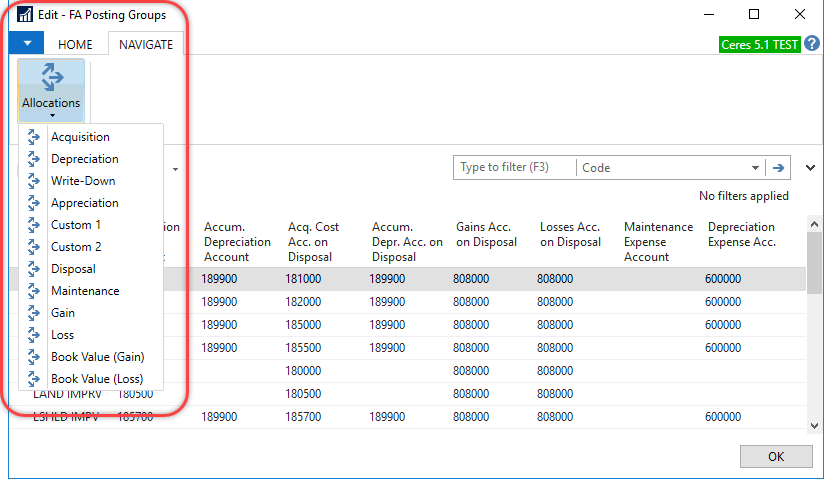
Fixed Asset Allocations can be set from the FA Posting Groups window. Select the FA Posting Group you want to allocate. On the Navigation ribbon, click the Allocations button, and select the type of transaction you want to allocate to open the appropriate FA Allocations page.
Allocations to dimensions are assigned per line. For example, here we have split vehicle depreciation evenly between two program codes. The title bar shows which dimension is assigned to which line number in the FA Allocation window lines.
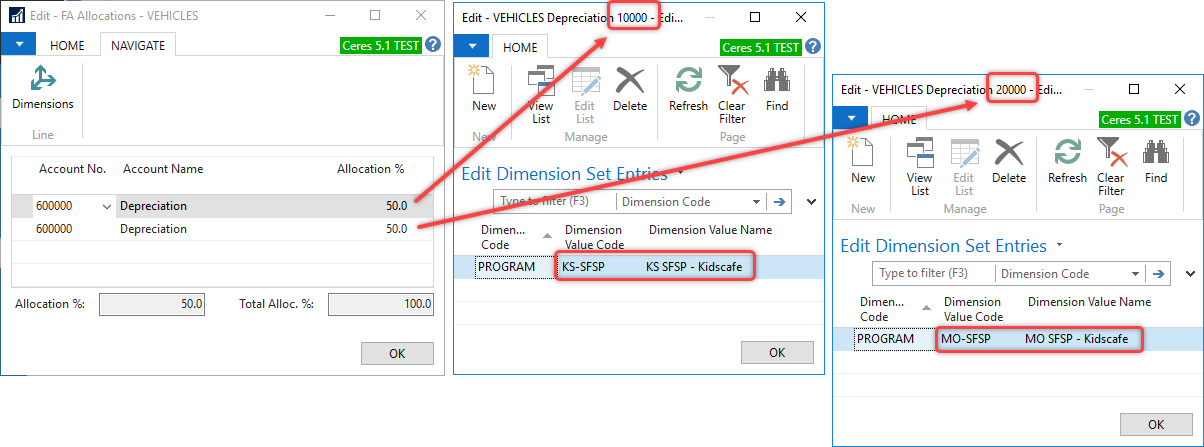
When you use the allocation of posting types in posting groups, the program produces one G/L ledger entry for each allocation and for each asset. This depends on how many assets you have linked to it.
Depreciation Books
Each fixed asset has a depreciation book attached to it to record depreciation transactions.
Ceres also has the ability to assign multiple depreciation books to the same fixed asset. This is typically used if the depreciation method used for the financial statements is different from the depreciation method used for tax returns, in which case the financial statement depreciation book would be used to update the GL, and the tax return depreciation book would be available for reference.
To open the Depreciation Book Card, in the Navigation Pane, click Departments ▸ Administration ▸ Application Setup ▸ Financial Management ▸ Fixed Assets ▸ Depreciation Books
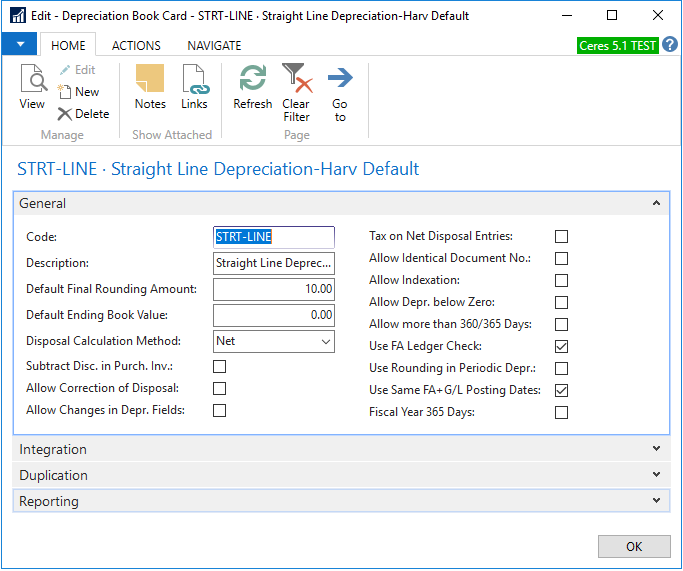
Depreciation Book General FastTab
Code: is the title of the depreciation book.
Description: contains the description of the depreciation book.
Default Final Rounding Amount: is the final rounding amount to use if the Final Rounding Amount field in the FA Depreciation Books window is empty. If the remaining book value after the last calculated depreciation is less than the amount in this field, the remaining value is added to the last depreciation. This makes sure that the fixed asset is fully depreciated over its depreciable lifetime.
Default Ending Book Value: specifies the ending book value to use if the Ending Book Value field in the FA Depreciation Books window is empty. This will be set for every asset associated with this book. So, it is more likely you will prefer to use a Salvage Value for each asset instead.
Disposal Calculation Method:
Net – calculates the profit or loss and then posts this amount to the gains on disposal account or the losses on disposal account. This is the most common disposal method.
Gross – posts entries to the sales account on disposal (credit) and book value on disposal (debit).
Subtract Disc. in Purch. Inv.: When checked, the line and invoice discounts are subtracted from the acquisition cost posted for the fixed asset and are posted to the account contained in the Purch. FA Disc. Account field in the General Posting Setup window.
Allow Correction of Disposal: allows you to correct or cancel disposal type fixed asset ledger entries.
Allow Changes in Depr. Fields: allows the depreciation fields in the FA Depreciation Books window to be changed after you have posted entries.
Tax on Net Disposal Entries:
Allow Identical Document No.: allows identical document numbers in the depreciation book.
Allow Indexation: lets you to generate journal entries through a batch job to change the value of fixed assets by a percentage amount, e.g., to adjust for inflation. Do not finish indexation with FA ledger entries that are posted to the general ledger.
Allow Depr. below Zero: means that the program continues to calculate periodic depreciation when the book value of the fixed asset is zero or negative.
Allow more than 360/365 Days: lets the fiscal year have more than 360/365 depreciation days, depending on the value of Fiscal Year 365 Days.
Use FA Ledger Check: if unchecked, Ceres applies the following two business rules before posting a journal line:
-
Acquisition cost is the first entry (when the FA posting date is used).
-
Acquisition cost is entered as debit (when the FA posting date is used)
If Use FA Ledger Check is checked, Ceres adds the following four additional business rules:
-
Disposal, if any, is the last entry
-
Book value has a debit balance unless the Allow Depr. Below Zero checkbox is selected on the depreciation book card
-
Accumulated depreciation, salvage value, and accumulated sales price are all credit balances
-
Write-down, Appreciation, Custom 1, and Custom 2 entries match the setting in the Sign field in the FA Posting Type Setup window
Use Rounding in Periodic Depr.: makes Ceres round depreciations to whole numbers.
Use Same FA+G/L Posting Dates: requires that the posting date and FA posting are the same on a journal line before posting. If you do not select this check box, you must enter both dates separately.
Fiscal Year 365 Days: sets the Calculate Depreciation batch job to use 365 days instead of the typical 360 days.
Integration FastTab
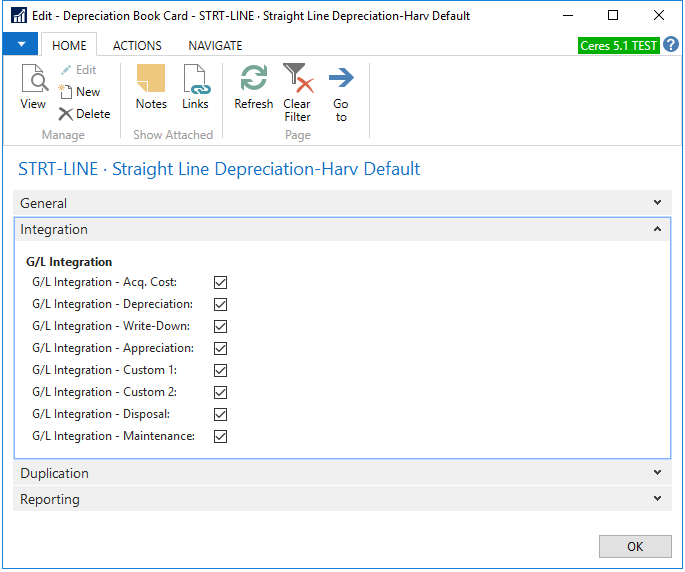
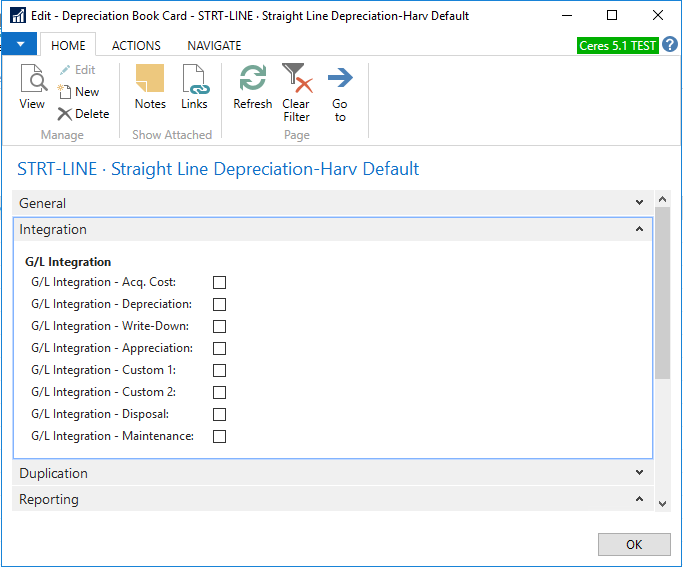
Checking the box next to each Fixed Asset posting type will post that transaction by the FA G/L journal. Leaving a box unchecked will send those transactions to the FA journal, to be posted manually. Set up only one depreciation book to integrate with the general ledger so that it does not post two times. If a company wants the general ledger integration, use the FA G/L Journal to record the information. If a company does not want to use the general ledger integration, use the FA Journal.
Duplication FastTab
Use the Duplication FastTab to indicate duplicate entries in other depreciation books. Duplication is useful when a company uses multiple depreciation books. When duplication is set up, Ceres creates the same entries for all the books. This reduces data entry time.

The Duplication FastTab contains the following fields.
Part of Duplication List: indicates that the depreciation book will be a part of the duplication list. Enable this setting to indicate that entries to this depreciation book may be copied to or from another depreciation book.
Use FA Exch. Rate in Duplic.: indicates whether to use exchange rates when you duplicate entries from one journal to another.
Default Exchange Rate: specifies the default exchange rate. If you have enabled the Use FA Exch. Rate in Duplic. setting, indicate the default exchange rate that Ceres will use if the FA Exchange Rate field is zero
Reporting FastTab
These options are only used if you are using multiple currencies.
FA Posting Type Setup
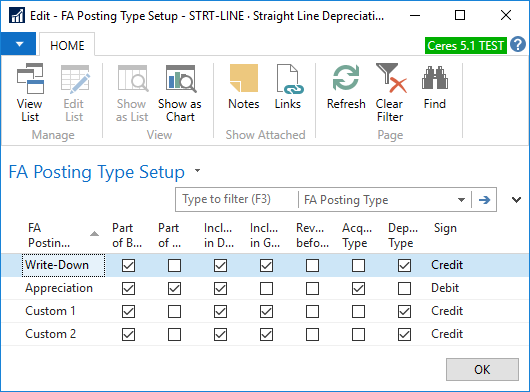
If you are using the write-down, appreciation, custom 1, or custom 2 posting types, Ceres automatically creates a default setup for how these transactions will post. FA Posting Type Setup allows you to modify these defaults. For example, you can decide whether a posting should be a debit or credit, or whether the transaction should be included in the gain/loss calculation. You can access this window through the Depreciation Book Card, click the Navigate tab, point to Depr. Book, and then FA Posting Type Setup.
Changing this setup after transactions have posted to this depreciation book does not retroactively change the ledger history.
FA Journal Setup
Ceres needs to know which journal templates and batches to use when calculating depreciation or running other batch jobs. These are set up in FA Journal Setup, which can be found on the FA Journal Setup button on the Navigate ribbon. Journal templates can be configured in the FA Journal Templates window, which can be found by searching for FA Journal Templates. They are set up exactly the same way as any other journal templates in Ceres.
Depreciation Book Card Batch Jobs
From the Actions ribbon of the Depreciation Book card, you can:
-
Assign fixed assets to a depreciation book with the Create FA Depreciation Books button,
-
Copy a depreciation book and any of its associated fixed assets to a new depreciation book with the Copy Depreciation Book button,
-
Cancel depreciation entries that were made in error with the Cancel FA Ledger Entries button (Afterward, you can post the correct amount of depreciation by running the Calculate Depreciation batch job again),
-
Copy fixed asset entries into a budget, with the Copy FA Entries to G/L Budget button.
Fixed Asset Card
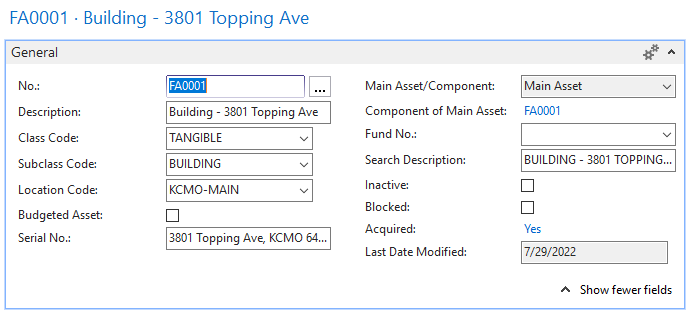
Each asset has its own Fixed Asset Card and contains all the information about the fixed asset. To open the fixed asset card, click Departments/Financial Management/Fixed Assets/Fixed Asset. The window will open with a list, and you can click Edit to edit an existing fixed asset, or New to create a new one.
Fixed Asset General FastTab
No.: is the code for the asset, which can be linked to a number series or updated manually.
Description: is the name of the assets.
Class Code: is a category of the assets such as TANGIBLE or INTANGIBLE. New subclasses can be entered in the FA Subclasses window, which contains the following fields:
-
Code – is the Class Code
-
Name – is the friendly name or longer description of the class
Subclass Code: is the specific category of the asset, such as LAND, BUILDING, EQUIPMENT, or VEHICLES. New subclasses can be entered in the FA Subclasses window, which contains the following fields:
-
Code is the Subclass Code
-
Name is the friendly name or longer description of the subclass
FA Class Code is the Class Code
Default FA Posting Group – suggests the FA Posting Group, connecting this asset to the appropriate G/L accounts for transactions. As it’s just a default, it can be changed in the Posting Group – field on the Depreciation Book FastTab of the Fixed Asset card.
Location Code: is the specific location of the asset, which is connected to the FA Location Card.
This is completely different from the Locations used for warehouse and inventory activities.
Budgeted Asset: is for budgeting only and prevents the asset from being posted to the general ledger (so it will show up in FA Projected Value reports).
Serial No.: is the serial number the asset was assigned by the manufacturer.
Main Asset/Component: allows you to separate an asset into parts that may depreciate (or be replaced) at different rates. It defines if it is the Main Asset or the Component. It stays blank for normal assets.
Component of Main Asset: links this asset to a main asset if this asset is defined as the component.
Fund No.: allows you to link the asset to a fund. This fund will default on all entries.
Search Description:
Inactive: and Blocked: prevent transactions from posting to the asset, and the asset is not included in batch jobs or reports.
Acquired: will show as No if an acquisition posting has not been made. After acquisition, it switches to Yes and functions as a link to the fixed asset ledger entries.
Last Date Modified: displays last date the Fixed Asset card was modified or a transaction was posted.
Depreciation Book FastTab
This FastTab can be confusing because it can look two different ways. If you click (or have clicked) the Add More Depreciation Books link in this FastTab, it will change from a form to lines (or disappear completely). The default fields shown on this FastTab are related to Straight-line depreciation by years. If you want to use other options, you may need to get your VAR to customize this FastTab or click the Depreciation Books button in the Navigate ribbon and Choose Columns to modify the list view.
If the form is not visible, click the blue arrow in the top left corner, navigate to Customize the Page, select FastTabs, and click the Restore Defaults button.
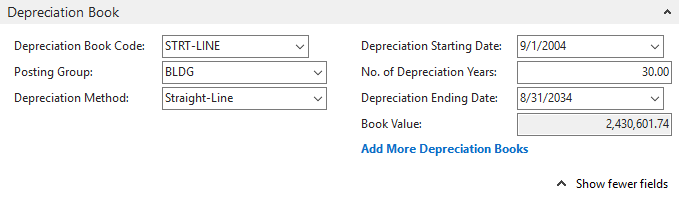
Depreciation Book Code: tells Ceres what Depreciation Book you want to use.
Posting Group: connects the asset to the appropriate G/L accounts for transactions. It can be defaulted by the Subclass Code entry.
Depreciation Method: selects the calculation Ceres will use to depreciate this asset. Straight-line is the most common option and depreciates the asset by the same amount each year. To make this calculation, Ceres needs either a depreciation period in years or months or an ending date. Alternatively, you can specify a fixed yearly amount or fixed yearly percentage to depreciate. There are several other depreciation methods, which are described below.
Depreciation Starting Date: is the date the asset will start to depreciate from. It is not tied to the date of acquisition.
No. of Depreciation Years: or Depreciation Ending Date: Entering data in one field will update the other.
Book Value: is a calculated field.
Maintenance FastTab
Fields on this FastTab are optional and allow you to connect the asset to its associated maintenance.

Vendor No.: is the vendor who sold you the asset.
Maintenance Vendor No.: is the vendor who does regular maintenance on the asset.
Under Maintenance: is selected if it is currently being maintained.
Next Service Date: is the next scheduled service date.
Warranty Date: is the date that the warranty ends.
Insured: is selected if insurance is posted to the asset.
All Available Depreciation Methods
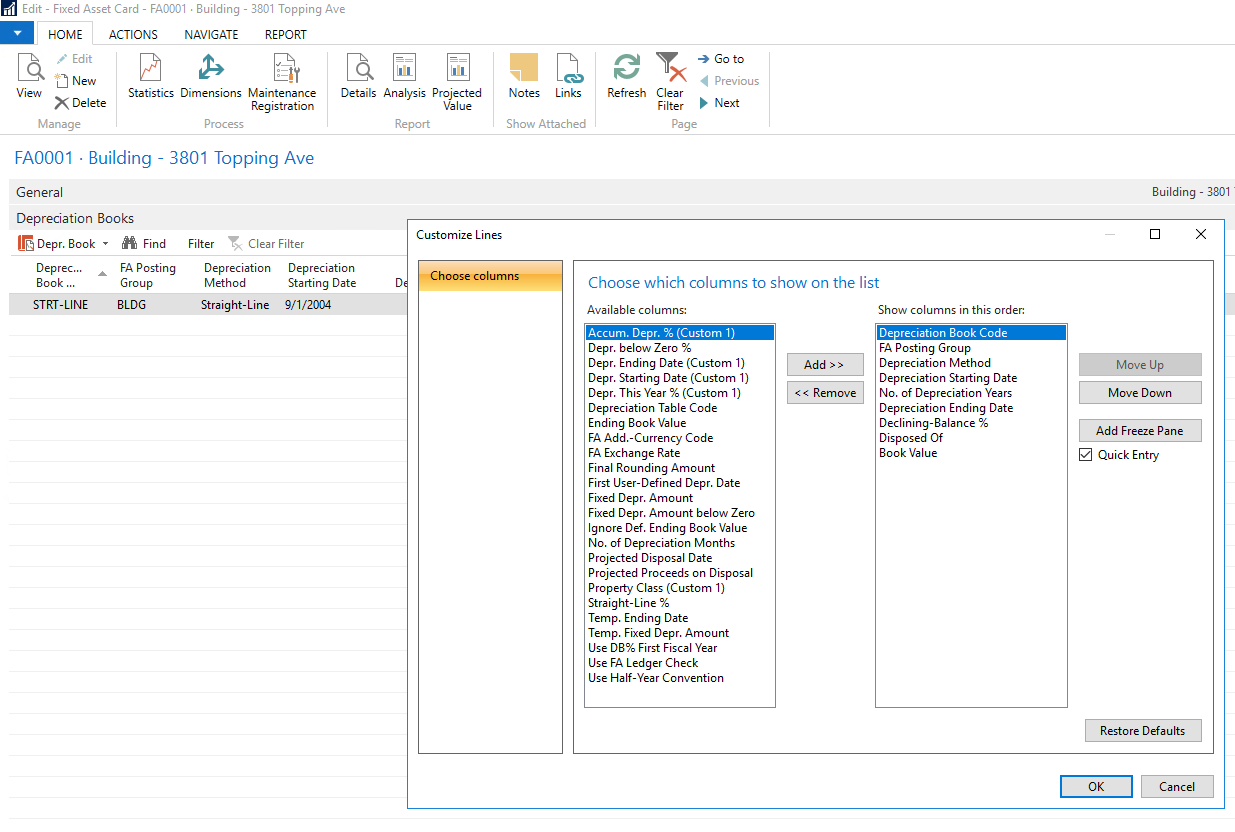
The following section is taken directly from the NAV training manual. Note that most of the fields that are mentioned do not show up in the FA Depreciation Books by default but need to be added using the Choose Columns function in the list.
Depreciation Method – Straight-line
In the Straight-line depreciation method, the fixed asset depreciates by the same amount each year. The following information must be specified:
- A depreciation period (years or months) or a depreciation ending date. The program uses this formula to calculate the depreciation amount:
Depreciation Amount = (Book value - Salvage Value) * (Number of Depreciation Days) / Remaining Depreciation Days
The program calculates the remaining depreciation days as the number of depreciation days minus the number of days between the depreciation starting date and the last FA entry date. The book value may be reduced by posted Write-down, Appreciation, Custom 1, or Custom 2 amounts, depending on whether the Part of Book Value checkbox is selected in the FA Posting Type Setup window. If you use this calculation, the fixed asset is fully depreciated at the depreciation ending date.
- A fixed yearly percentage. The program uses this formula to calculate the depreciation amount:
Depreciation Amount = (Straight line % * Depreciable Basis * Number of Depreciation Days) / (100 * 360)
- A fixed yearly amount. The program uses this formula to calculate the depreciation amount:
Depreciation Amount = (Fixed Depreciation Amount * Number of Depreciation Days) / 360
Depreciation Method – Declining-balance 1
The Declining-balance 1 method of depreciation is an accelerated method that allocates the largest part of the cost of an asset to the early years of its useful lifetime. To use this method, specify a fixed yearly percentage.
The program uses this formula for calculating depreciation amounts:
Depreciation Amount = (Declining-Bal. % * Number of Depreciation Days * Depr. Basis) / (100 * 360)*
The depreciable basis is calculated as the book value less the posted depreciation since the starting date of the current fiscal year.
When you use this method, the posted depreciation amount can contain entries with various posting types (Write-down, Custom 1, and Custom 2) posted since the starting date of the current fiscal year. These posting types are included in the posted depreciation amount if the Depreciation Type and Part of Book Value check boxes are selected in the FA Posting Type Setup window.
To calculate declining balance depreciation, it is very important to have the correct setup in accounting periods because the declining balance depreciation is based on the fiscal year end. Make sure that you have accounting periods set up already for future fiscal years.
Depreciation Method – Declining-balance 2
The Declining-balance 2 method of depreciation calculates the same total depreciation amount for each year as Declining-balance 1. However, if the Calculate Depreciation batch job is run one or more times a year, the Declining-balance 1 method results in equal depreciation amounts for each period. The Declining-balance 2 method, on the other hand, results in amounts that decline for each period.
Depreciation Method – DB1/SL
The DB1/SL method is a combination of Declining-balance 1 and Straight-line methods of depreciation. When you run the Calculate Depreciation batch job, the program calculates both a declining balance and a straight-line amount, and then uses the larger of the two amounts. When you select this method, enter data into both the Number of Depreciation Years and the Declining Balance % fields. The depreciation starts with the Declining-balance 1 method and ends with the Straight-line method.
Depreciation Method – DB2/SL
The DB2/SL depreciation method is a combination of Declining-balance 2 and Straight-line methods. This method is the same as the DB1/SL method, except that it calculates depreciation according to the rules of the Declining-balance 2 method instead of the Declining-balance 1 method.
Depreciation Method – User-defined
The User-defined depreciation method gives you the option to create a customized depreciation method by using the depreciation tables.
You can create depreciation tables in the Depreciation Table List window.
To open the Depreciation Table List window, in the navigation pane, click Departments ▸ Financial Management ▸ Fixed Assets ▸ Depreciation Tables.
In the Depreciation Table List window, click New to open the Depreciation Table Card window where you can set up a depreciation method if it is necessary.
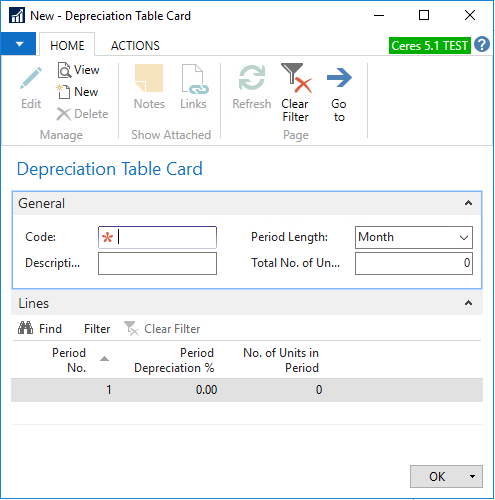
User-defined depreciation methods may be necessary, for example, when a machine with an established lifetime capacity has a depreciation method to depreciate the machine based on the number of units it produces for each period. You can set up the table for the period length and the total number of units that the machine can produce.
Either use a percentage for allocation or specify the number of units. When using the Period Depreciation % field, the number of units is entered automatically.
The program uses the following formula for calculating the depreciation in user-defined methods:
Depreciation Amount = Depreciation % * Number of Depreciation Days * Depreciation Basis.
Depreciation Method – Manual Method
The Manual method of depreciation requires you to manually enter the depreciation expense in either the FA G/L journal or the FA journal. The Calculate Depreciation batch job does not calculate depreciation for any assets for which you have selected the Manual depreciation method. You can use this method for assets that are not subject to depreciation, such as land.
Depreciation Method – Half-Year Convention
When you apply the Half-Year Convention method of depreciation, a fixed asset has six months depreciation in the fiscal year regardless of the value in the Depreciation Starting Date field. If you want to apply this method, select the Use Half-Year Convention checkbox in the FA depreciation book.
This depreciation method can be used with the following depreciation methods:
- Straight-line
- Declining-balance 1
- DB1/SL
FA Journal Templates
There are four journal templates for Fixed Assets:
- FA G/L Journal
- FA Journal
- FA Reclass. Journal
- Insurance Journal
To open the FA Journal Templates, select Departments ▸ Administration ▸ Application Setup ▸ Financial Management ▸ Fixed Assets ▸ FA Journal Templates
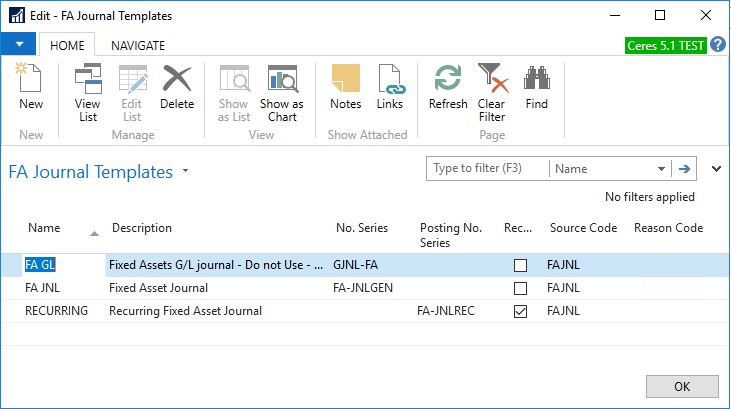
The journal templates are similar to other journal templates in Ceres. And it is also possible to set up recurring journals for fixed assets.
It is possible to define particular batches for a journal by clicking Related Information, point to Template and then click Batches.
Recording Opening Entries in the FA Journal
If you are transitioning away from a manual system and moving fixed assets into Ceres, you will likely need to enter assets that were acquired in the past and are partly depreciated. If you have more assets than you want to enter, your VAR can assist you with an import process. To enter existing assets into Ceres:
-
Make sure that all the basic setup procedures for the fixed assets are completed (FA setup, FA Posting Group, Depreciation Books, Depreciation Tables, FA Journals).
-
Create a Fixed Asset Card for each existing asset.
-
In the Fixed Assets window, click New.
-
On the General, Posting, Lines, and Maintenance FastTabs, fill in the corresponding fields.
-
Set up Depreciation Books for the fixed assets.
-
In the Depreciation Book List window, click New.
-
In the Depreciation Book Card window, click the Integration FastTab, and then clear all the fields to deactivate G/L integration.
-
Repeat this procedure for each depreciation book. Because these assets are already accounted for in the general ledger, you must temporarily turn off integration.
-
In the Fixed Asset Journal window, enter (at least) two lines for each asset:
- The acquisition cost – This line represents the acquisition of the fixed asset.
- The accumulated depreciation – This line represents a cumulative amount of depreciation. You have to post the cumulative amount of depreciation to the end of the previous (business) year.
- If other opening balances exist, such as write-down, appreciation, or salvage value, enter lines for them.
-
After you enter and post all journal lines for all the assets, enable general ledger integration for depreciation books again.
-
Post the depreciation to bring it up to date.