Budget Enforcement Overview
Once a Budget is developed, Budget Enforcement allows a Food Bank to be able to enforce the available Budget on transactions. Budget Enforcement applies to all transactions that affect the General Ledger, and use an Account, Fund, and/or Dimension that has been specified on a Budget. Budget Enforcement provides two levels of calculations (warning level or error level) and over budget notifications via e-mail.
Ceres Object release 5.00.00 is required for the functionality described in this document.
Setup
The usage of Budget Enforcement functionality in Ceres requires the functionality to be activated, designating if elements (Account, Fund, and/or Dimensions) are subject to Budget Enforcement, and establishing Budget Notification Groups for over budget e-mail notification.
General Ledger Setup
-
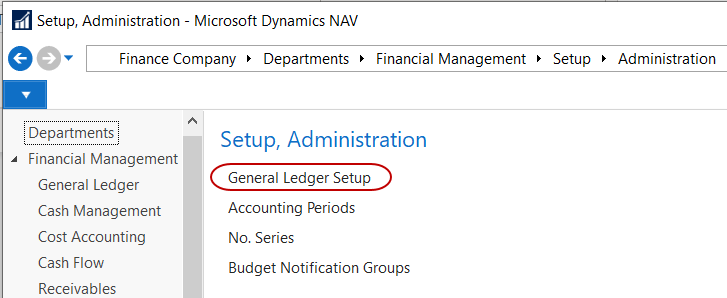
The General Ledger Setup can be accessed from Departments ▸ Financial Management ▸ Setup ▸ Administration ▸ General Ledger Setup.
-
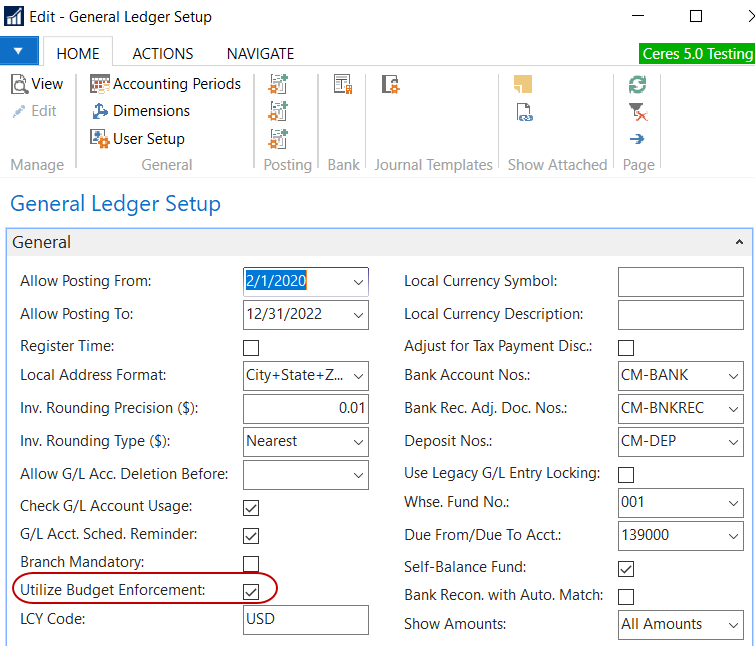
From the General Ledger Setup page, General FastTab, check the Utilize Budget Enforcement to activate Budget Enforcement.
Budget Notification Groups
-
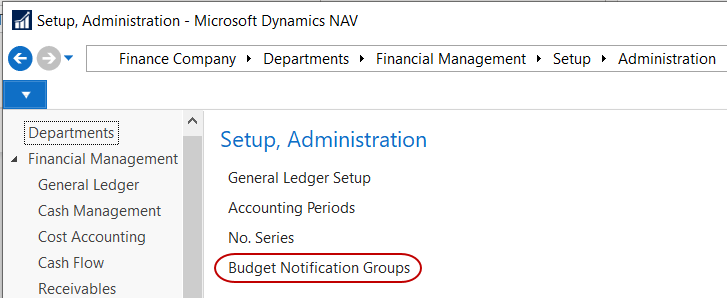
Budget Notification Groups can be accessed from Departments ▸ Financial Management ▸ Setup ▸ Administration ▸ Budget Notification Group.
-
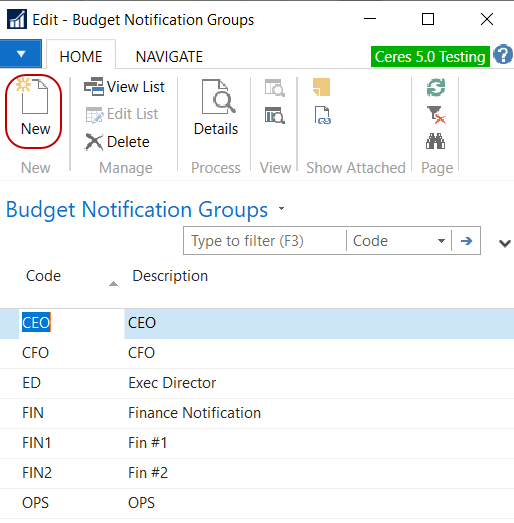
Select Home New to create a new Budget Notification Group. Enter a Code and a Description for each group.
-
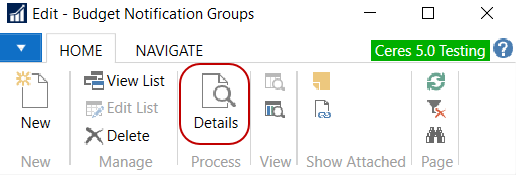
To add members to an existing or new notification group, select Home Process Details.
-
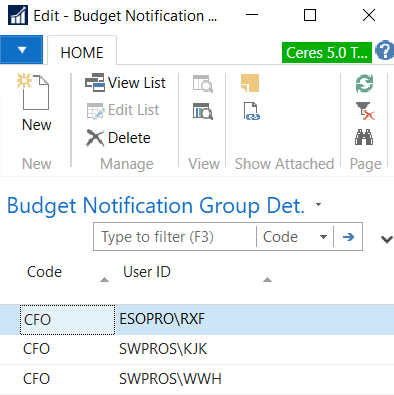
The Budget Notification Group Details Page displays with the members assigned to that group.
-
First, you must have an E-mail Address specified on the User Setup Page for each user. Then, you may select or add a User to a new or existing Budget Notification Group.
-
A User ID cannot be added twice to the same Budget Notification Group
-
A User ID can be added to two different Budget Notification Groups.
noteIf a User ID is added to two different Budget Notification Groups, that User may receive two Budget Notifications for the same transaction.
-
G/L Account
-
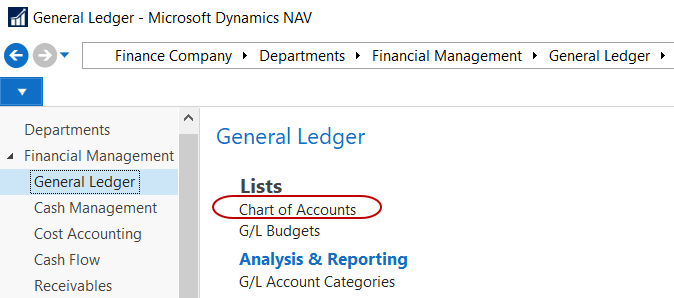
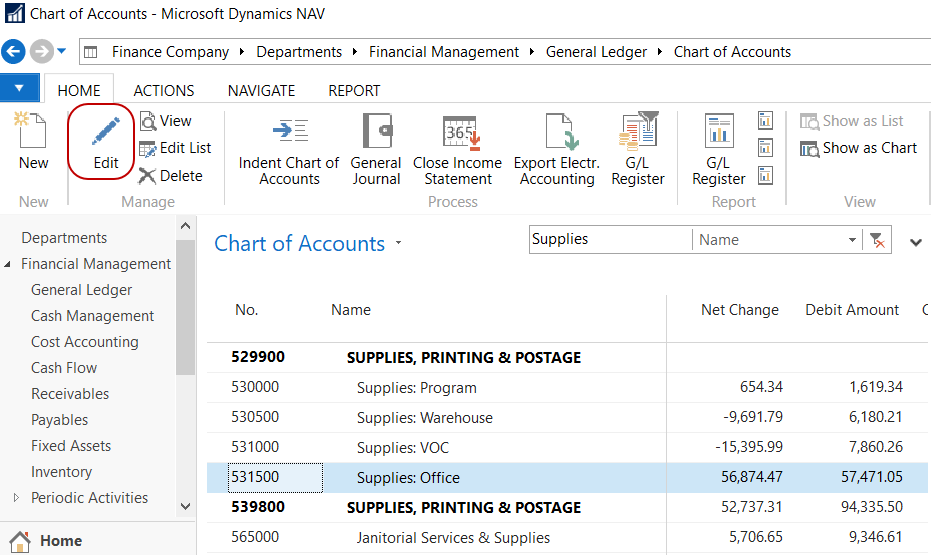
G/L Accounts can be accessed from Departments ▸ Financial Management ▸ General Ledger ▸ Lists ▸ Chart of Accounts.
-
Select an Account from Home ▸ Manage ▸ Edit to open the G/L Account Card.
-
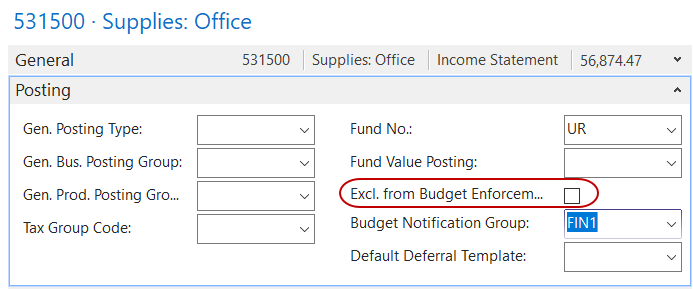
On the Posting FastTab of the G/L Account Card, select Excl. from Budget Enforcement if you wish to exclude budget enforcement from being applied to any transaction posted to this account.
 note
noteThe default is not to exclude any transactions from Budget Enforcement.
-
If the Excl. from Budget Enforcement in not checked, you can specify a Budget Notification Group if you would like warning or failure budget notifications to be sent to a Budget Notification Group other than or in addition to the default Budget Notification Group specified on the budget.
noteRefer to the Chart of Accounts Overview Procedure Document on how to setup a G/L Account.
Funds
-
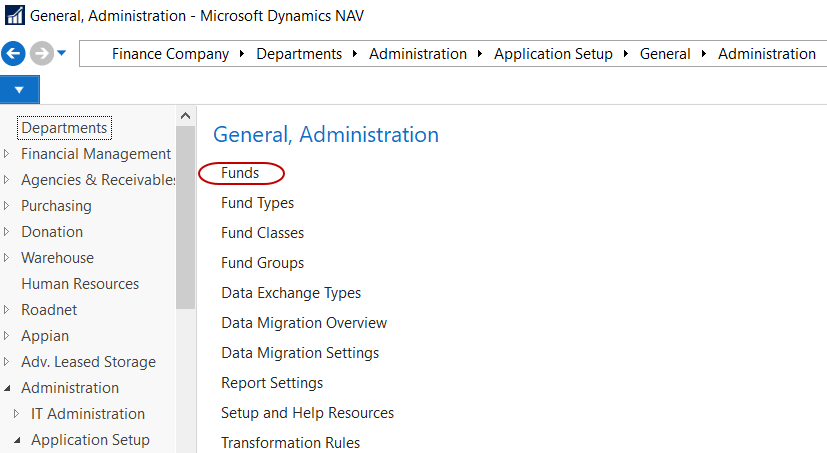
Funds can be accessed from Departments ▸ Administration ▸ Application Setup ▸ General ▸ Administration ▸ Funds.
-
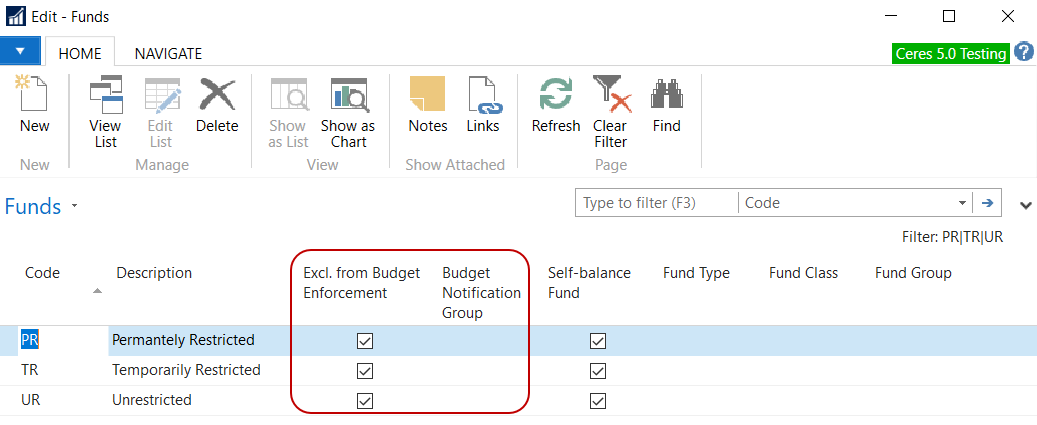
Select the Excl. from Budget Enforcement checkbox if you wish to exclude Budget Enforcement from being applied to any transaction posted to this Fund. You can specify a Budget Notification Group if you would like warning or failure budget notifications to be sent to a Budget Notification Group other than or in addition to the default Budget Notification Group specified on the budget.
 note
noteThe default is not to exclude any transactions from Budget Enforcement.
noteRefer to the Fund Overview Procedure Document for additional information on setting up Funds.
Dimensions
-
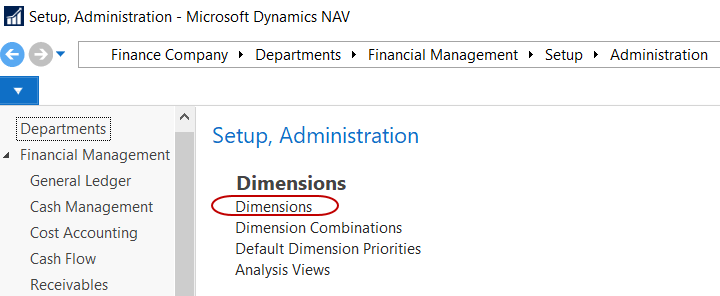
Dimension can be accessed from Departments ▸ Financial Management ▸ Setup ▸ Administration ▸ Dimensions.
-
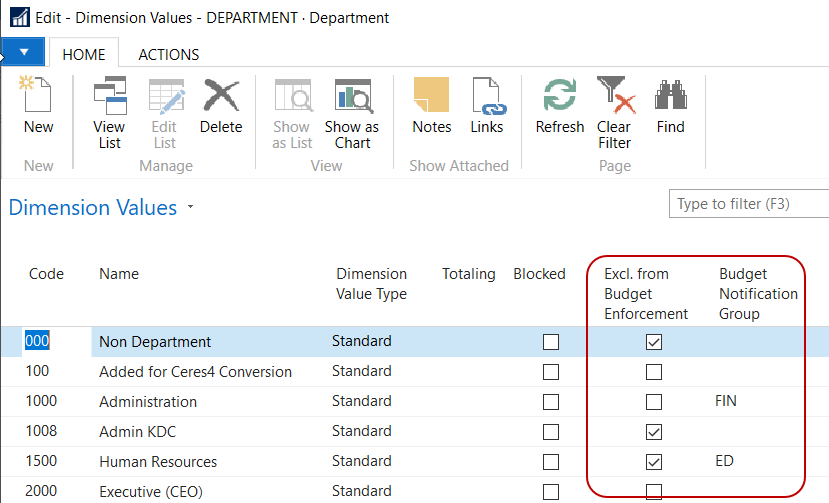
Select a Dimension and then select Navigate ▸ Dimension ▸ Dimension Values to display the Dimension Values for the selected Dimension.
-
Select the Excl. from Budget Enforcement checkbox if you wish to exclude Budget Enforcement from being applied to any transaction posted to this Dimension Value. You can specify a Budget Notification Group if you would like warning or failure budget notifications to be sent to a Budget Notification Group other than or in addition to the default Budget Notification Group specified on the budget.
 note
noteThe default is not to exclude any transactions from Budget Enforcement.
noteRefer to the GL Dimensions and Dimension Values Procedure Document for additional information on setting up Dimensions.
G/L Budgets
-
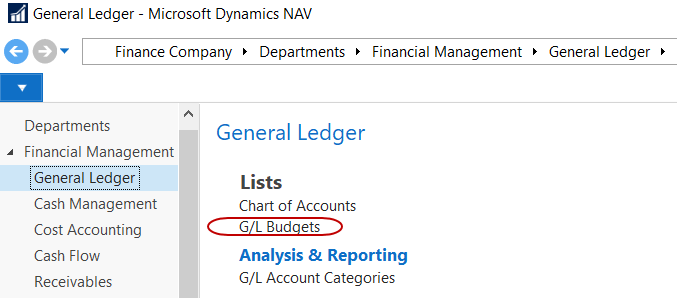
G/L Budgets are created/managed from Departments ▸ Financial Management ▸ General Ledger ▸ Lists ▸ G/L Budgets.
-
Select Home ▸ Manage ▸ Edit List to make changes to the G/L Budget fields. You cannot check any of the Include in Calculation fields on the G/L Budget until you provide a Start and End Date for the budget.
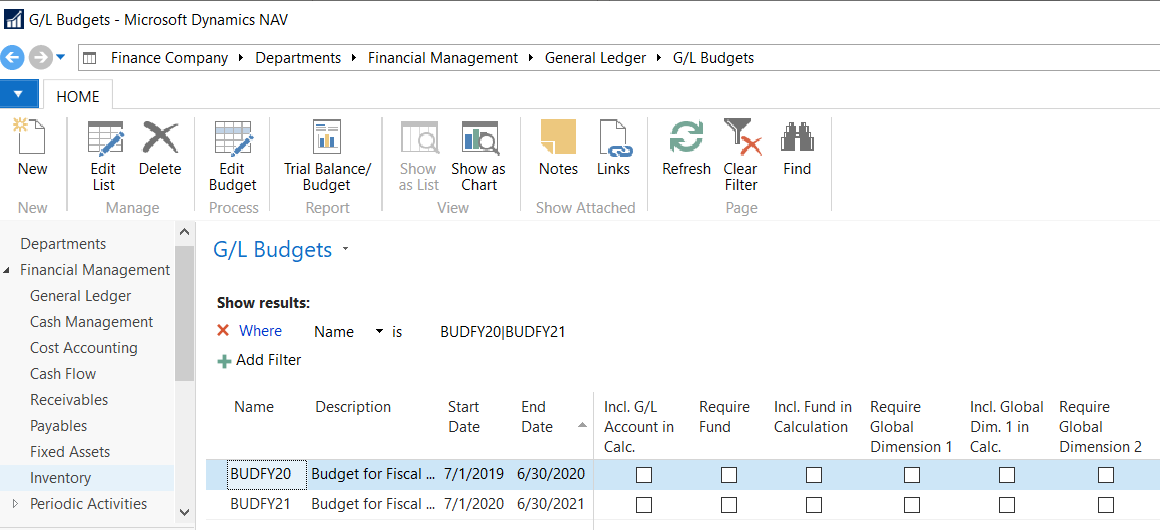
Start Date: Enter the starting date of the budget.
End Date: Enter the ending date of the budget.
Incl. G/L Account in Calculation: Select this field to include G/L Account when calculating the available budget for this budget.
Require Fund: Select this field to indicate that a Fund No. is required when entering budget transactions for this budget.
Incl. Fund in Calculation: Select this field to include the Fund No. when calculating the available budget for this budget.
Require Global Dimension 1: Select this field to indicate that Global Dimension 1 is required when entering budget transactions for this budget.
Incl. Global Dim. 1 in Calc.: Select this field to include Global Dimension 1 when calculating the available budget for this budget.
Require Global Dimension 2: Select this field to indicate that Global Dimension 2 is required when entering budget transactions for this budget.
Incl. Global Dim. 2 in Calc.: Select this field to include Global Dimension 2 when calculating the available budget for this budget.
Budget Dimension 1 Code: Specify the Dimension Code Name to be utilized as Budget Dimension 1.
Require Budget Dimension 1: Select this field to indicate that Budget Dimension 1 is required when entering budget transactions for this budget.
Incl. Budget Dim. 1 in Calc.: Select this field to include Budget Dimension 1 when calculating the available budget for this budget.
Budget Dimension 2 Code: Specify the Dimension Code Name to be utilized as Budget Dimension 2.
Require Budget Dimension 2: Select this field to indicate that Budget Dimension 2 is required when entering budget transactions for this budget.
Incl. Budget Dim. 2 in Calc.: Select this field to include Budget Dimension 2 when calculating the available budget for this budget.
Budget Dimension 3 Code: Specify the Dimension Code Name to be utilized as Budget Dimension 3.
Require Budget Dimension 3: Select this field to indicate that Budget Dimension 3 is required when entering budget transactions for this budget.
Incl. Budget Dim. 3 in Calc. Select this field to include Budget Dimension 3 when calculating the available budget for this budget.
Budget Dimension 4 Code: Specify the Dimension Code Name to be utilized as Budget Dimension 4.
Require Budget Dimension 4: Select this field to indicate that Budget Dimension 4 is required when entering budget transactions for this budget.
Incl. Budget Dim. 4 in Calc.: Select this field to include Budget Dimension 4 when calculating the available budget for this budget.
Blocked: Select to block this budget and no longer utilize it for Budget Enforcement.
Failure if No Budget Record: Select this option to trigger a budget failure if there is not a G/L Budget entry for the combination of the Include in Calculation fields for this G/L Budget. Without this option selected if a G/L Budget entry is not found for the combination of the Include in Calculation fields, a budget failure will not be triggered.
Def. Budget Notification Group: Specify the Default Budget Notification Group for failure and warning e-mails for this budget.
noteIf Budget Notification Groups are also specified on the G/L Account, Fund, and/or Dimension, an over budget notification will be sent to the users included on those Budget Notification Groups as well as the default Budget Notification Group.
Failure %: Specify the percentage of the budget to be used to trigger a budget failure. This can be set to more than 100%. Set to 0% for no failure.
Note: If a Budget Failure is triggered, the transaction will not post until the budget failure condition has been rectified.
Warning %: Specify the percentage of the budget to be used to trigger a budget warning. This can be set to more than 100%. Set to 0% for no warning.
Note: If a budget failure is triggered, the budget warning will be suppressed.
Bud. Notification Date Formula: Specify the notification date formula (i.e. 1d= 1 day, 1w= 1 week, 1m = 1 month) to control how many times members of a Budget Notification Group are notified of budget failures and warnings. A blank indicates that a notification will be generated for each attempted transaction posting.
Budget Entry Processing
-
When a budget has the Require Fund, Require Global Dimension and/or Require Budget Dimension 1, 2, 3,or 4 selected, a Fund and/or Dimension values are required to import or enter budget transactions for the G/L Budget.
-
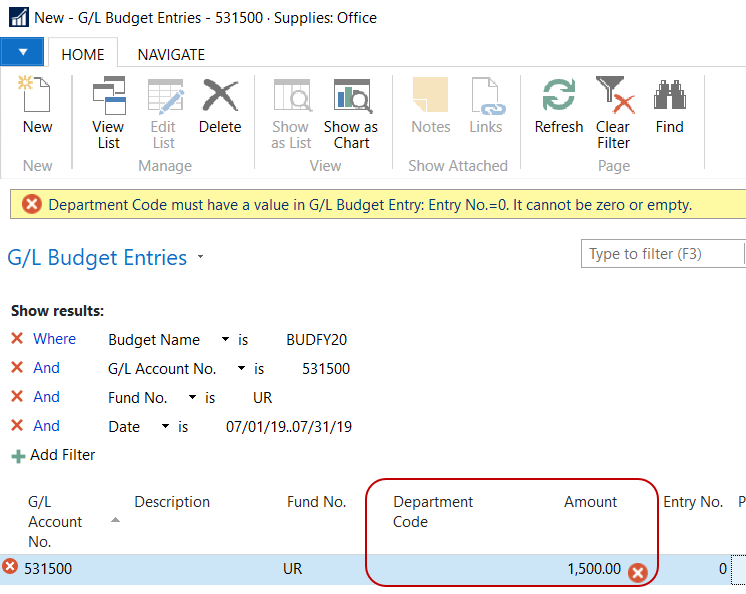
For a budget that has Require Fund and Require Global Dimension 1 selected, if a Global Dimension 1 filter (in this example Department is Global Dimension 1) is not provided (but the Fund filter is) the user will receive the following error upon entering a budget transaction (this also applies to G/L Budget transactions created via the budget import process).
-
In order to successfully enter a budget transaction, the user will need to provide filters for all of the Require .. fields selected for the budget.
Budget Calculation
When Budget Enforcement applies to a transaction the budget is calculated using the following.
-
Based upon the posting date of the transaction, determine which budgets have a Start Date and End Date that are between the posting dates of the transaction. This may select more than one budget. If multiple budgets are selected each budget is calculated independently.
-
Retrieve the Budget Calculation controls (i.e. the Include XXX in Calc. fields) for the budgets applicable to the transaction (determined in step 1).
-
Calculate the G/L Budget Amount by summing the budget amounts for the calculation controls indicated on the budgets using values from the transaction.
-
Calculate the prior Transaction Amounts by summing the general ledger amounts for the transaction values based upon the calculation controls indicated on the budgets.
-
Check for G/L Budget Failure by taking the G/L Budget Amount calculated in step 3 times the failure % to derive the Available Budget and subtract the prior Transaction Amount and the current Transaction Amount. If insufficient budget is calculated, generate an error message and e-mail notification and do not allow the transaction to post.
-
Check for G/L Budget Warning by taking the G/L Budget Amount calculated in step 3 times the Warning % to derive the Available Budget and subtract the prior Transaction Amount and the current Transaction Amount. If insufficient budget is calculated, generate a warning message and e-mail notification and allow the transaction to post.
If the budget for the calculation controls, indicates an insufficient budget and the current transaction will reduce that insufficient budget, then the transaction will post without generating a budget warning or error.
Budget Enforcement Processing
-
When configured, Budget Enforcement applies to all transaction where.
- The transaction.
- The transaction uses an Account, Fund, and/or Dimension that is included on a budget.
- The transaction does not contain an Account, Fund, and/or Dimension that has Exclude from Budget Enforcement is selected.
- The transaction has a posting date that is between the Start Date and End Date specified on a budget.
-
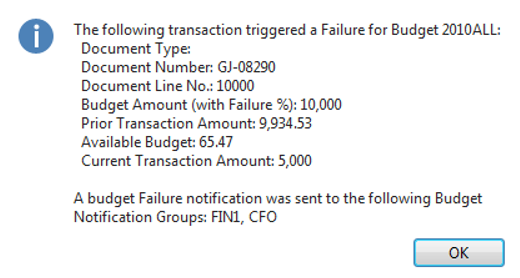
Based up a G/L Account, Fund, and Department Code that has a total budget of $10,000, the following error message (and associated e-mail notification) is generated when trying to post a General Journal Entry for $5,000.