My Jet Reports
My Jet Reports provides users with a list of available Jet Reports that can be opened via the Home Page within Ceres 5.
Ceres Object release 5.00.00 is required for the functionality described in this document.
Establishing Available Jet Reports
-
To establish a list of available Jet Reports, navigate to Departments ⯈ Administration ⯈ Application Setup ⯈ General ⯈ Lists ⯈ Jet Reports.

-
The Jet Reports list page is where you establish a Jet Report Code, Name, and the path to where the Jet Report can be found.
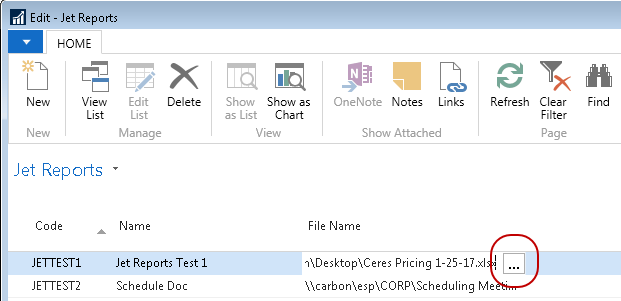
Code: A 10-character maximum alpha numeric code assigned to the Jet Report. This code is displayed on the Home Page along with the Name of the Jet Report.
Name: A 50-character maximum alpha numeric text name assigned to the Jet Report. The Name field is displayed on the Home Page along with the Code assigned to the Jet Report.
File Name: The full path and file name of the Jet Report. The EditAssist button
 may be used to locate the Jet Report or you can type in the full path and file name.
manually.note
may be used to locate the Jet Report or you can type in the full path and file name.
manually.noteIn order for all users to be able to access the Jet Report, it should be stored on a common network file share that is accessible to all users. When selecting the Jet Report, UNC (Universal Naming Convention) paths should be utilized over drive letter mapping unless all users are mapped to the same drive letter for same network file share.
Assigning User Access to Jet Reports
Once Jet Reports have been established, they need to be assigned to a User via User Setup in order for the User to be able to access them from the Ceres Home Page.
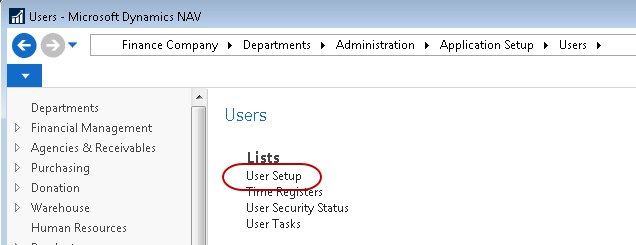
User Setup can be accessed at Departments ⯈ Administration ⯈ Application Setup ⯈ Users ⯈ Lists ⯈ User Setup.
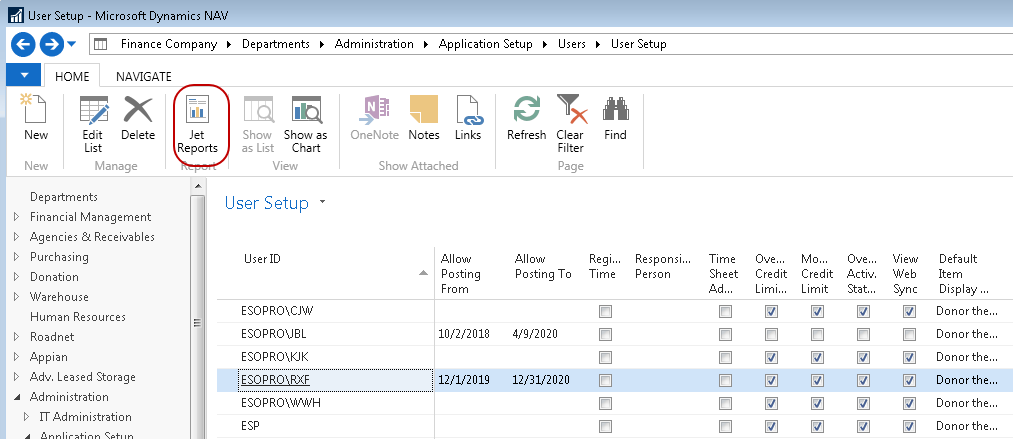
On the User Setup page, select the User you want to grant Jet Reports access to and select the Jet Reports icon from the Home (or Navigate) ribbon.
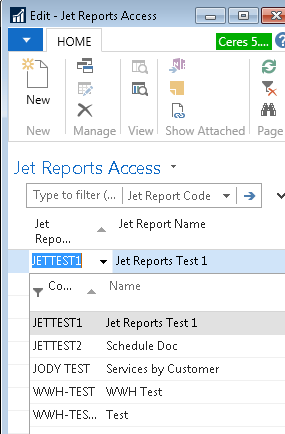
On the Jet Reports Access page, drill down on the Jet Reports Code to select the Jet Reports that the user should see on their Home Page.
My Jet Reports on the Home Page
Once the Jet Reports have been assigned via the Jet Reports Access page, the User will be able to run the Jet Report via the My Jet Reports list part on their Home Page.

When using the “Open Report” option for a Jet Report that is selected, the Jet Report will open but it will not be refreshed. The user will need to manually refresh the Jet Report to obtain the latest report data.
The My Jet Reports list part must also be enabled by User Permissions. It is enabled with the User Group 'SYS-JET', which contains the Permission Set 'JET REPORTS'.