Processing 1099s
The IRS requires companies to provide the 1099 information return to individuals (and some companies) that receive compensation from the food bank. Generally, 1099s are provided to independent contractors, self-employed individuals, attorneys and (non-corporation) accounting firms that are paid at least $600 during the tax year. 1099s are required to be sent by January 31st of each year.
Ceres Object release 5.00.00 is required for the functionality described in this document.
1099 data and related tables
Ceres provides multiple ways to collect the information to be reported on a 1099. The expected flow from within the system is to start by entering some 1099 specific setup information on the Vendor Card, which then flows through individual Purchase Orders to the 1099s, subject to a set of business rules in the IRS 1099 Form Box. But Ceres also allows you to enter 1099 specific data after purchase orders are completed as part of a year-end cleanup process. Both options will be covered below.
Adding 1099 Information During Vendor Setup
1099 specific information entered during vendor setup will automatically populate on any Purchase Orders that are created later. But, entering information on the Vendor Card does not update 1099 information on previously created Purchase Orders (for that, see the Adding, Correcting or Editing 1099 Information Later section).
-
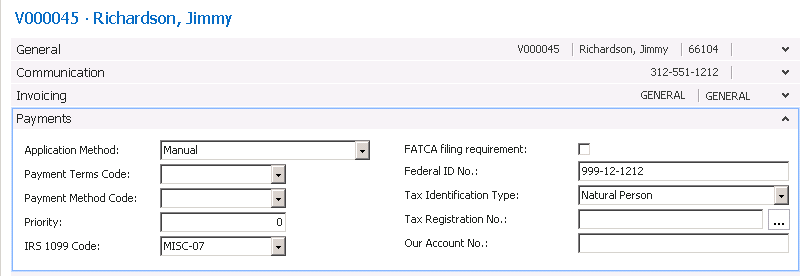
1099 setup information can be found on the Payments FastTab of the appropriate Vendor Card.
-
In the IRS 1099 Code field, select the code that applies to the vendor. Note: You must select a specific code, such as “MISC-07” rather than just the “MISC” subheading for it to appear on your printed 1099 forms.
-
Enter the EIN or SSN for the vendor in the Federal ID No. field.
Adding 1099 Information on Purchase Orders
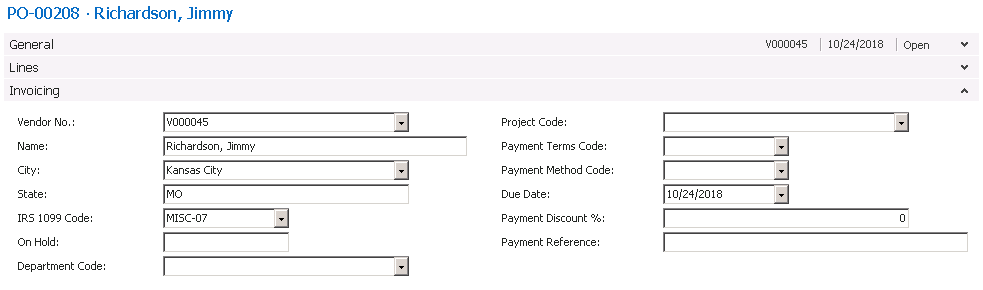
1099 setup information from the Vendor Card automatically flows to any Purchase Orders or Purchase Invoices created for that vendor. It can also be entered manually on individual Purchase Orders or Purchase Invoices.
For 1099s to be correct, they also need EIN or SSNs entered on the Vendor Card.
-
On the Invoicing FastTab of the Purchase Order or Purchase Invoice, select the appropriate IRS 1099 Code
Adding, Correcting or Editing 1099 Information Later
There are many instances in which 1099 information does not flow correctly to the 1099 forms, e.g., the Vendor Card may not have been set up, only part of an invoice applies to the 1099, or a 1099 is requested later. To make changes to 1099 information for payments after the documents have been posted, you can directly edit 1099 information in the Vendor Ledger.
To make changes to 1099 information in the vendor ledger:
-
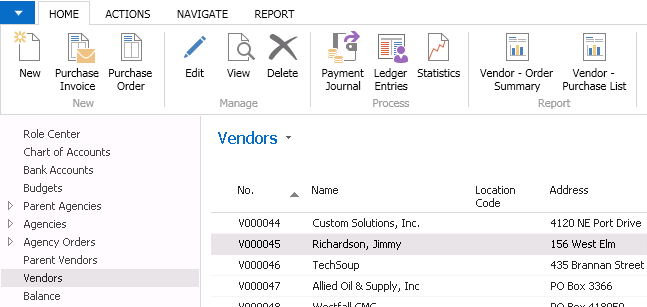
Open the Vendor Ledger for the applicable payments. You can do this from the vendor list by selecting Ledger Entries from the Process ribbon with the vendor selected.
-
If necessary, filter the vendor ledger for just the reporting year you require.
-
For the Document Types of Invoice and Credit Memo, you may modify both the IRS 1099 Amount and IRS 1099 Code. There is no need to enter information on any Payment lines.

Printing 1099s
Prior to printing your 1099s, you may wish to review the data that will appear on them. You can do this with the Vendor 1099 Information report.
-
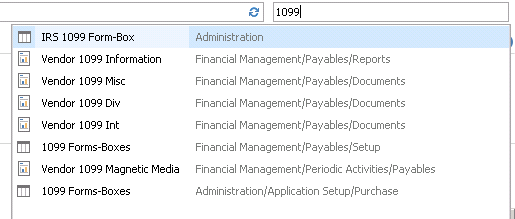
In the search box, type in 1099, and select the Vendor 1099 Information report, or navigate to Departments ▸ FinancialManagement ▸ Payables ▸ Reports ▸ Vendor 1099 Information
 important
The Vendor 1099 Information report requires a date filter.
-
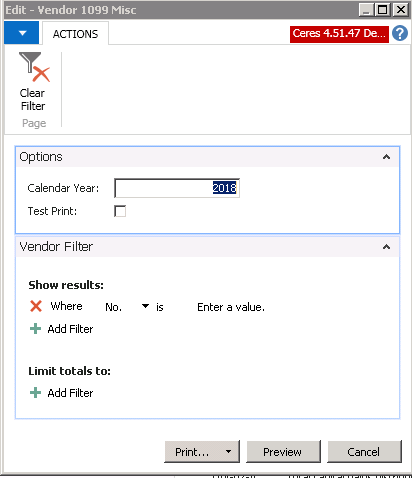
If the data on the report is correct, you may print your 1099s by searching for 1099 and selecting the Vendor 1099 Misc report, or navigating to Departments ▸ FinancialManagement ▸ Payables ▸ Reports ▸ Vendor 1099 Misc
-
Enter the year for which you want to print 1099s and print.
noteThe Vendor 1099 Misc document is designed to print on one-up blank 1099 forms, however the out-of-the-box report does not line up perfectly with any known blank 1099 forms. You may need your VAR to assist you with lining up the fields if you want to print directly onto blank 1099 forms. The “test print” checkbox prints a 1099 with XXXX where data will appear to help align the data with blank forms. Many food banks print (or save the preview to PDF) and copy the data by hand into an online 1099 form generator.>