GL Dimension Reporting
Dimension Reporting
Ceres can attach many dimensions and dimension values to ledger entries. Because there are so many possible dimensions, Ceres only displays a limited number of them in the General Ledger Entries or other ledger entry views. For example, when viewing the General Ledger Entries list, only the two dimensions designated as Global Dimensions appear as columns, even though other dimensions can also be on that entry. This document describes how other dimensions are stored in Ceres, and what tools are available to view entries with all of their dimensions.
Dimension Set ID
Ceres addresses all of an entry’s dimensions and dimension values using a single field called Dimension Set ID. The Dimension Set ID is assigned to each dimension set entry that belongs to the dimension set.
The following example shows a dimension set that has three dimension set entries. The dimension set is identified by a common dimension set ID, which is 108.
| Dimension Set ID | Dimension Code | Dimension Value Code | Dimension Value Name |
|---|---|---|---|
| 108 | DEPARTMENT | 70 | Food Sourcing |
| 108 | PROGRAM | PP | Produce Purchasing |
| 108 | RESTRICTION | AG2023 | Dept of Ag 2023 Grant |
A General Ledger transaction that has these three dimension set entries will have this dimension set ID assigned in its Dimension Set ID field. This field is visible in the General Ledger Entries list view and can be used in a filter.

The Ceres menus do not contain a link to the Dimension Set ID Entries list, but it can be accessed by using Advanced Lookup on any Dimension Set ID field, such as the one found on the General Ledger Entries page.
General Ledger Entries
In addition to the Dimension Set ID, only the two Global Dimensions display as columns on the General Ledger Entries page. To view all dimensions associated with a single entry:
-
Open the General Ledger Entries list by navigating to Departments ▸Financial Management ▸ General Ledger ▸ History ▸ General Ledger Entries.
-
On the Navigate tab, click the Dimensions button.
-
The Dimension Set Entries page will open, which displays all the dimension assigned to that single General Ledger Entry.

To view all the dimensions associated with several entries:
-
Open the General Ledger Entries list by navigating to Departments ▸Financial Management ▸ General Ledger ▸ History ▸ General Ledger Entries.
-
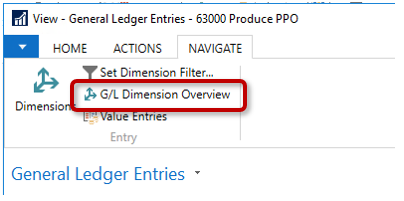
On the Navigate tab, click the G/L Dimension Overview button.
-
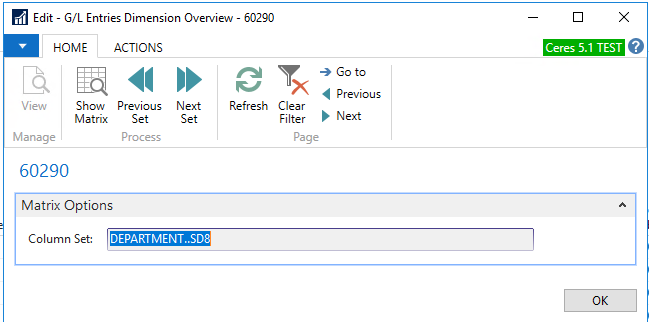
The G/L Entries Dimension Overview page will open. The displayed Column Set is a range that includes all dimensions and cannot be changed.
-
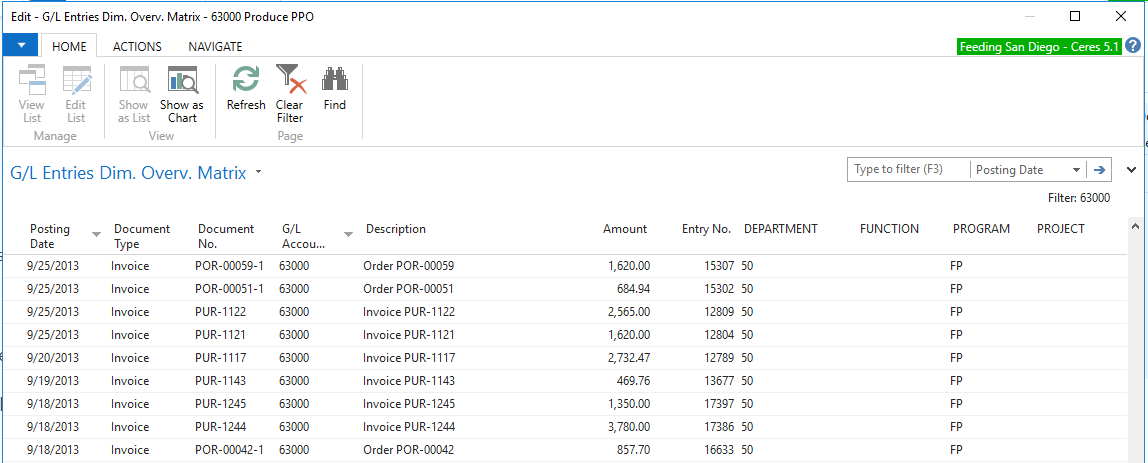
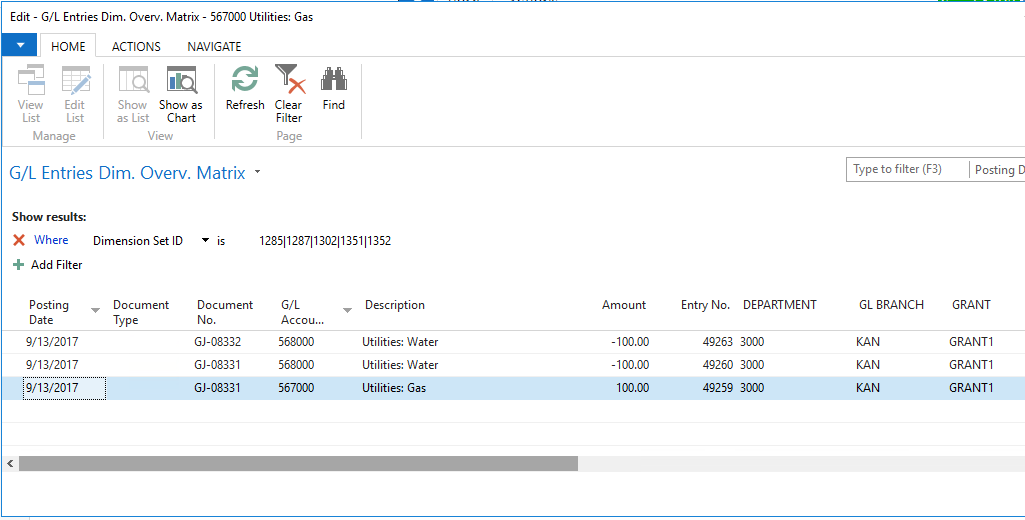
Click the Show Matrix button to open the G/L Entries Dim. Overv. Matrix page. This is a view of all the G/L Entries from the prior page but with any dimensions in separate columns.
This view doesn't have all the columns available that are on the General Ledger Entries page. For example, External Document No., Source Type, and Source No. are not displayed.
Filtering GL Entries by Non-Global Dimensions
The G/L Entries Dim. Overv. Matrix can be filtered by any of the fields on the General Ledger Entry page, even if they cannot be displayed as columns. This also means that only Global Dimensions can be used as filters from this page. To filter this list on any non-global dimensions, you must filter the General Leger Entries first.
-
Open the General Ledger Entries list by navigating to Departments ▸Financial Management ▸ General Ledger ▸ History ▸ General Ledger Entries.
-
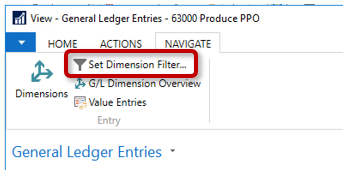
On the Navigate tab, click the Set Dimension Filter… button.
-
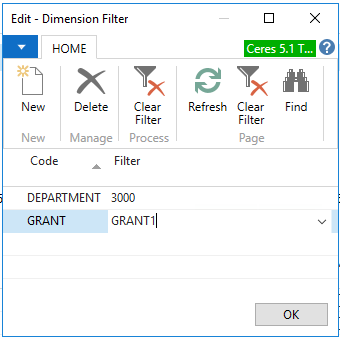
The Dimension Filter page opens, which starts out blank because the previous view had no filters applied. Enter as many Code and Filter combinations as you need to filter on.
-
Code - The Dimension you want to filter on
-
Filter - The Dimension Value you want to limit the results to
-
-
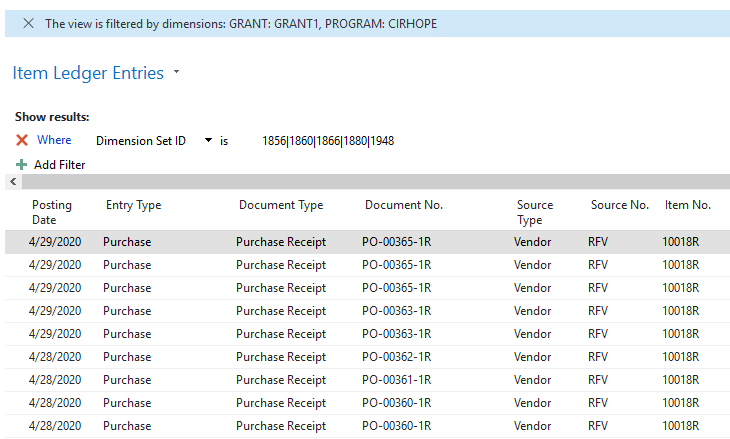
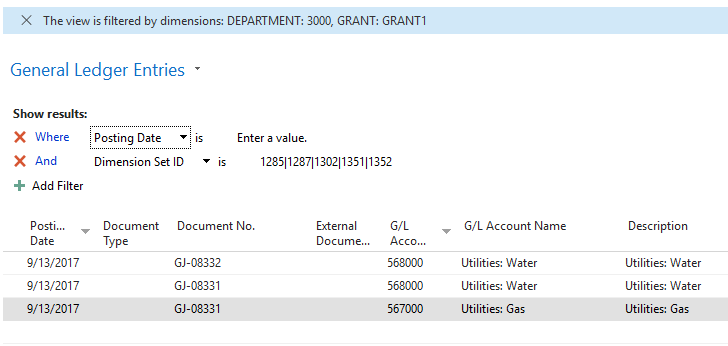
Click OK. Ceres returns the GL Entries limited to just those dimensions, even if they do not appear as columns. The blue bar at the top warns you that your view is filtered.
-
Click the G/L Dimension Overview button to get the matrix view limited to the dimensions applied in the previous filter.
Item Ledger Entries
In addition to the Dimension Set ID, only the two Global Dimensions display as columns on the Item Ledger Entries page. To view all dimensions associated with a single entry:
-
Open the Item Ledger Entries list by navigating to Departments ▸ Warehouse ▸ Archive ▸ History ▸ Item Ledger Entries.
-
On the Navigate tab, click the Dimensions button.
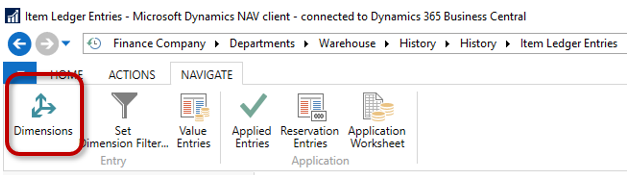
-
The Dimension Set Entries page will open, which displays all the dimension assigned to that single Item Ledger Entry.
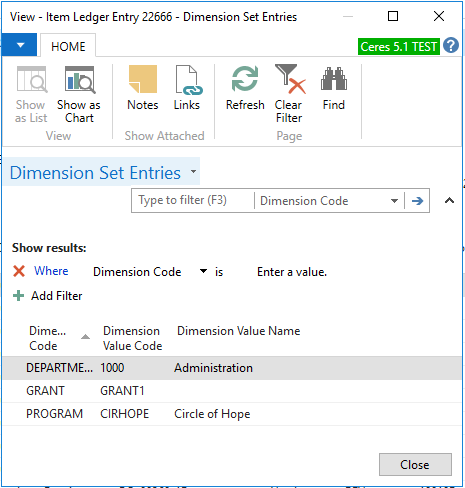
There is no matrix view that allows you to view all item ledger entries with dimensions in separate columns like the G/L Dimension Overview.
Filtering Item Ledger Entries by Non-Global Dimensions
You can filter the Item Ledger Entries list by dimensions that are not available as columns by using a Dimension Filter.
-
Open the Item Ledger Entries list by navigating to Departments ▸ Warehouse ▸ Archive ▸ History ▸ Item Ledger Entries.
-
On the Navigate tab, click the Set Dimension Filter… button.
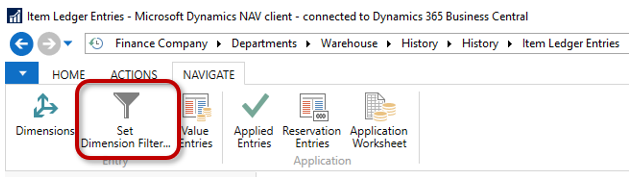
-
The Dimension Filter page opens, which starts out blank because the previous view had no filters applied. Enter as many Code and Filter combinations as you need to filter on.
-
Code - The Dimension you want to filter on
-
Filter - The Dimension Value you want to limit the results to
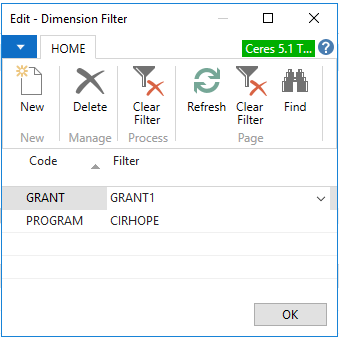
-
-
Click OK. Ceres returns the Item Ledger Entries limited to just those dimensions, even if they do not appear as columns. The blue bar at the top warns you that your view is filtered.