Inventory Revaluation Journal
If you received or posted at the wrong cost (value) for your inventory, Ceres allows the inventory to be revalued via the Inventory Revaluation Journal
This document explains how to use the Inventory Revaluation Journal to change the inventory value of your Items
Ceres Object release 5.00.00 is required for the functionality described in this document.
Creating and Posting Revaluation Journal Entries
-
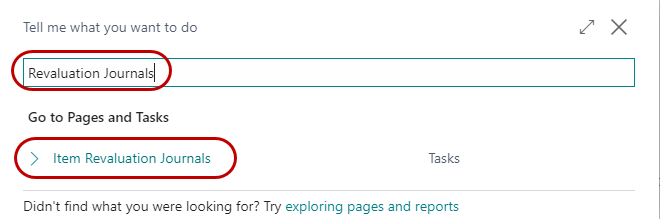
The Revaluation Journal can be accessed from Departments ▸ Warehouse ▸ Inventory ▸ Tasks ▸ Revaluation Journals.
-
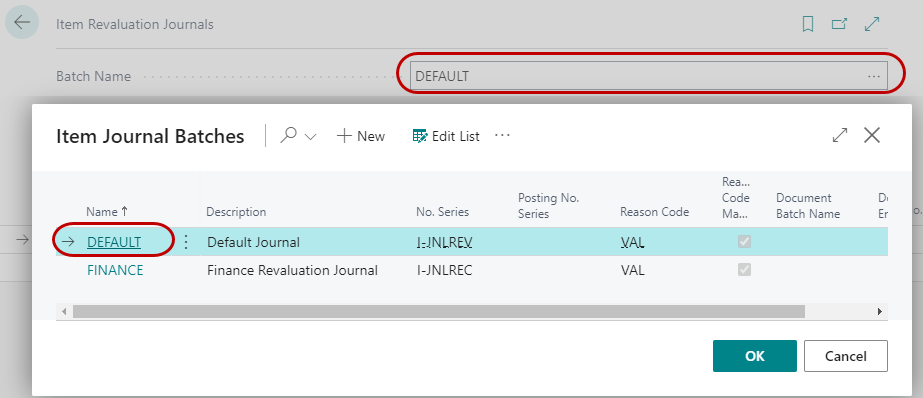
From the Revaluation Journal, select the Batch Name to use.
-
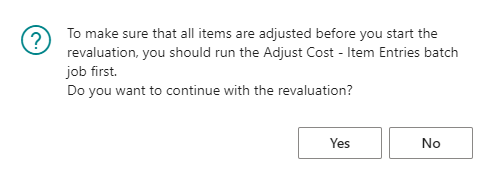
Run the Calculate Inventory Value batch job to populate the journal with the items you want to revalue. To run the batch job. select Home ▸ Calculate Inventory Value.

-
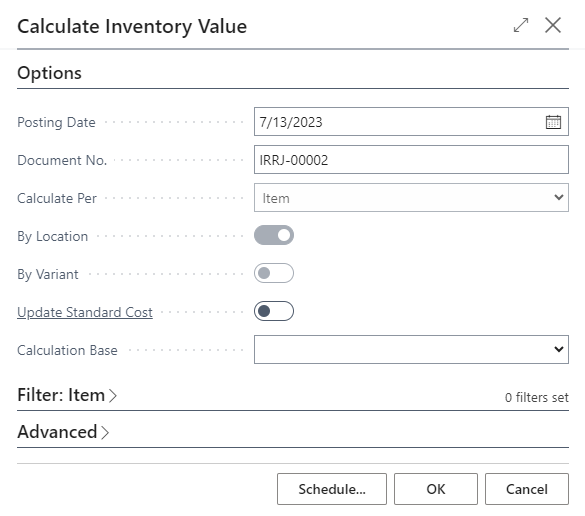
A Calculate Inventory Value Page will display. On the Options FastTab update the fields as necessary.
Posting Date: Enter the Posting Date.
Document No.: Input a Document No if this field is blank.
Calculate By: The Calculate By field automatically default and cannot be changed
-
On the Item FastTab select filters for the items or groups of items that you want to revalue.
-
Click OK to proceed with Calculate Inventory Value process which will generate lines in the Revaluation Journal.
-
Alternatively, you can manually insert the lines to be revalued.
-
In the Item no field, use the Assist Button to view the Item List, select the item you wish to revalue and hit OK.
-
In the Applies to Entry field, use the Assist Button to view the Item Ledger Entries, select the entry that you wish to revalue and hit OK. This will automatically populate the Location Code field.
-
Then select the Lot No. you want to revalue.
-
Repeat steps 3.a and 3.c for each item you wish to revalue.
-
In the Unit Cost (Revalued) field, enter the new unit cost. Or enter the new total amount in the Inventory Value (Revalued) field. The Amount field displays the revaluation difference or the difference between the Inventory Value (Calculated) and the Inventory Value (Revalued) fields.
-
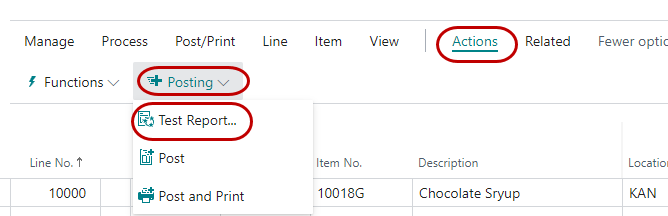
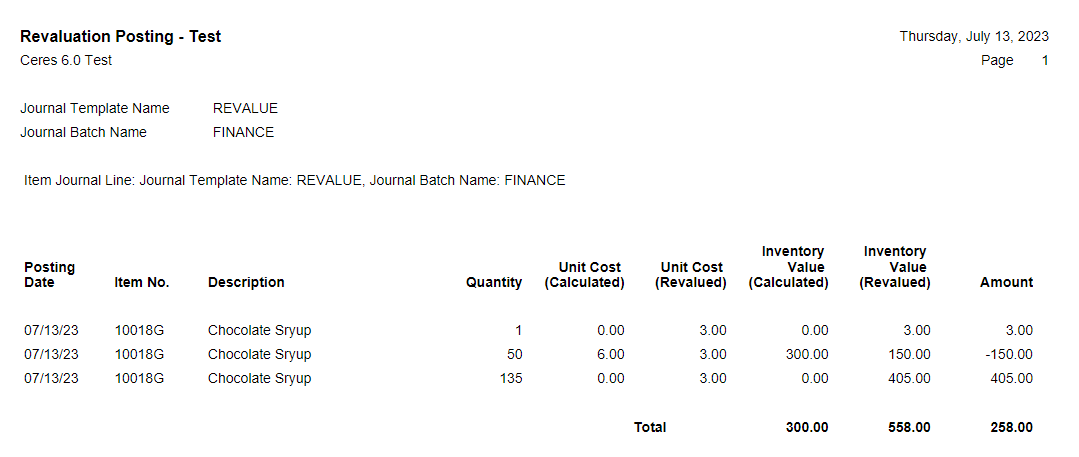
To run the Test Report, click on the Actions Tab of the Ribbon and select Test Report. Te report will display the $ impact on the items you are revaluing.

-
To Post or Post and Print the Journal, click on the Actions Tab of the Ribbon and select Print or Post and Print. Select Yes to confirm that you want to post the journal lines.
-
To view the results, go to the Item Card for one of the items that was revalued and select Entries Value Entries from the Navigate Tab on the Ribbon. The entries that were revalued with have an Entry Type of Revaluation.