GL Self-Balancing Overview
Non-profits require financial reporting on a fund accounting basis such as producing financial reports by funds and/or dimensions such as departments and programs. Ceres has a self-balancing functionality that may be used to balance elements on a transaction via the auto creation of Due-To and Due-From entries when transactions span these elements. The elements that can be balanced are: Fund, Dimension, and/or Grant. This capability is known as Fund Accounting or Fund Self Balancing.
Please note that there is both new setup and reversing older setup that may be required for this capability to function.
Ceres Object release 5.00.00 is required for the functionality described in this document.
Setup
Usage of the self-balancing functionality in Ceres requires the creation of a due-to/due-from general ledger account, specifying if elements are balanced (Fund, Dimension, and/or Grant), and indicating which transaction sources are not subject to self-balancing.
General Ledger Setup
-
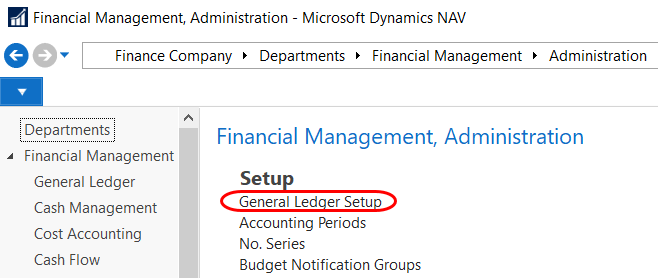
The General Ledger Setup can be accessed from Departments ▸ Financial Management ▸ Administration ▸ Setup ▸ General Ledger Setup
-
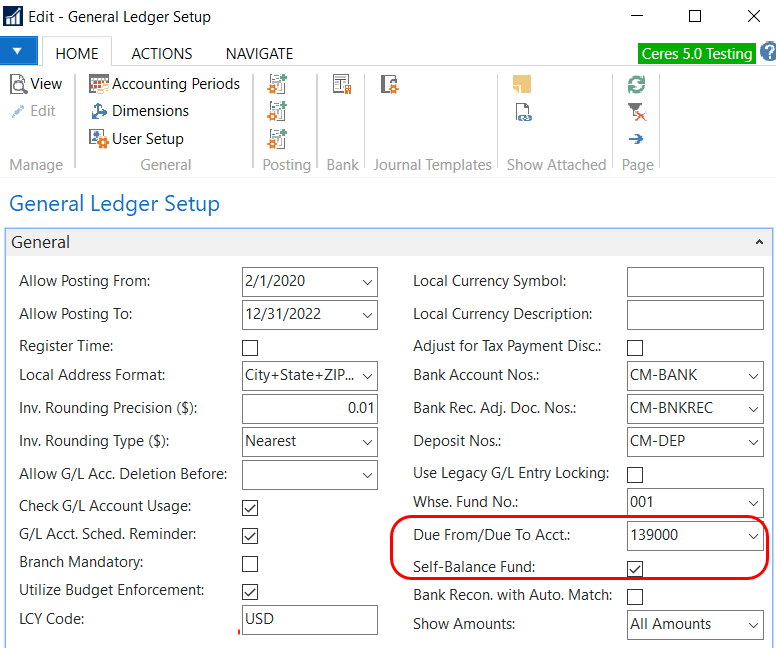
From the General Ledger Setup Page, General FastTab, update the Due From/Due To Acct field with the account number that will be utilized when a due-from or due-to entry is created by Ceres. If self-balancing by Fund is desired, check the Self-Balance Fund checkbox, which will activate self-balancing for all funds.
-
Checking or unchecking the Self-balance Fund checkbox, will generate the following confirmation message as this actions has financial implications.

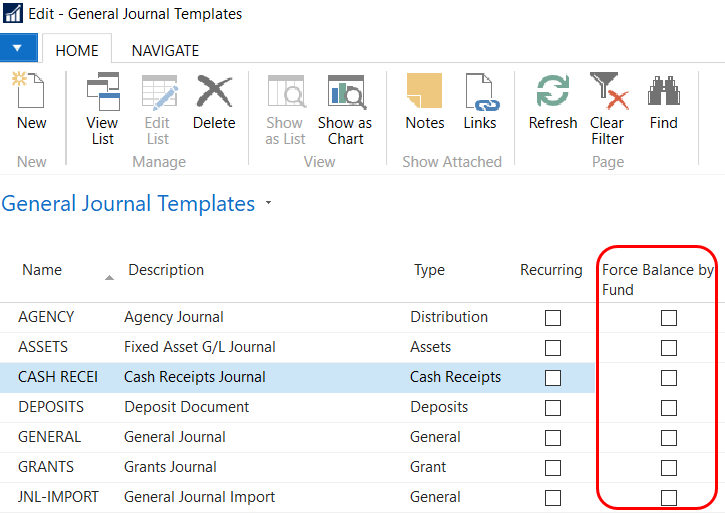
Force Balance by Fund
In order to use Self Balance by Fund or Dimension, you will need to de-activate the Force Balance by Fund flag in any General Journal template where you want the system to create the self-balancing entries. If you want to have some people or tasks forced to have funds balance on entry and some creating system balancing entries, you will have to establish new General Journal Templates to differentiate: one with Force Balance by Fund turned on and one with it turned off. See the General Journal Overview instructions for more specific instructions. The Force Balance by Fund option is set on the General Journal Templates Page, and then the established template rules carry over to the specific General Journals created with the selected template.
-
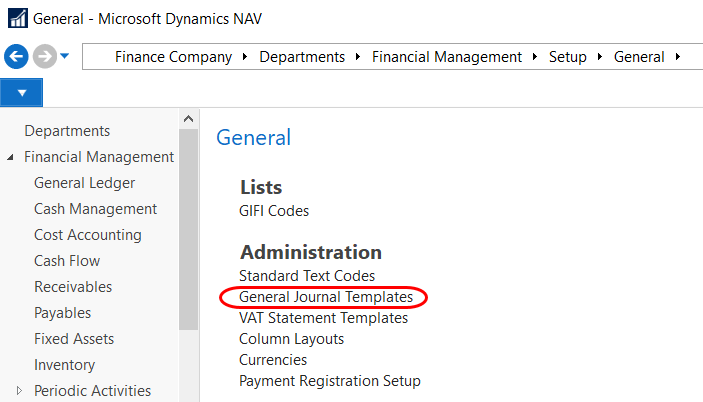
Journal Templates can be accessed from Departments Financial Management Setup General Administration General Journal Templates.
-
On every template, make sure the Force Balance by Fund is unchecked where you want system self-balancing entries to be created. If you leave Force Balance by Fund checked, the initial General Journal entry with different Funds will not be allowed to post.
Source Codes
-
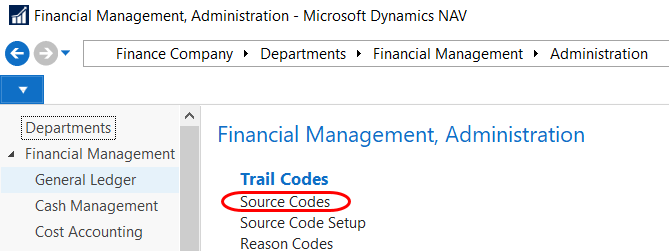
Source Code can be accessed from Departments Financial Management Administration Trail Codes.
-
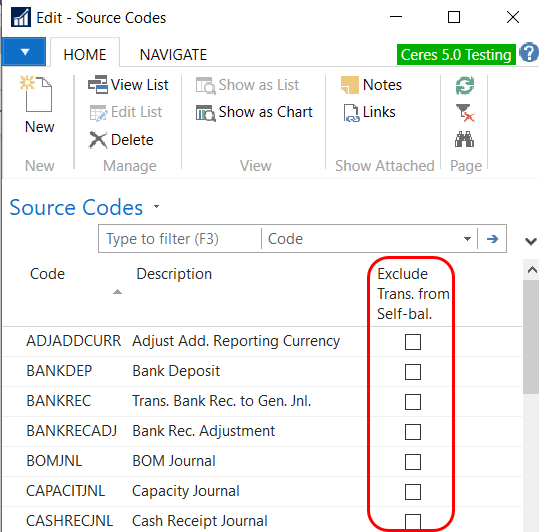
Once an element (Fund, Dimension, and/or Grant) has been designated as self-balancing, you can designate via Source Codes that a specific transaction source is not subject to self-balancing (i.e. no due-from/due-to entries will be created).
 note
noteThe default is not to exclude any transactions from self-balancing.
Funds
-
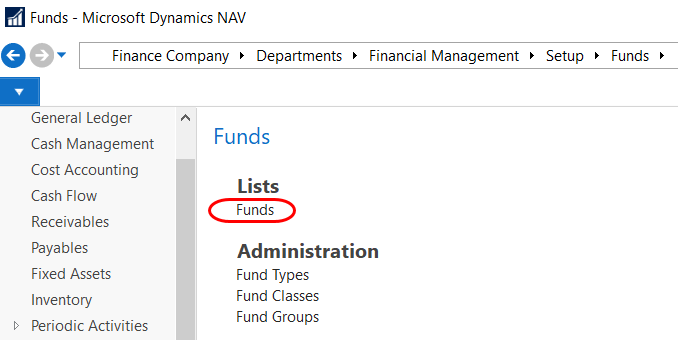
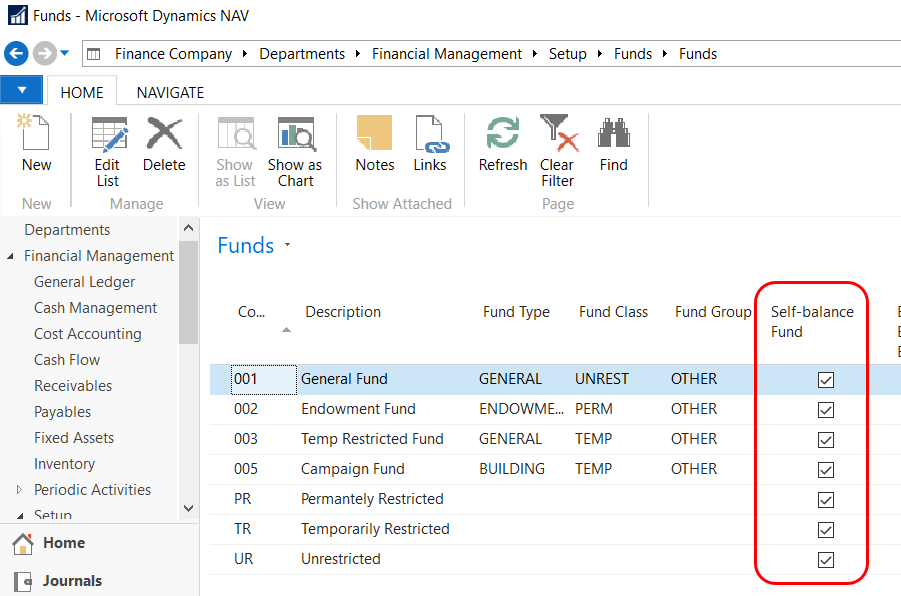
Funds can be accessed from Departments Administration Setup Funds List Funds.
-
The Self-balance Fund checkbox is read -only and will be selected for all funds if the Self-balance Fund checkbox on General Ledger Setup is checked and un-selected if it is not checked. This controls if due-from and due-to entries are created for transactions that cross a Fund. Refer to the Fund Overview Procedure Document for additional information on how to setup Funds.
Dimensions
-
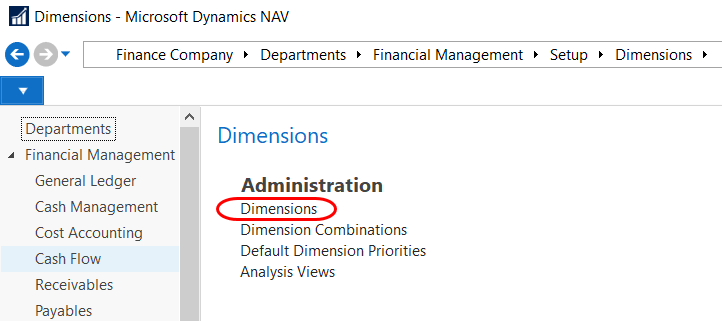
Dimension can be accessed from Departments Financial Management Setup Administration Dimensions.
-
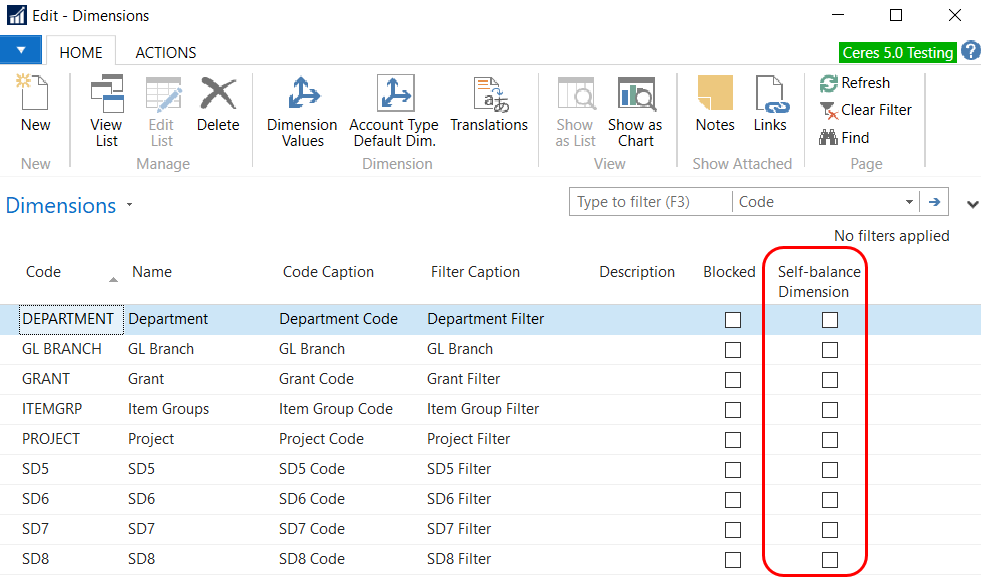
Select the Self-balance Dimension checkbox to control if due-from and due-to entries are created for transactions that cross a dimension value for that Dimension. Refer to the GL Dimensions and Dimension Value Procedure Document for additional information on how to setup Dimensions.
Grants
-
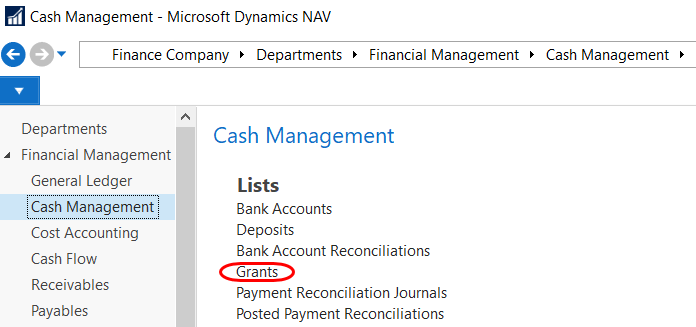
Grants are created/managed from Departments Financial Management Cash Management Lists Grants. Refer to the Grant Overview Procedure Document for more information on how to setup Grants.
-
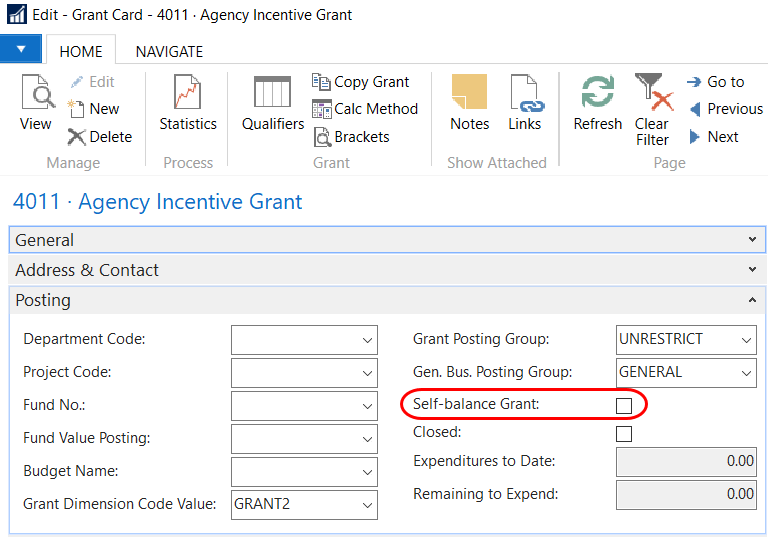
Select a Grant from the list by clicking on the Home Tab of the Ribbon and then selecting Edit. On the Posting FastTab of the Grant Card, select the Self-balance Grant checkbox to control if due-from and due-to entries are created for transactions that cross a Grant.
Bank Accounts
-
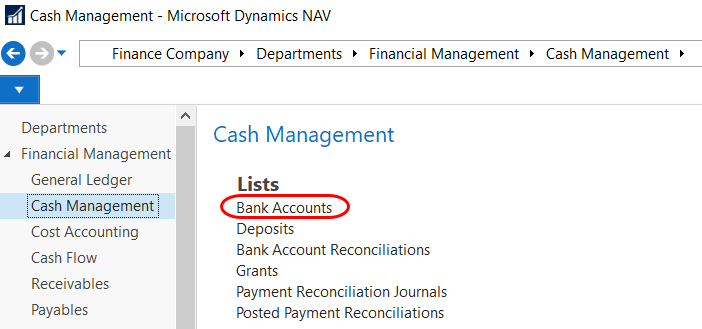
Bank Accounts are created/managed from Departments Financial Management Cash Management Lists Bank Accounts.
-
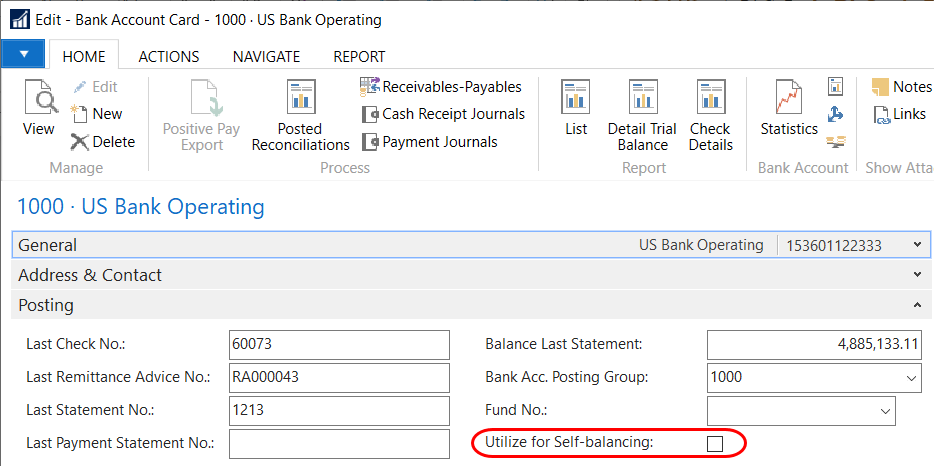
Select a Bank Account from the list by clicking on the Home Tab of the Ribbon and then selecting Edit. On the Posting FastTab of the Bank Account Card, select the select the Utilize for Self-balancing Inf field checkbox to utilize the Fund and/or Dimensions attached to a Bank Account to control if due-from and due-to entries are created for this Bank Account. Refer to the Bank Account Procedure Document for more information on how to setup a Bank Account.
Self-Balancing Processing
-
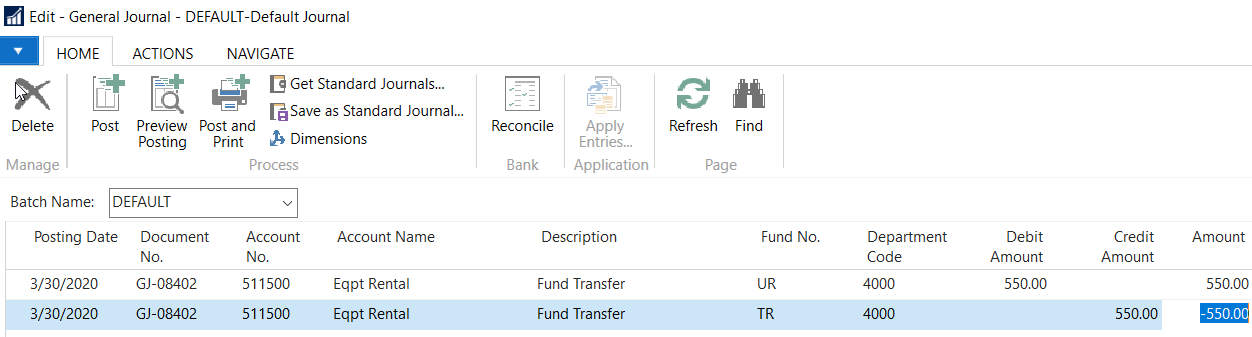
Self-Balancing applies to Funds, Dimensions, and/or Grants. When a transactions is posted to the General Ledger that crosses two self-balancing elements, Ceres automatically creates the necessary due-from and due-To entries. The following is a General Journal Entry where Funds are self-balanced is set:
-
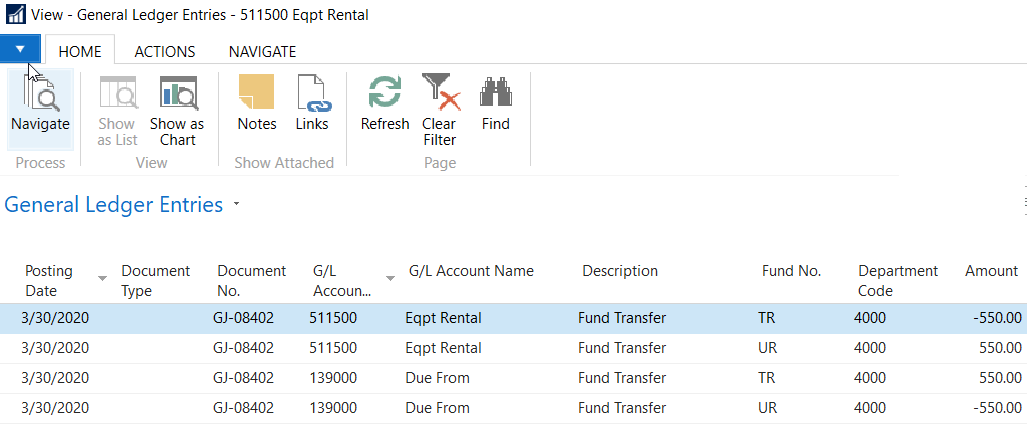
The following entries are created when the journal entry is posted. You can see in the highlighted rows that the Due To/From entries were automatically created to balance the journal by the Fund No.