Agency Ship-to Addresses
Agency Ship-to Addresses provide the ability to have one or more shipping addresses for one Agency. One of the Ship-to Addresses may be designated as the default ship to address. In the case of multiple ship-to addresses, the default should be set to the address that is most often used. During Agency Order entry in Ceres 5, the default ship address will be used; however, the user can override it at that time.
Ship-to Addresses can be shared as outlined in the Supplemental Addresses document, the functionality has some overlaps.
Ceres Object release 5.00.00 is required for the functionality described in this document.
Accessing Agency Ship-to Addresses
-
Agency Ship-to Addresses can be accessed from the Agency Card by going to Departments ▸ Financial Management ▸ Receivables ▸ Agencies.
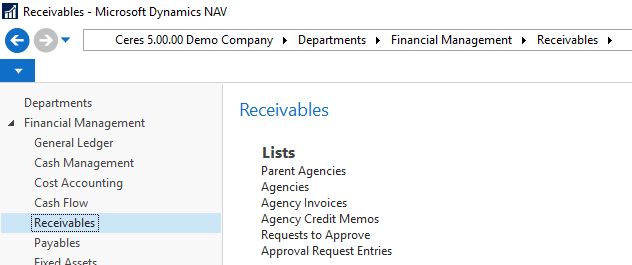
The list of Agencies will display.
-
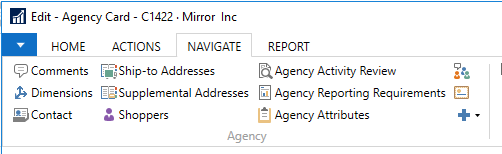
Select the Agency you wish to edit or add a new Ship-to Address to by clicking on it to highlight and then go to Navigate ▸ Agency ▸ Ship-to Addresses:
-
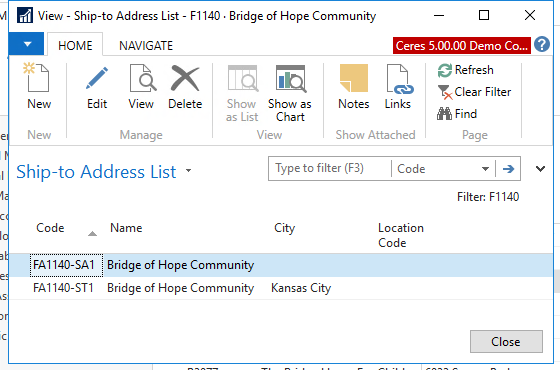
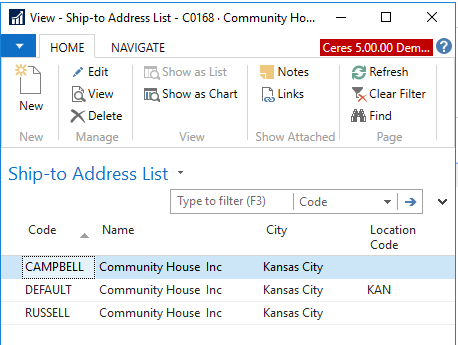
This will display a List of Ship-to Addresses currently setup for this Agency. Select New to create a new Ship-to Address. Right-click on any existing line and select edit to update an existing record, or click Edit from the Home Ribbon.
General FastTab
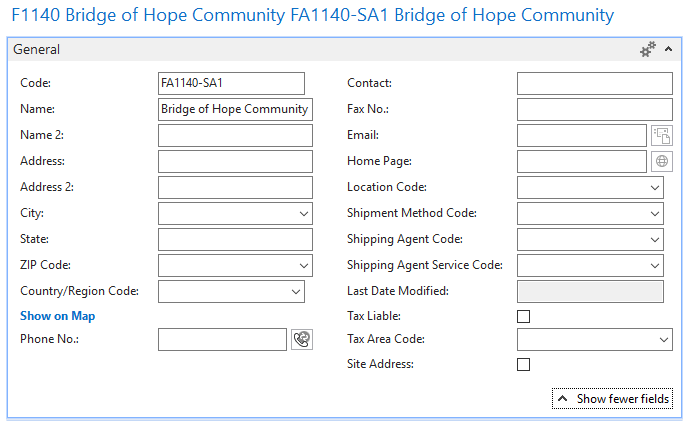
Code - This is the main identifier for the Ship to Address, which can be entered as any combination of text and numbers.
Name - Enter the Ship-to Name. You can enter a maximum of 50 characters, both numbers and letters.
Name 2 - An extension of the Name field, if needed.
Address - Enter the Ship-to Address. Additional addresses, phone numbers, and contact information can be setup using the Supplemental Addresses functionality.
Address 2 - An extension of the Address field, such as a suite number or building number. Up to 50 characters can be added here, using any type of text or numbers. Enter it as you want it to appear in printed documents.
City - Enter the city associated with the Ship-to Address.
State - Enter the state associated with the Ship-to Address.
Zip Code: Enter the zip code of the Ship-to Address.
If you fill in the ZIP Code field with a ZIP code that is linked to a single city in the ZIP Code table, the program fills in the City field automatically. If there is more than one city linked to the ZIP code, the program displays a list of the relevant cities for you to choose from. If the ZIP code is not set up in the ZIP Code table, you must enter the city manually.
Country/Region Code – Generally not used in Ceres
Show on Map - If selected, a window will prompt the user to select "This Address" or "Other":

If This Address is selected, a map will open with the Location of the address on the Card.
If Other is selected, a second window will open to ask the user to select how to display the map:

If Directions from my company is selected, the address from the Company Information settings in Ceres will be set as the Starting Address and the Agency’s address will be set as the To Address.
If Directions to my company is selected, the address on the Agency Card will be the Starting Address and your company address will be the To Address.
If Directions from another address is selected, a window will pop up asking for a Table Selection: This allows you to select an existing address in Ceres, such as another agency or vendor.

Based on the Table Selection, the Lookup Code field will provide available options (example shown is Customer/Agency):
Select Distance in Miles or Kilometers and Route: Quickest or Shortest.
The Destination Address will be the ship-to address of the Agency that you are currently viewing.
Finally, if Directions to another address is selected, a window will pop up as before, but the Agency Ship-to address will be the From Address and the address selected in the window will be the To Address.
Phone No. - Enter the primary number for the Ship-to Address telephone number. The field is 30 characters in length. A consistent format when entering the number, such as: (123) 456-7890, 123-456-7890 or (123) 456-7890 is recommended.
Contact - Enter the name of the person you regularly contact at this Ship-to Address.
Fax No. - Enter the Fax No. for this ship-to address if applicable.
E-Mail - Enter the email address for this Ship-To Address. You can enter a maximum of 80 characters, both numbers and letters. In the field is a button with a picture of an envelope on it. If your program is integrated with an e-mail system, you can click this button to open a window in which you can create and send a message. If you have entered an address in the E-mail field, Ceres automatically fills in this address in the To: field.
Home Page - Enter the URL for this Ship-to Address. You can enter a maximum of 80 characters, both numbers and letters. Clicking the button to the right of the field opens a browser and navigates to that URL.
Location Code - Enter the default location code for the Ship-to Address. If the Ship-to Address has a Location Code, Ceres will always suggest items from that particular inventory location when you enter agency orders for this Ship-to address.
Shipment Method Code - Select a Code for the shipment method to be used when you ship to this agency.
Shipment Agent Code - This field is used to specify a third party shipping company to be used to deliver to the Agency.
Shipping Agent Service Code - This field specifies the service level to be used when shipping via a third party shipping company specified by the shipment agent code. You must first select the Shipment Agent code before selecting a shipping agent service code.
Last Date Modified - This field is maintained by Ceres and displays the date the Ship-to Address was last modified.
Tax Liable - Sales tax related field that is currently not being used.
Tax Area Code - Sales tax related field that is currently not being used.
Site Address - This field designates this Ship-to Address is a site address.
Information FastTab

Roadnet Location Type - Select a Roadnet Location Type from the drop-down, if applicable.
Creating a Default Ship-to Address for the Agency
For Agencies that have multiple Ship-to Addresses in addition to the main agency address, this function automatically creates a default Ship-to Address that is the same as the Agency’s main address. When you use the function, it copies the name, address, contact, and phone number from the agency card into a new ship-to address with a code of DEFAULT.
-
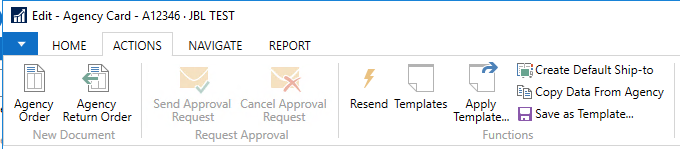
To use this function, select Actions ▸ Functions ▸ Create Default Ship-to from the Agency Card.
-
Ceres will prompt you with a message confirming you want to create the default Ship-to Address.

-
Press Yes to complete the function. If the Agency already has a default Ship-to Address, you will receive an error message stating that the address already exists. Upon successful creation Ceres will report this with the Update complete message.

 note
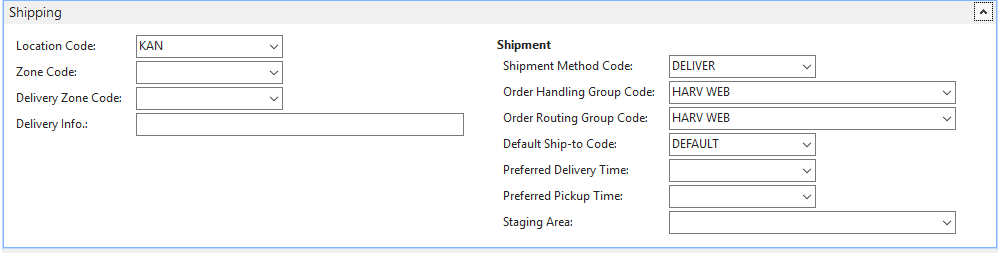
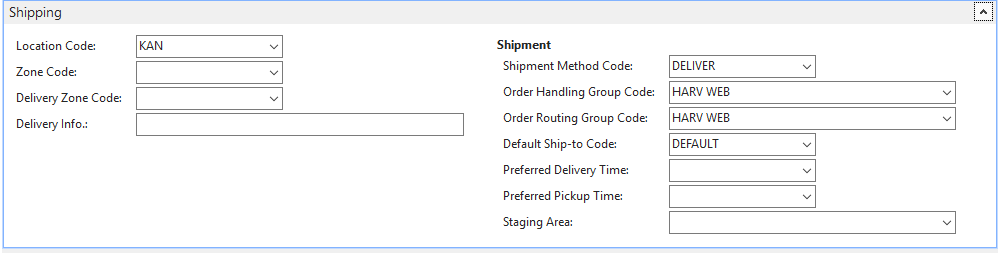
noteAfter creating a default ship-to address, the system will assign the code of DEFAULT to the Agency’s Default Ship-To Code: on the Shipping FastTab of the Agency Card. Also, the DEFAULT Ship-to address can be deleted in the Ship-to Address list, or a different address can be created with a code of DEFAULT, in which case it will be used as the default Ship-to address.
When creating an Agency Oder, the Ship-to will be set to Alternate Shipping Address, and the DEFAULT Ship-to address will automatically be populated on the Shipping and Billing FastTab. The Ship-to and Code can be changed if the order needs to be shipped to another one of the Ship-to locations for the agency.