Agency Days and Hours Setup
The Agency Days and Hours functionality provides Ceres 5 users with the ability to record the days and hours of operation of the various Agencies. This is required reporting information for some grants such as the State of NY HPNAP, but is also useful information for all food banks in making determinations of Agency Capacity. It differs from Agency Preferred Days and Hours, which tracks the times and dates that agencies prefer to receive deliveries from the food bank.
Ceres Object release 5.00.00 is required for the functionality described in this document.
Agency Days and Hours Setup
Accessing Agency Days and Hours
-
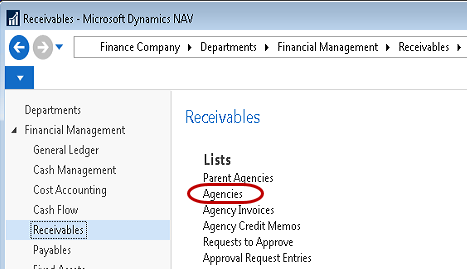
Agency Days and Hours may be accessed from either the Agency List or the Agency Card. In either case it is accessed from the Navigation ribbon available on the Agency Card or Agency List. Go to Departments ▸ Financial Management ▸ Receivables ▸ Agencies.
-
You will see the list of Agencies. With the correct Agency highlighted, select Navigate Distributions Agency Days and Hours.

-
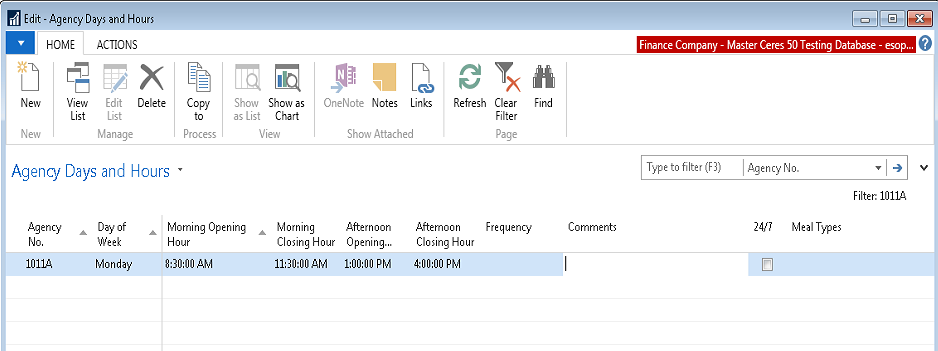
To edit an existing record, click on the line you wish to change.
-
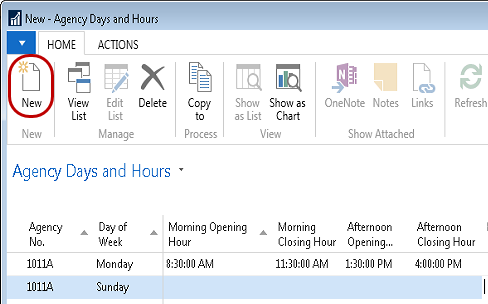
To create a new line, either move the next available line and begin entering, or click New in the Home Ribbon.
-
Enter the day of week or use the AssistButton to select the day of week.
-
Enter the hours of operation by filling in the Morning Opening Hour, Morning Closing Hour, Afternoon Opening Hour, Afternoon Closing Hour and Frequency. You can use F8 to copy from the line above. Frequency could be Weekly, Bi-Weekly, Monthly or similar.
-
Enter any Comments and Meal Types served related to that day.
-
Check the 24/7 field if appropriate.
 note
noteThe key to the Agency Days and Hours table includes the Agency No., Day of the Week and the Morning Opening Hour fields. If you change any of these on an existing line the system will ask you to confirm that you are renaming the record.

Copy to Functionality
-
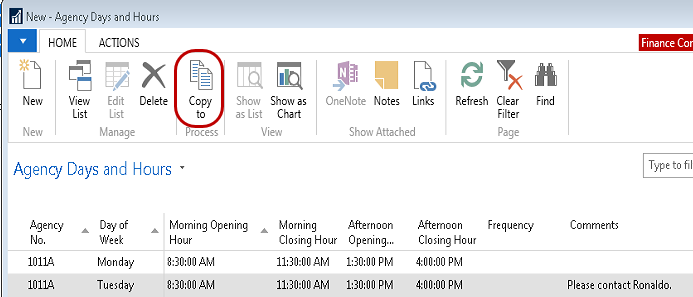
If you have several Agencies with similar hours you may use the copy function to update other agencies. To use this function select the Home Copy to function.
-
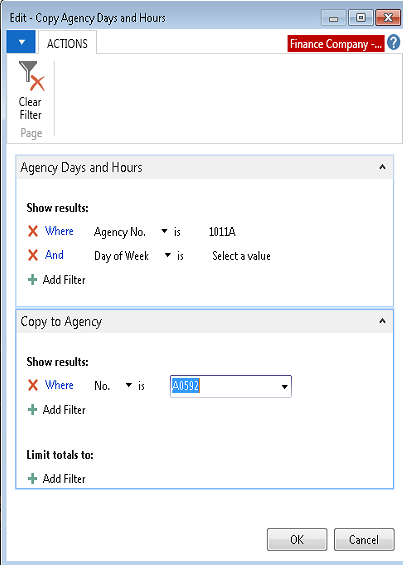
From the Copy Agency Days and Hours FastTab you can filter the copy from records. By default the current Agency and all days will be used. You may change the filters to only copy a particular day or days. If you copy records to another Agency and the record already exists, the existing records will not be overwritten.
-
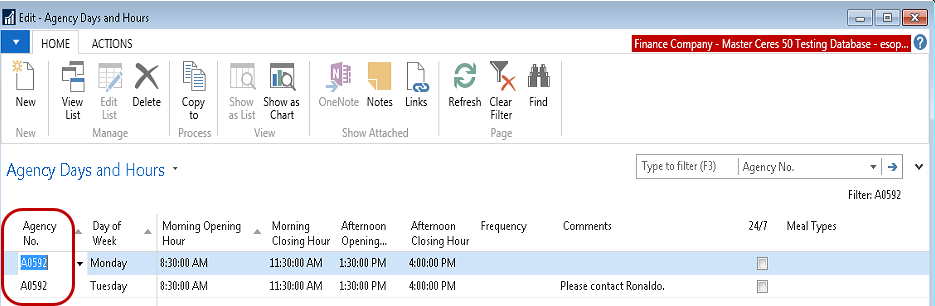
In the Copy to Agency FastTab, filter the Agencies you want to copy to. In the example above, Ceres will copy all days of the week for Agency 1011A to Agency A0592. Press OK to copy the records.
Agency Days and Hours Page and Report
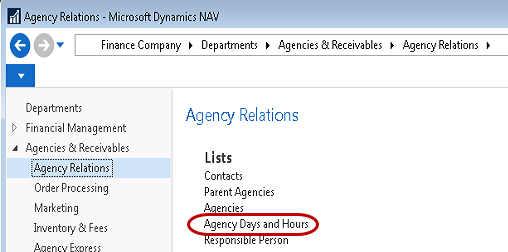
An Agency Days and Hours List page can be displayed that is based on the setup outlined above. To view the List, go to Departments ▸ Agencies & Receivables ▸ Agency Relations ▸ Agency Days and Hours.
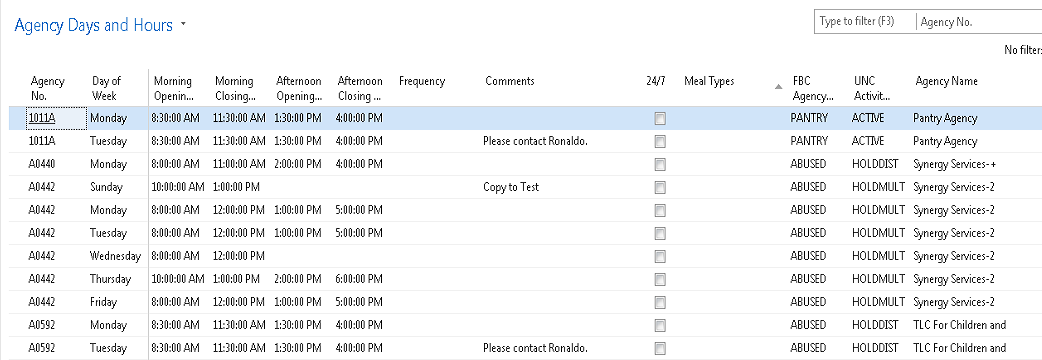
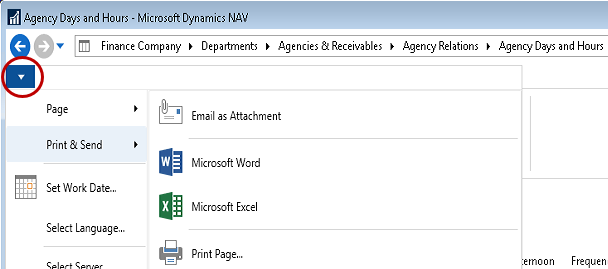
You can also export the Days and Hours Page to Excel or Word using base Ceres functionality.
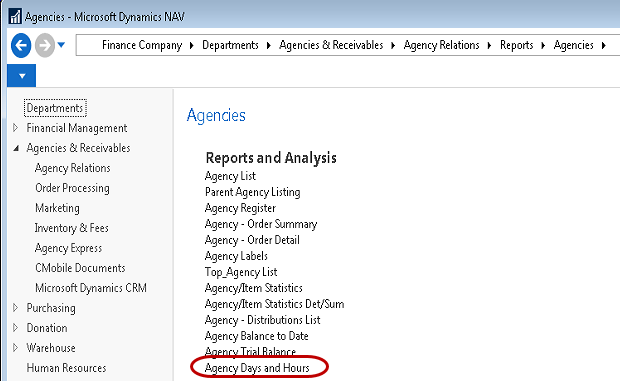
The Ceres report can be accessed as follows: Departments Agencies & Receivables Agency Relations Reports Agencies:
-
On the Options FastTab, place a checkmark in the Print Detail field if you would like the Agency Name, Address and other contact information to print.
-
On the Agency Days and Hours FastTab you can set filters for Agency No, City, Zip Code, etc. to limit what prints on the report.
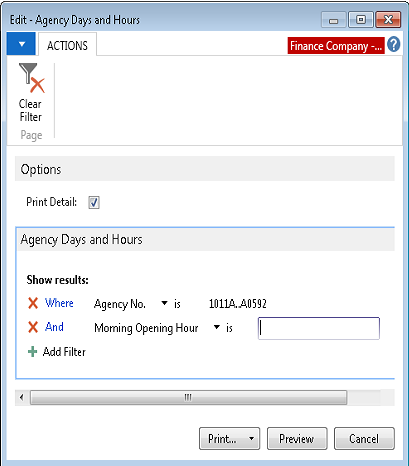
In this example, only Agencies 1011A through A0592 would be included and since Print Detail has been checked, the Agency information will be included.
-
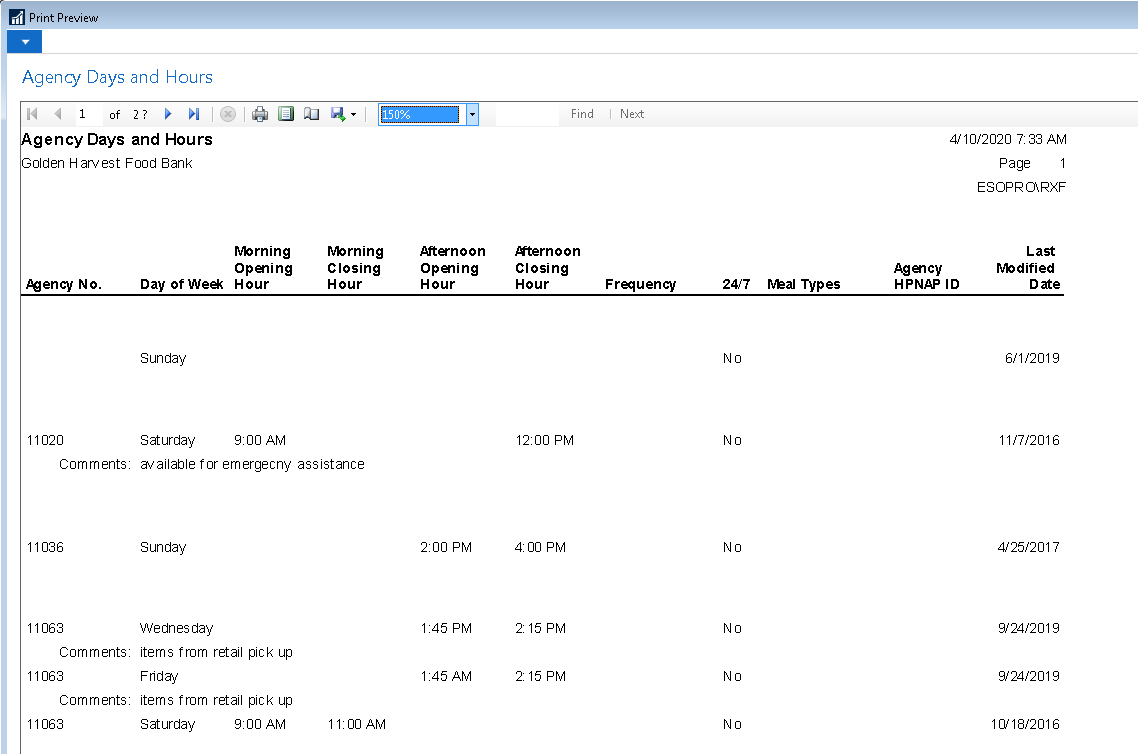
Select Print to print a hard copy of the report, or Preview to preview the report before printing.
-
The report data can also be exported to Excel using base Ceres capabilities.
