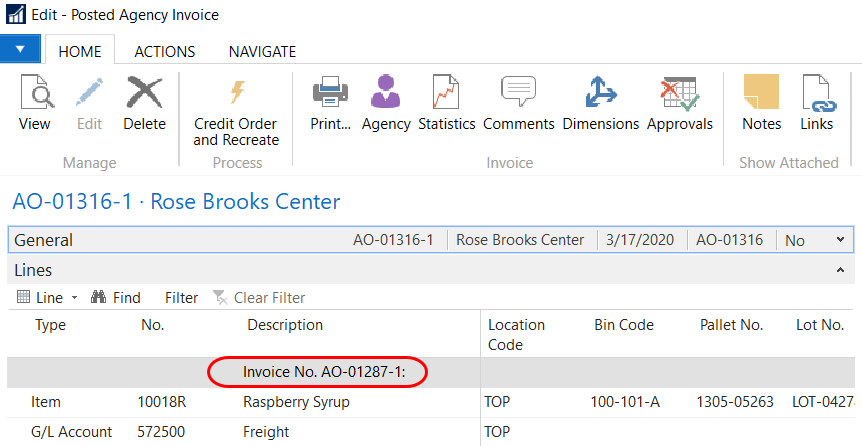
Agency Credit Order and Recreate
This process provides an easy method to reverse a Posted Agency Invoice and replace it with an open Agency Order. This process is normally needed to reverse an Agency Order that was posted incorrectly – for example, missing Delivery Fees or a Grant application. This new function will create and post an Agency Return Order/Credit Memo (which is applied to the Posted Invoice) and then create a replacement Agency Order in Ceres 5.
Ceres Object release 5.00.00 & 5.00.54 are required for the functionality described in this document.
Initial Setup
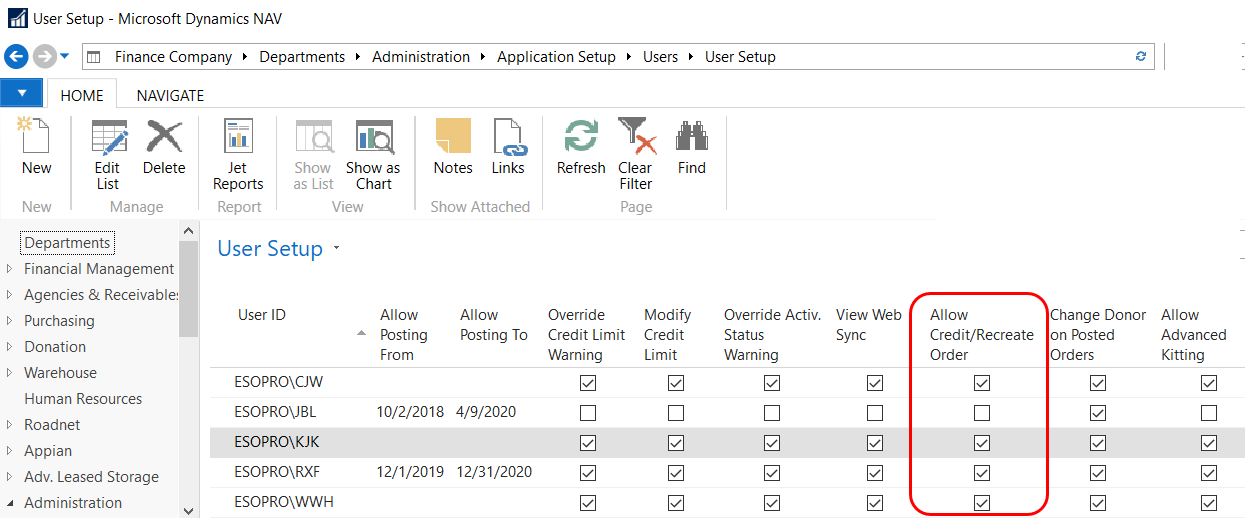
The ability to credit a Posted Agency Invoice and recreate a new order is controlled on a per-user basis. To allow users to use this functionality, go to Departments ▸ Administration ▸ Application Setup ▸ Users ▸ User Setup.
-
Place a checkmark in Allow Credit/Recreate Order field for each user who should have this ability.
Crediting and Recreating the Agency Invoice
-
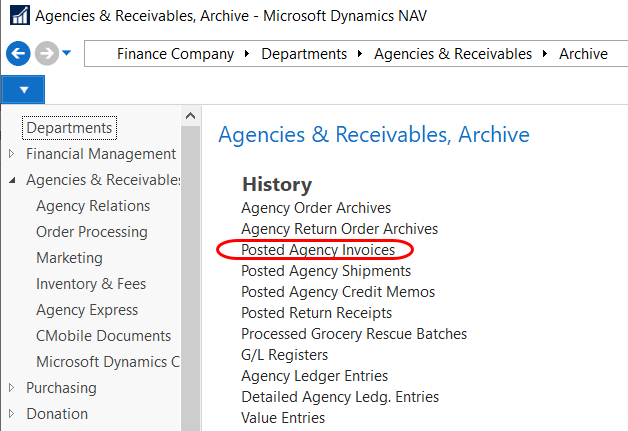
To initiate this process for a posted Agency Invoice, go to Departments ▸ Agencies & Receivables ▸ Archive ▸ Posted Agency Invoices.
-
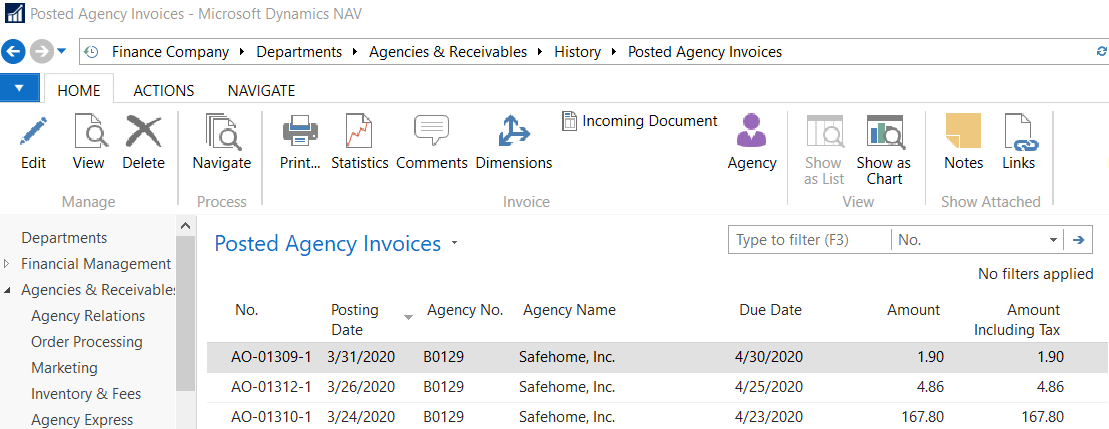
Locate the invoice you want to credit and recreate. Once you have located the invoice, double click it to open.
-
Click on the Home Tab of the Ribbon and then select Credit Order and Recreate.

-
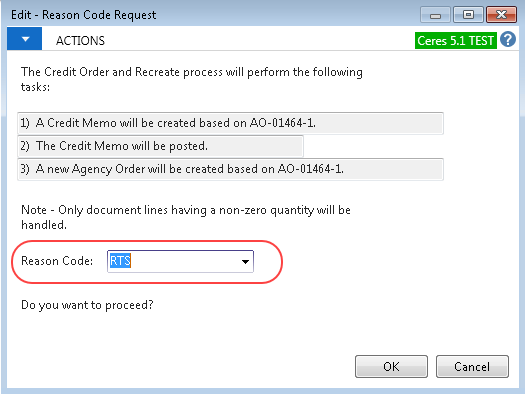
Ceres will automatically create a return order/credit memo, referencing the original invoice, and at the same time create a new Agency Order. A pop-up window will alert the user to what is about to happen. You will be required to enter a valid reason code for the return order/credit memo. After entering the reason code, click OK if you want to proceed. If you wish to cancel the process, simply click Cancel.
-
If you fail to enter a valid reason code, this error message will be displayed.

-
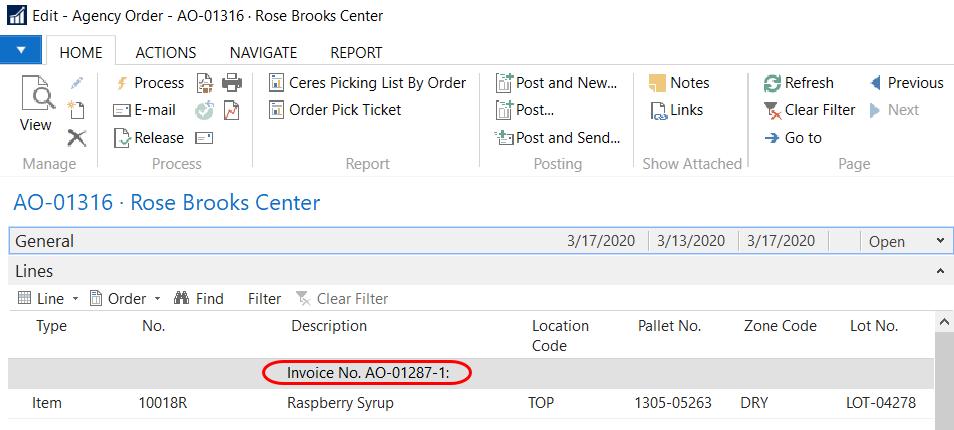
The process will create a Return Order/Credit Memo and post it. At the same time, a new Agency Order will be created. The new Agency Order will have a reference to the original invoice.
-
Proceed to make the necessary changes. The following rules apply to what can be changed.
- You can change or update the Unit Fee on the lines.
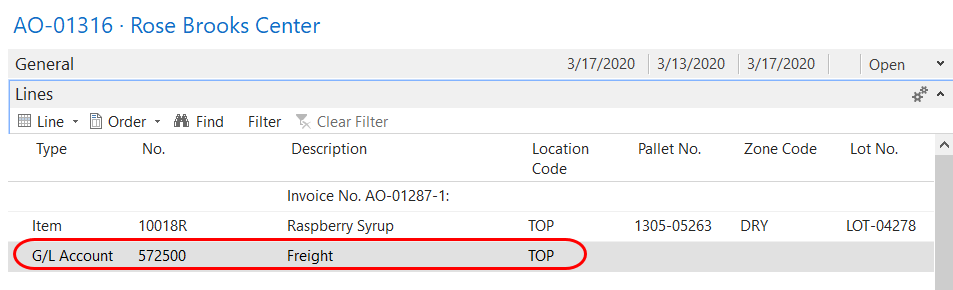
- You can add a new line with the Line Type of G/L Account or Charge (Item) only. This is if you want to add Delivery Fees to the order or apply a Grant.
- You can change existing Item quantities.
- You can remove existing Item lines from the order.
- You can add additional Item lines to the order.
- You can delete the replacement order.
-
Once all changes are completed, release the new order and post it. If picks are required, a new pick needs to be created first before you can post the order. Process the pick like you normally would.
-
The newly Posted Agency Invoice will have a reference to the original invoice.